3D Model Management
Upload 3D Model
Part Number will be extracted from the 3D file name, so files should be named according to the following standard: [PartNumber][IdentificationCharacter][OtherInformation]. IdentificationCharacter can use the following characters: underscore ”_”, space ” ”, period ”.”
Note:
The dash ”-” will be understood as a component representation in the Part Number.
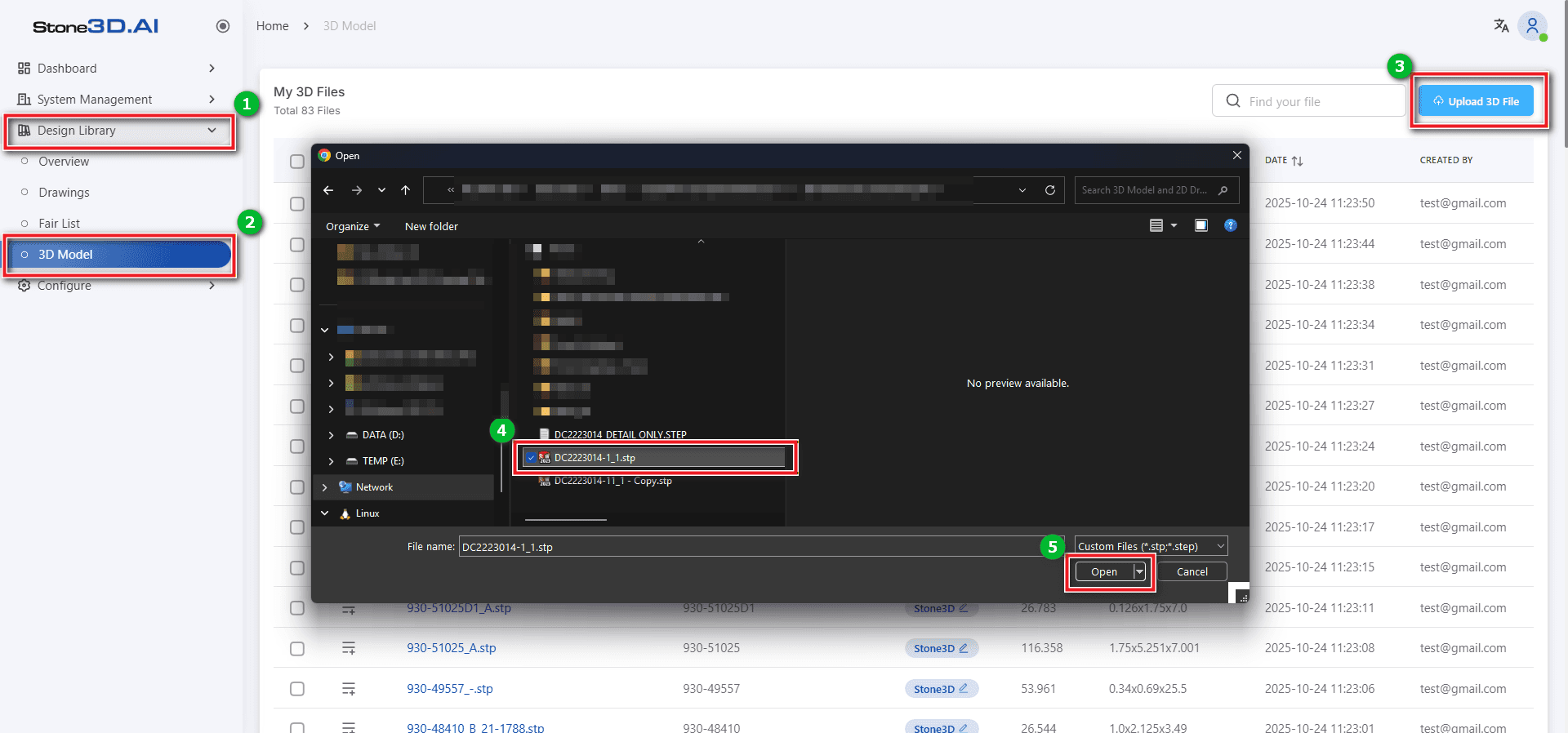
Step 1: Left-click on the menu Design Library >> 3D Model >> Upload 3D Model >> Select file with *.STEP or *.STP format >> Open.
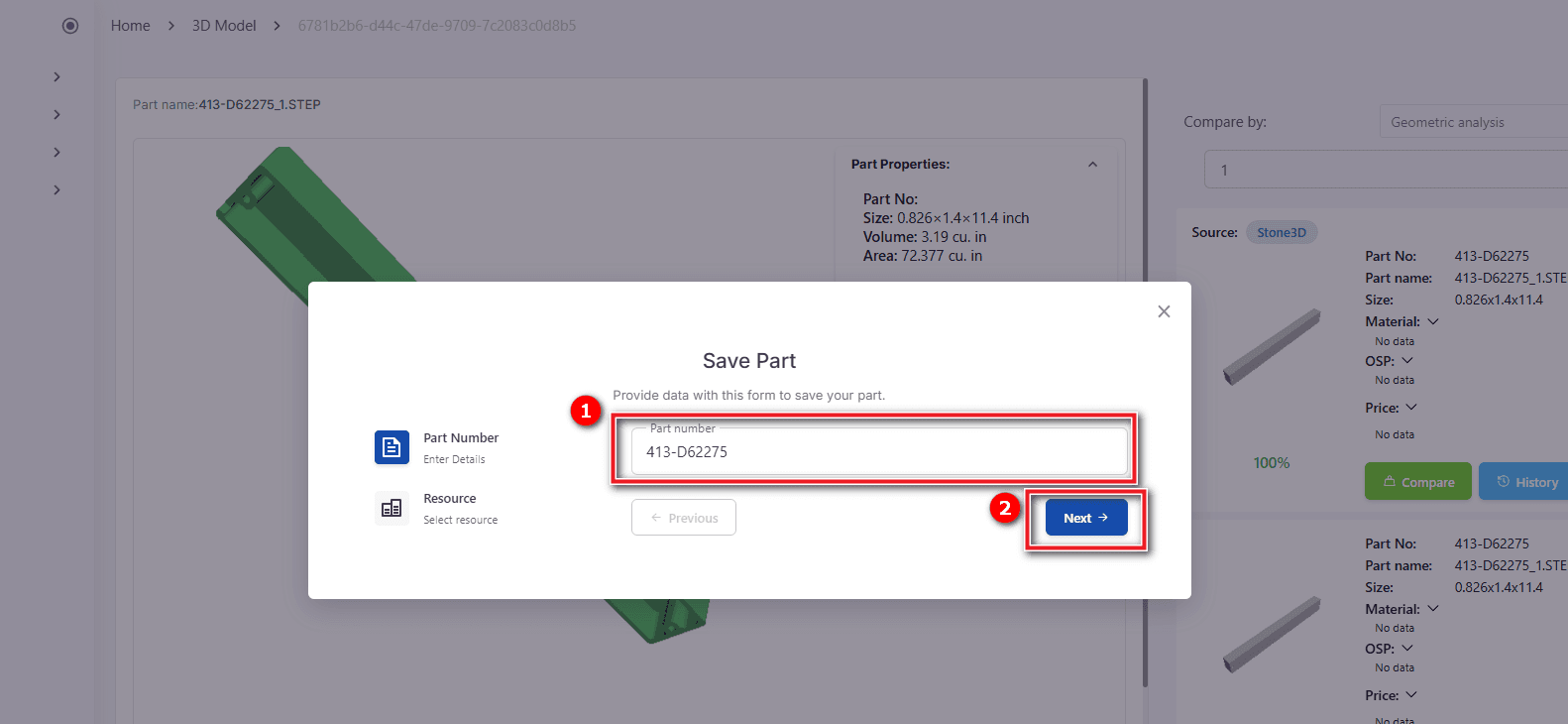
Step 2: Left-click on the Save Part button >> Enter new Part number or leave default >> click Next.
Step 3: Select data storage source (the example below is from the stone3D system itself)
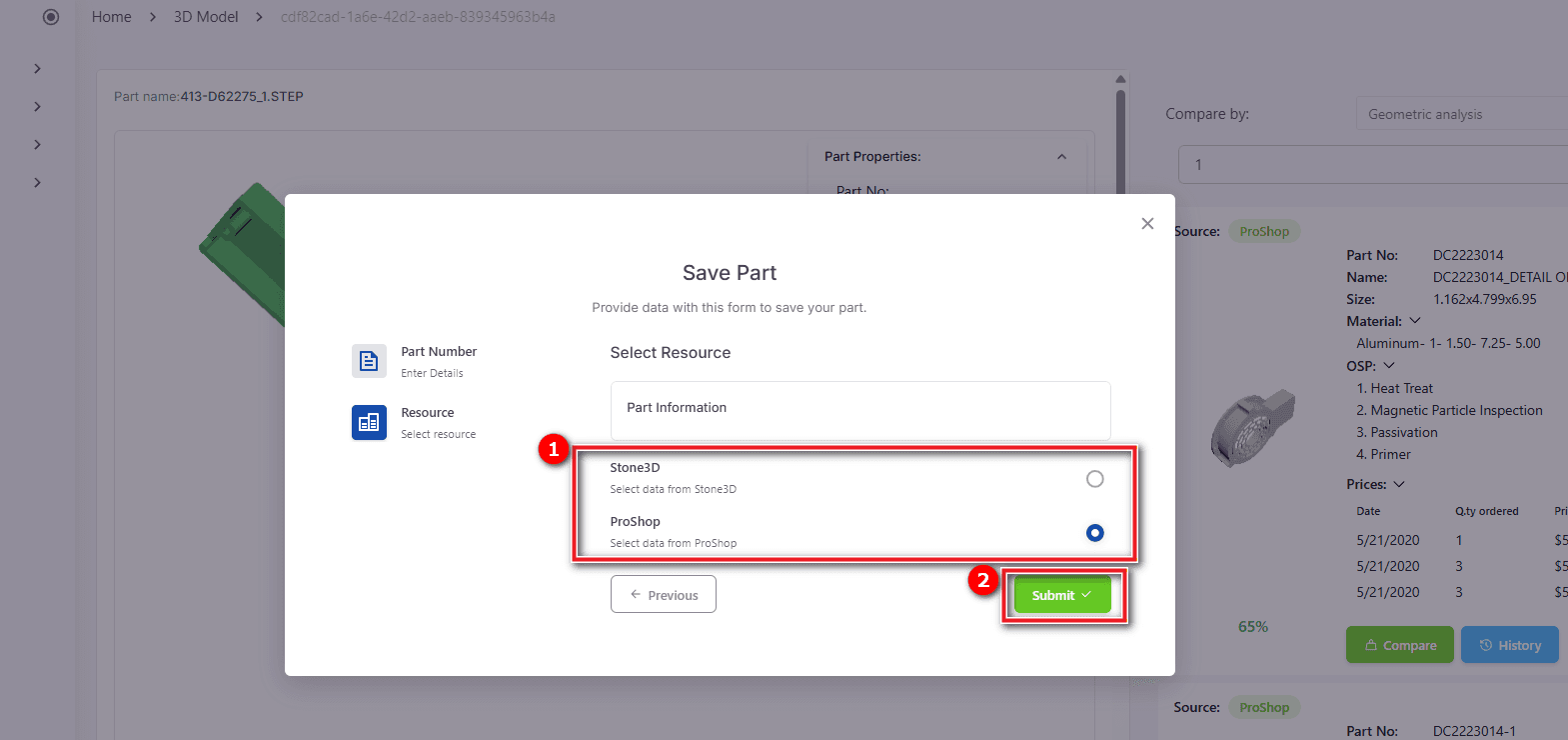
Wait for the software to notify successful file upload.
Open and Retrieve Information
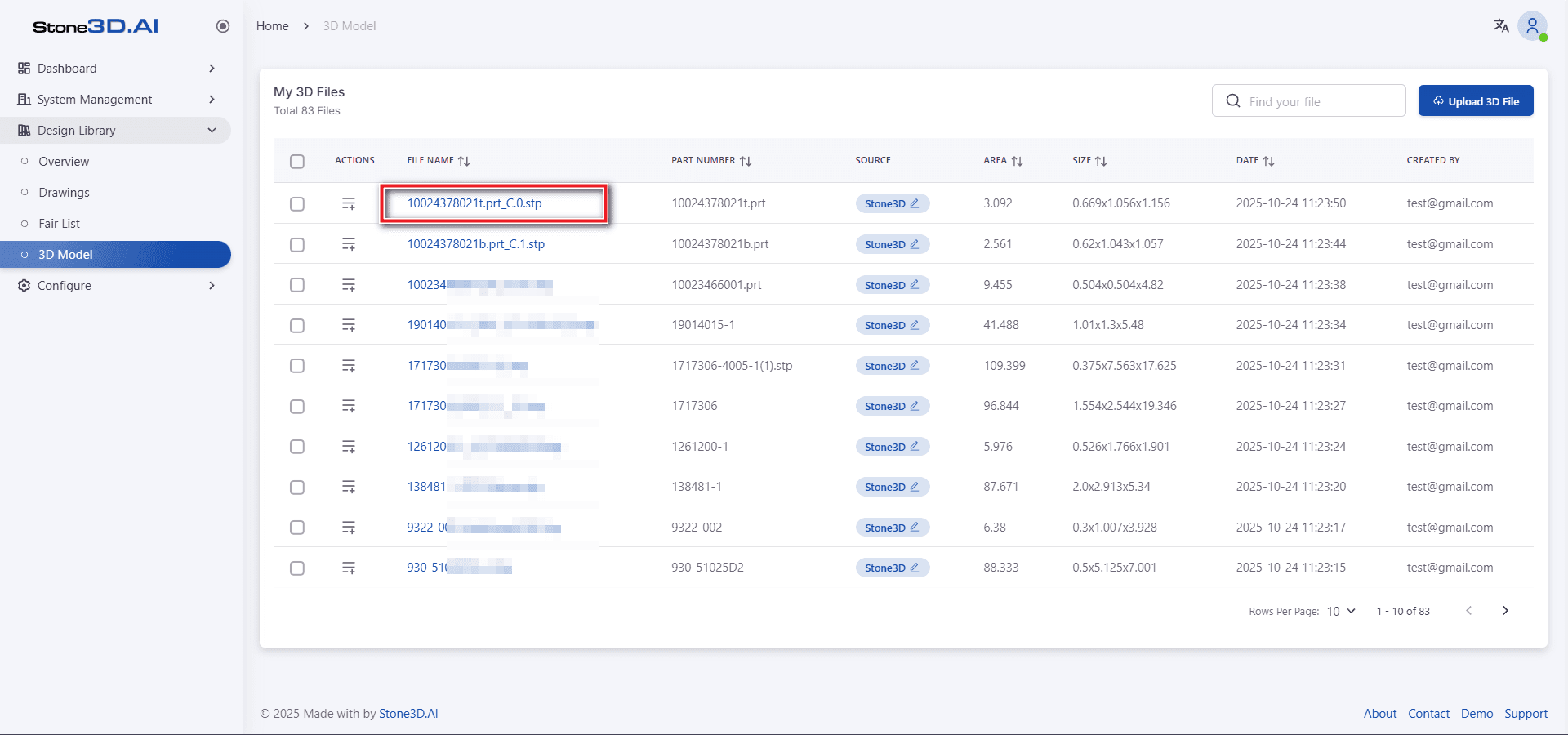
From the 3D model list, select the file name you want to open, left-click to open the file.
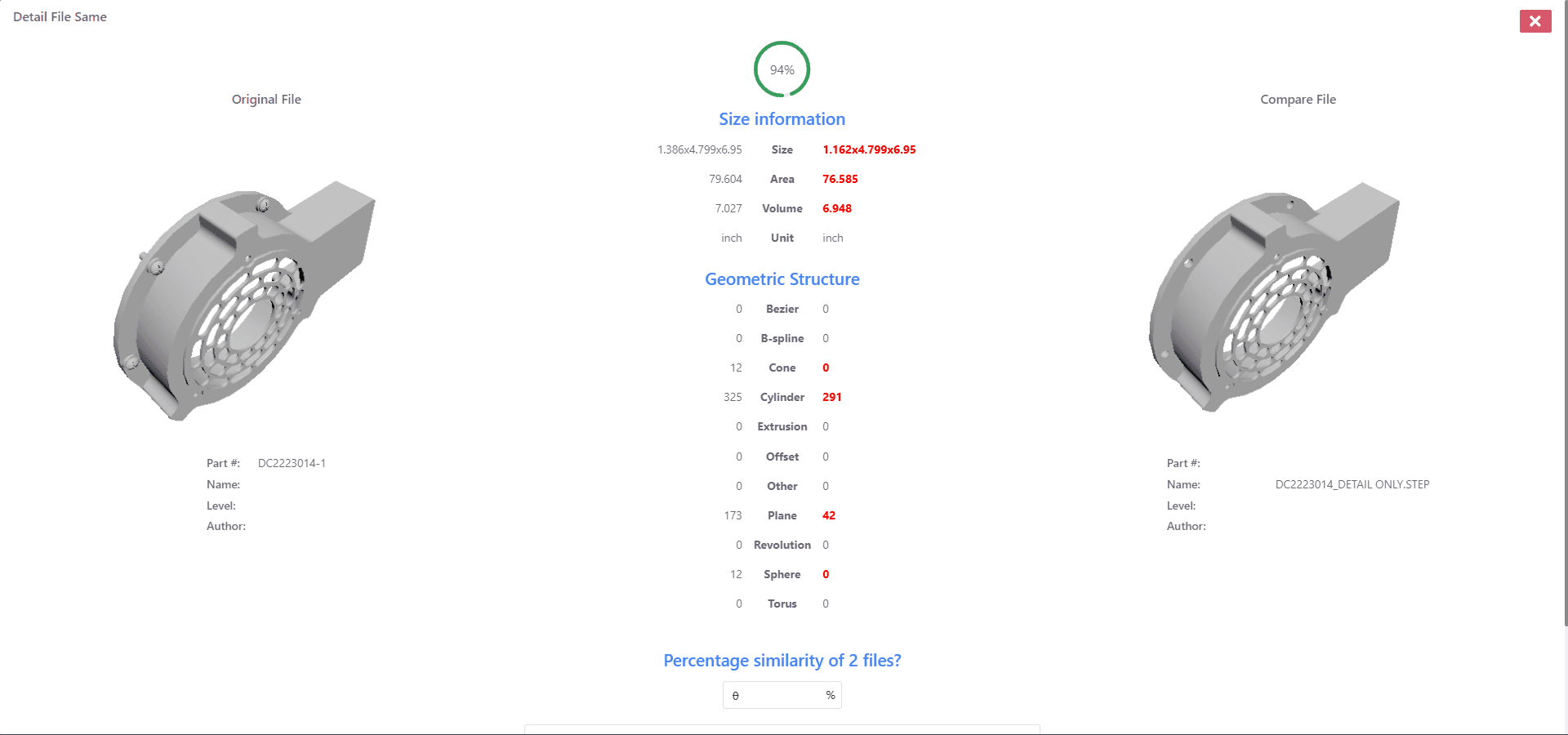
The interface will load the 3D model and automatically extract the model’s geometric information. At the same time, the software will search for geometrically similar 3D models in the storage system and evaluate the degree of similarity.
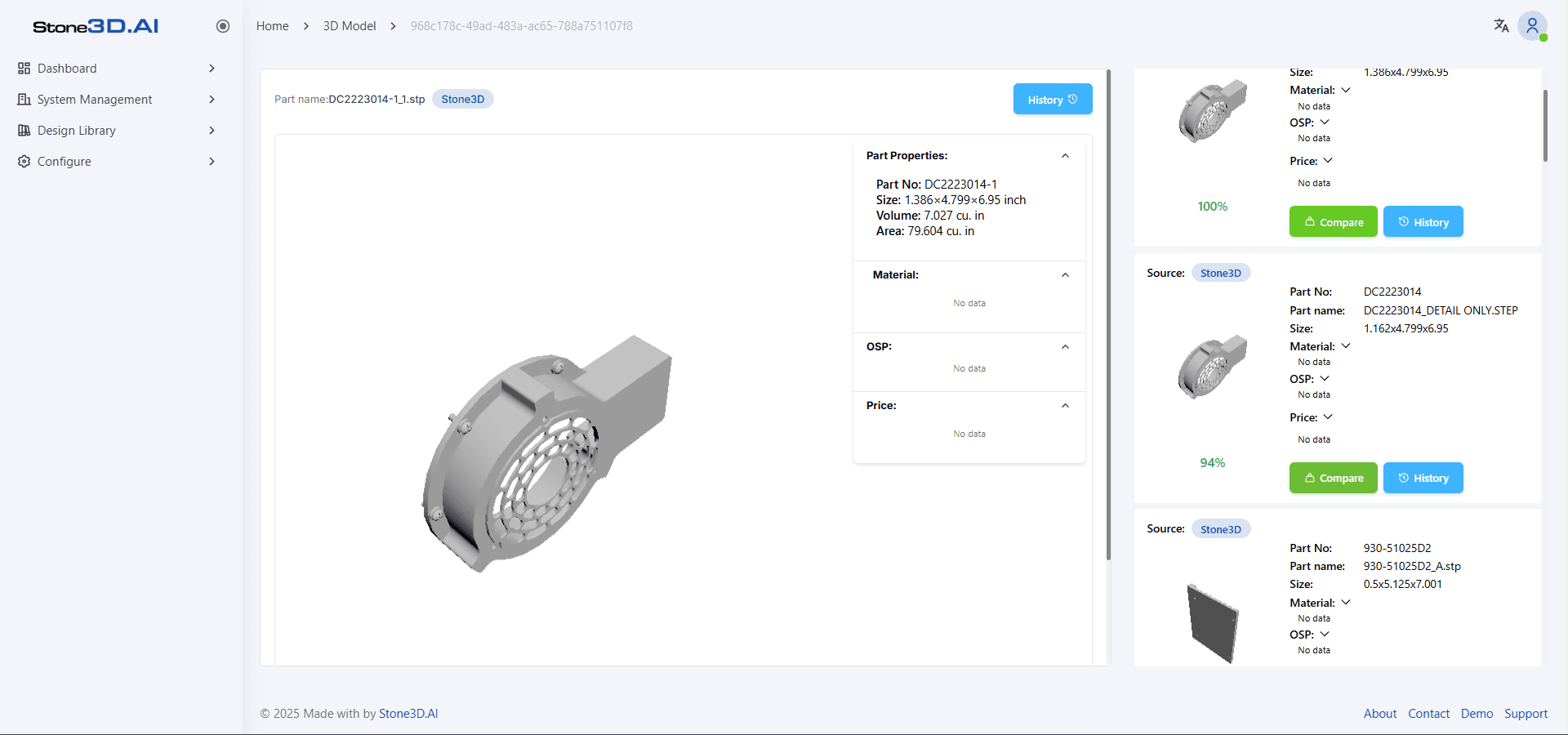
Weight applied for 3D comparison:
| Geometric | Weight | Material |
|---|---|---|
| PointNet_Features | 40% | If there is a part with a geometric similarity of over 99%, assign the material of the most similar part to the current part. If not, do not compare the material. |
| Bounding Box oX | 5% | |
| Bounding Box oY | 5% | |
| Bounding Box oZ | 5% | |
| Area | 10% | |
| Volume | 10% | |
| plane, cylinder, cone, torus, bezier, revolution, extrusion, offset, other, bspline, … | 25% (evenly distributed among the fields present in the 3D part) |
To view detailed comparison information between 2 3D models, left-click on the [Compare] button:
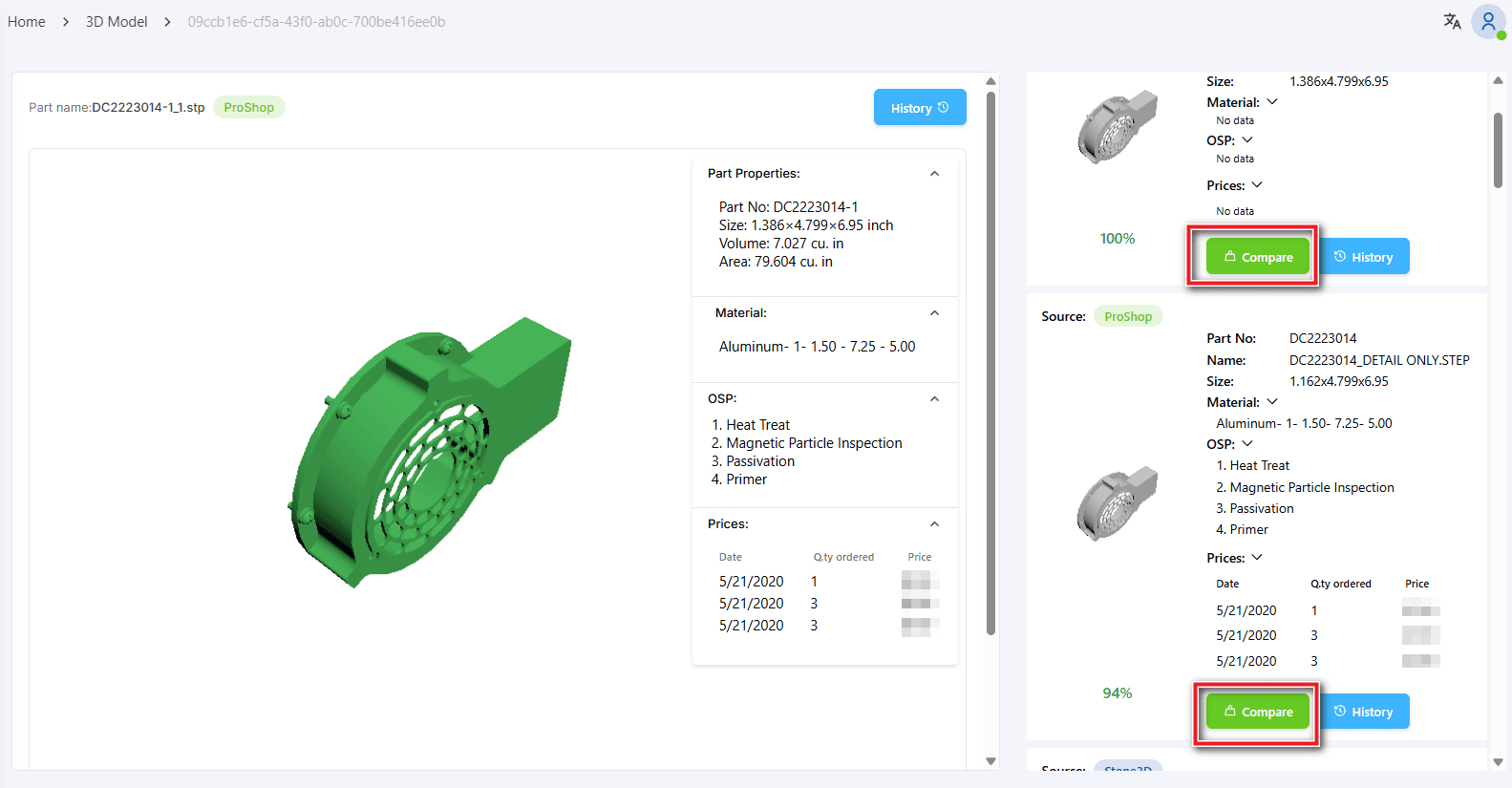
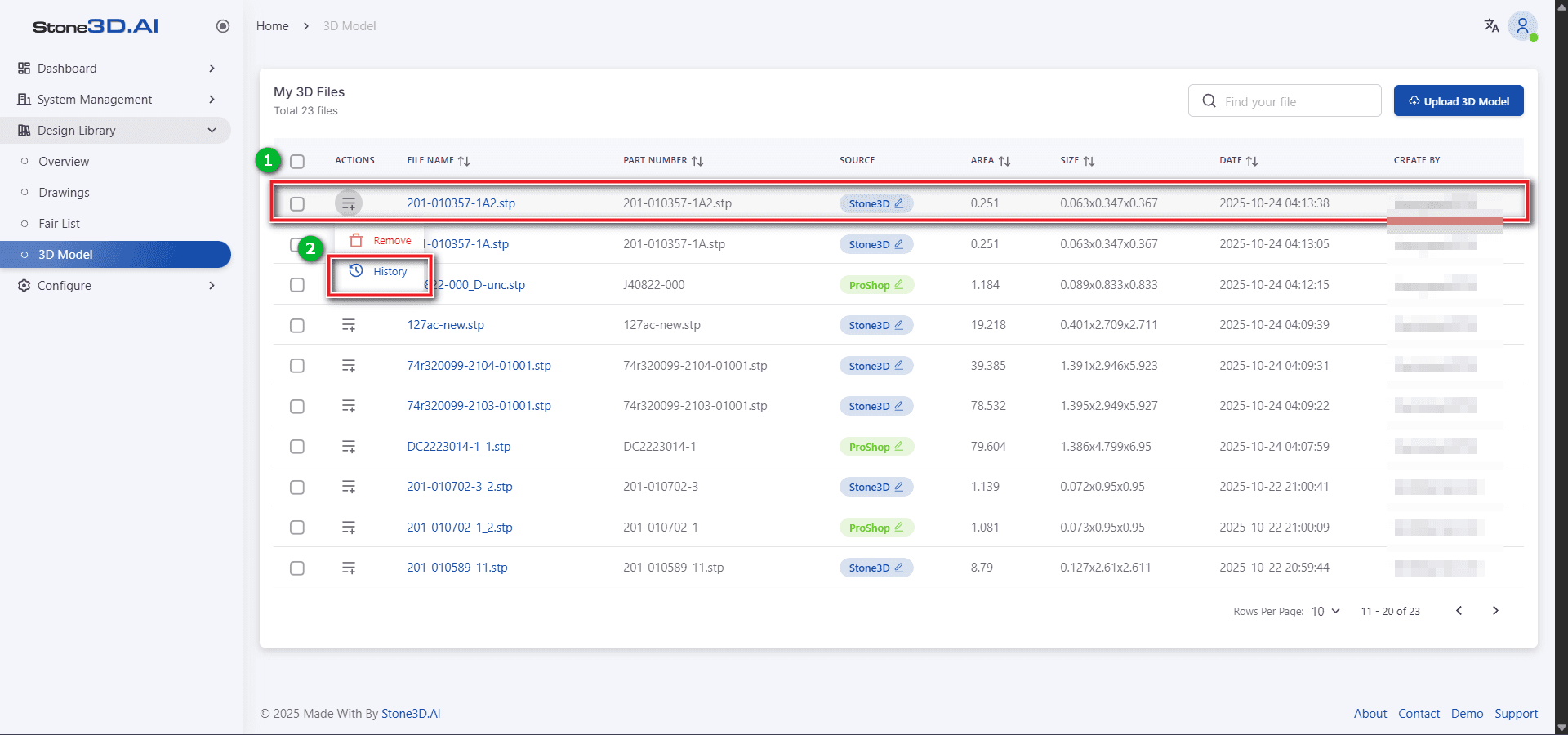
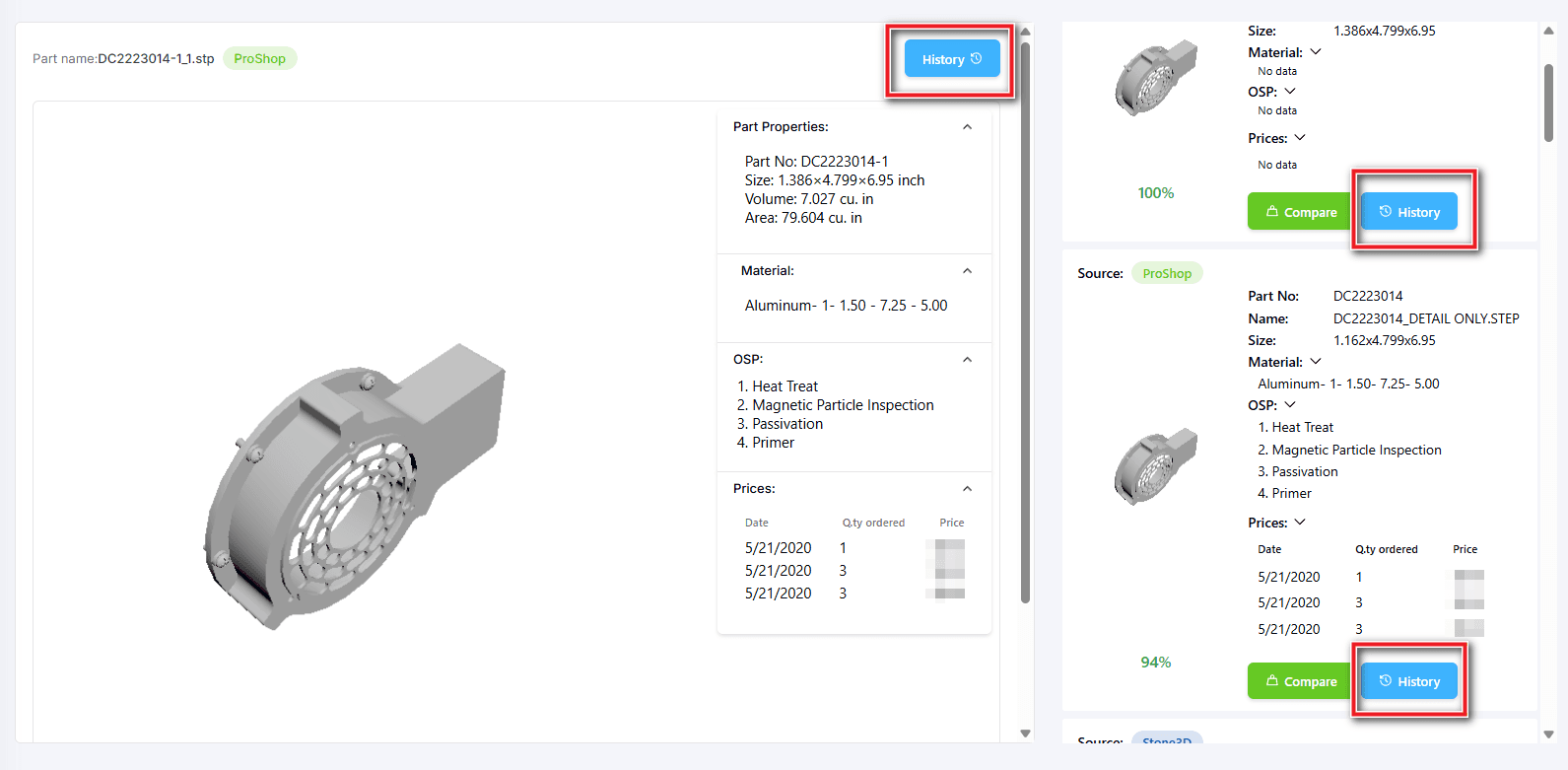
To retrieve part history information (only effective after ProShopERP integration), left-click on [History] in the ACTIONS tab in the part list table or the [History] button in the 3D model viewer:
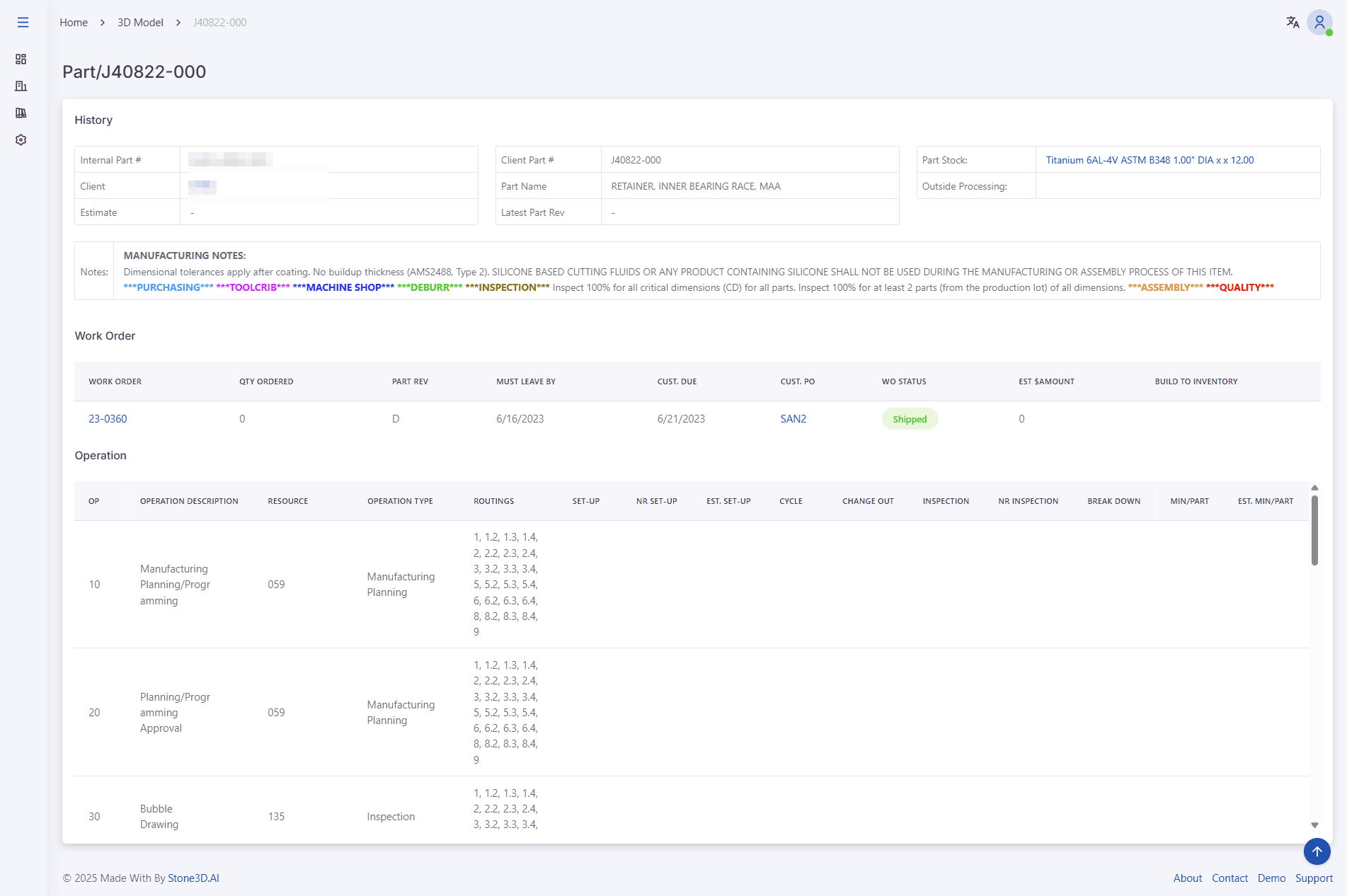
On the part history view page, users can navigate to view detailed information about client, part stock, outside processing, work order, customer po, operation, etc.
Search Model
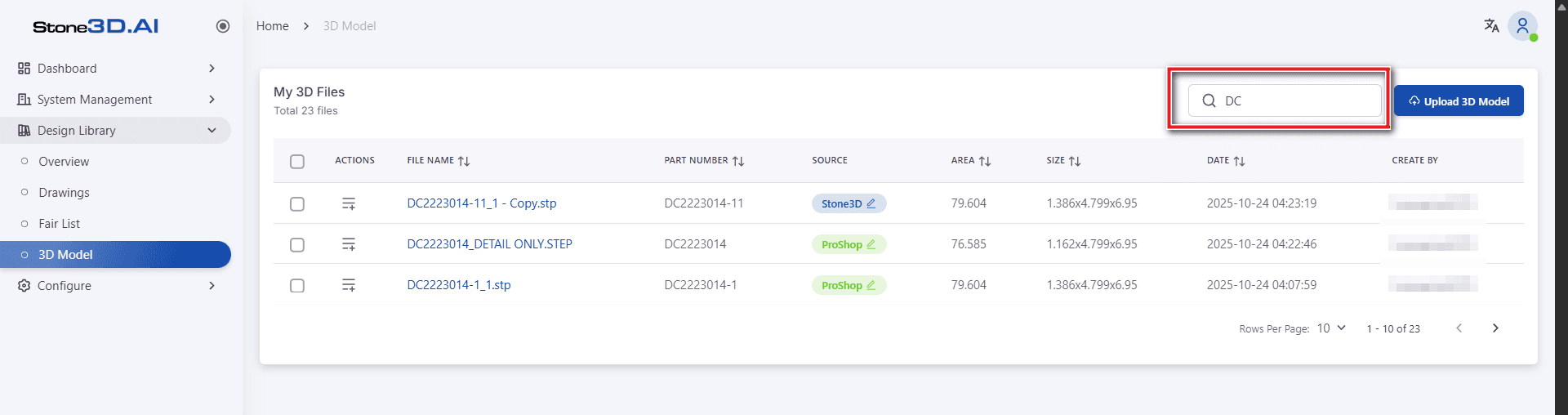
Enter search keywords in the [Find your file] box. The tool allows searching for 3D models by file name, part number, area, size:
Delete 3D File
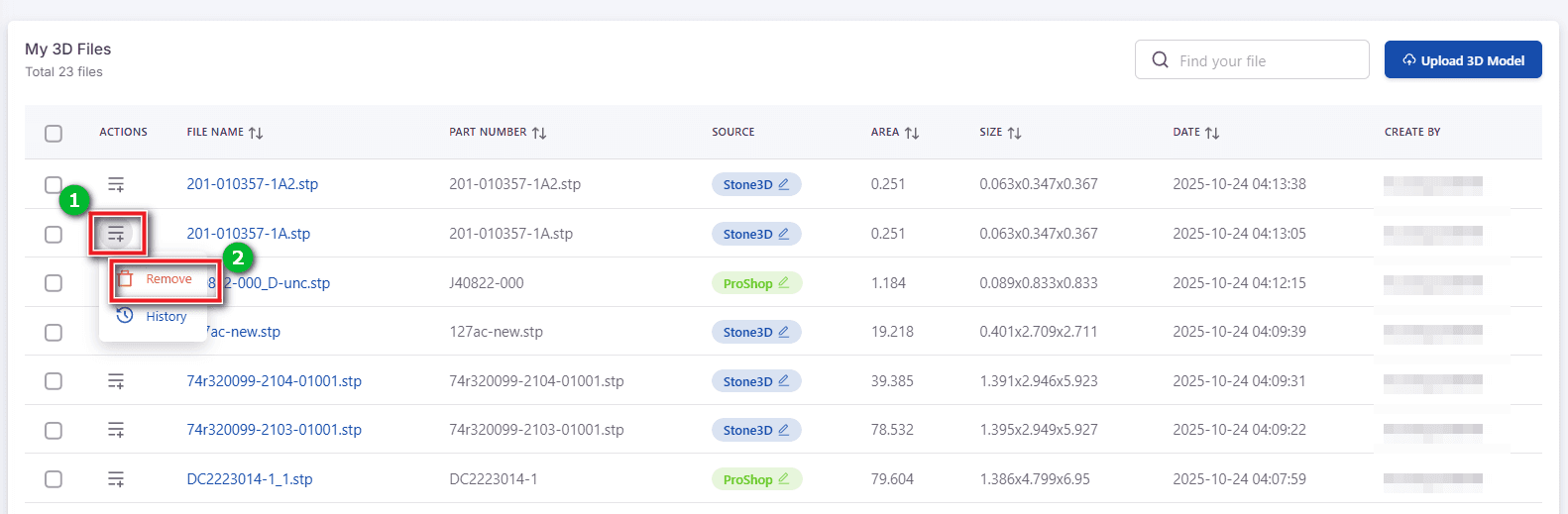
Select the list icon in the ACTION column of the table, left-click on the Remove tab to delete the file:
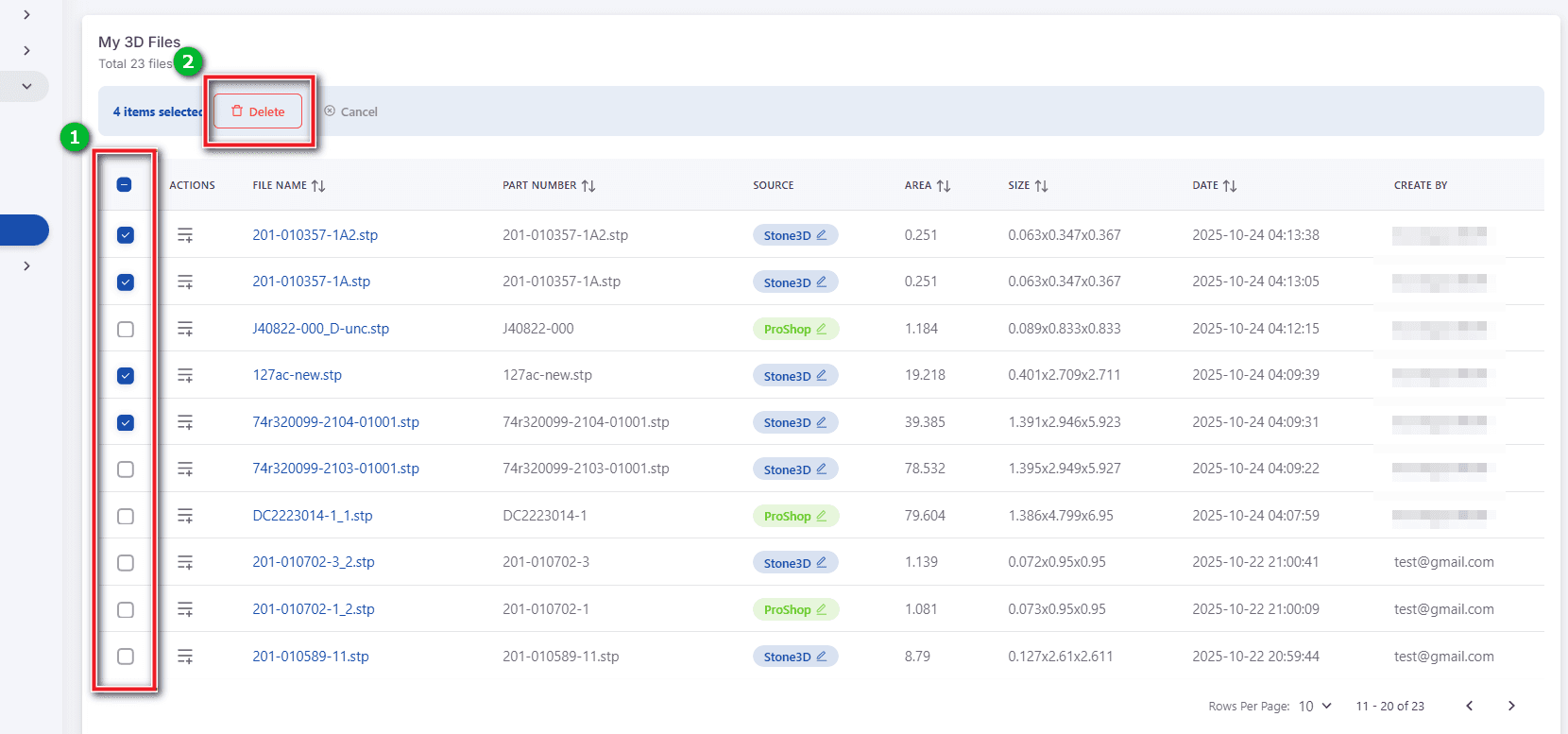
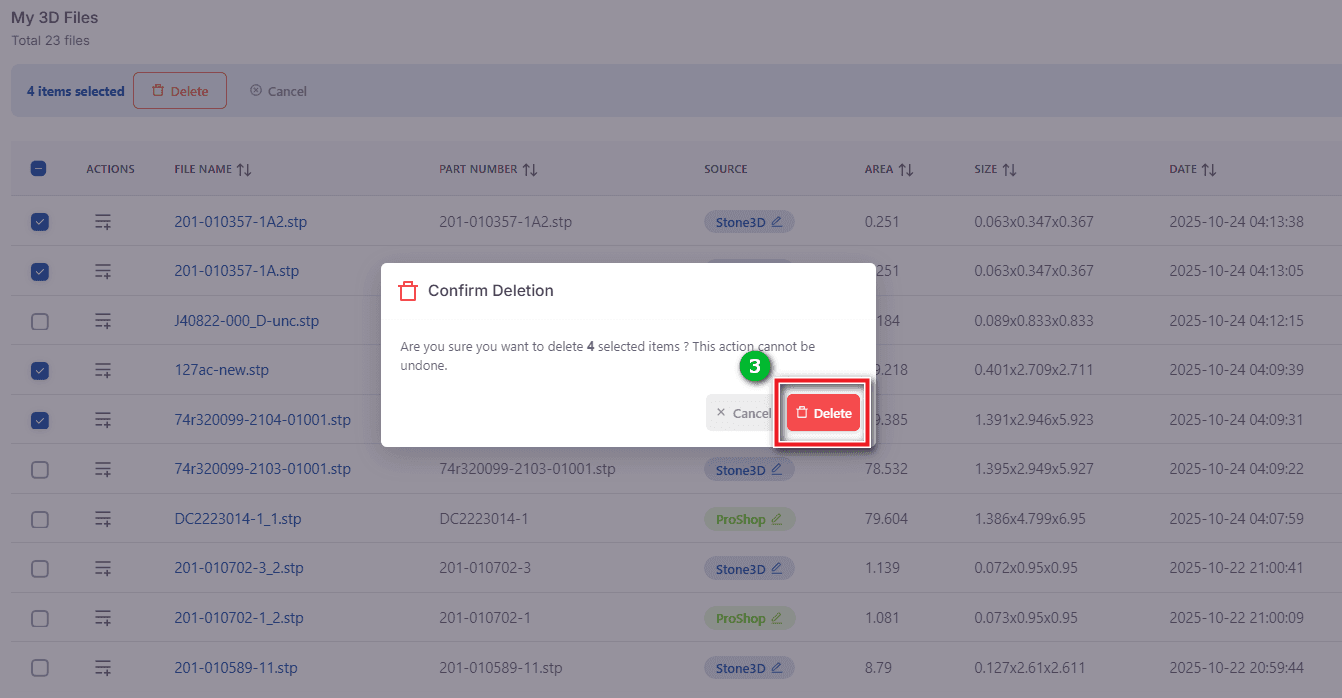
To delete files in batch, check the checkboxes and press the Delete button: