Access and Initial Setup
Users access the software through a browser using the provided URL (only applicable for internal network systems).
Log in to the software with the assigned account:
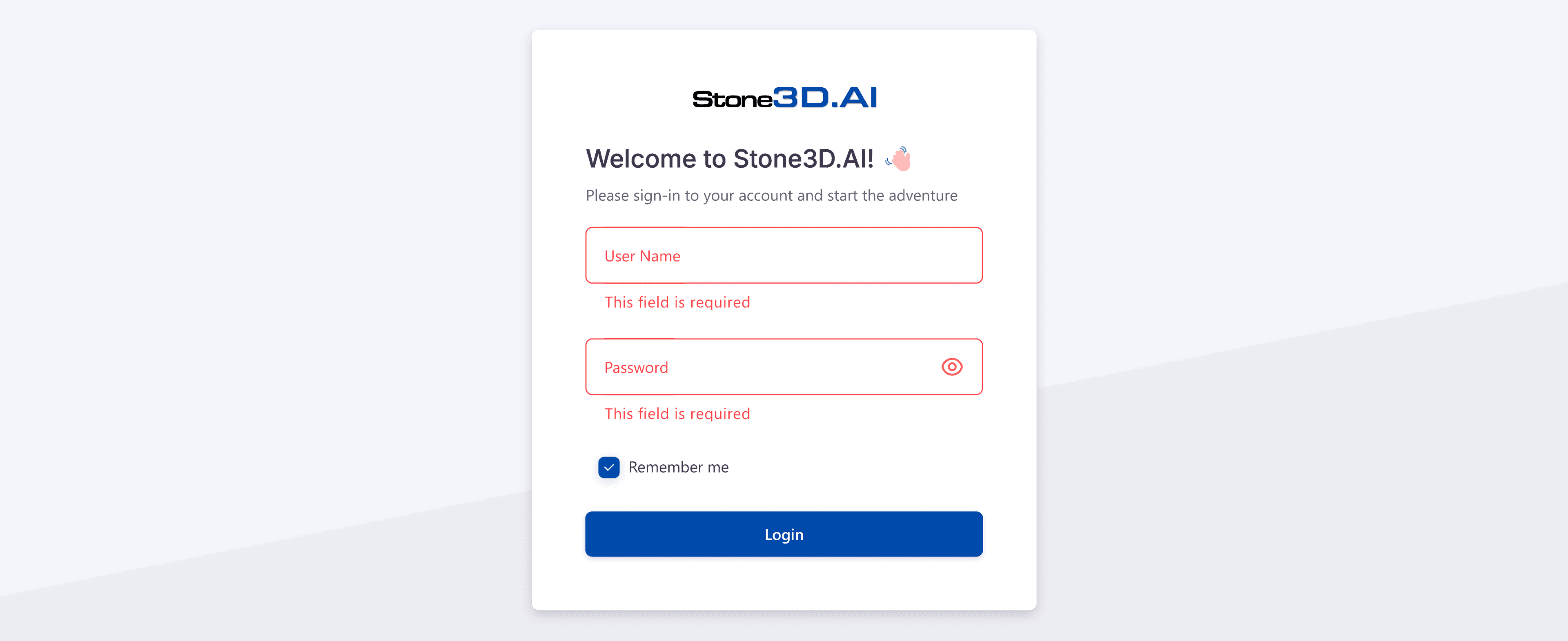
The login screen includes:
- UserName: Username of the assigned account
- Password: Password of the assigned account
- Remember me: Option to remember account for next login
- Login: Access to the system
Note:
If the account is not valid or newly created without access permission, users will receive an error message and be asked to retry. Please contact the software administrator for assistance.

Initial Setup:
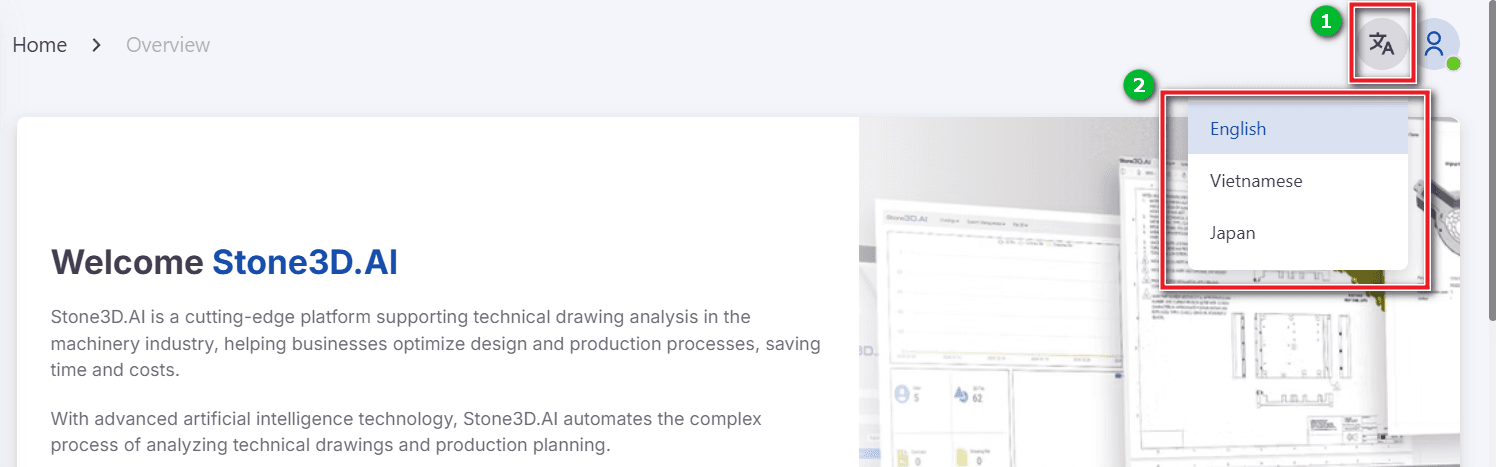
Language Selection:
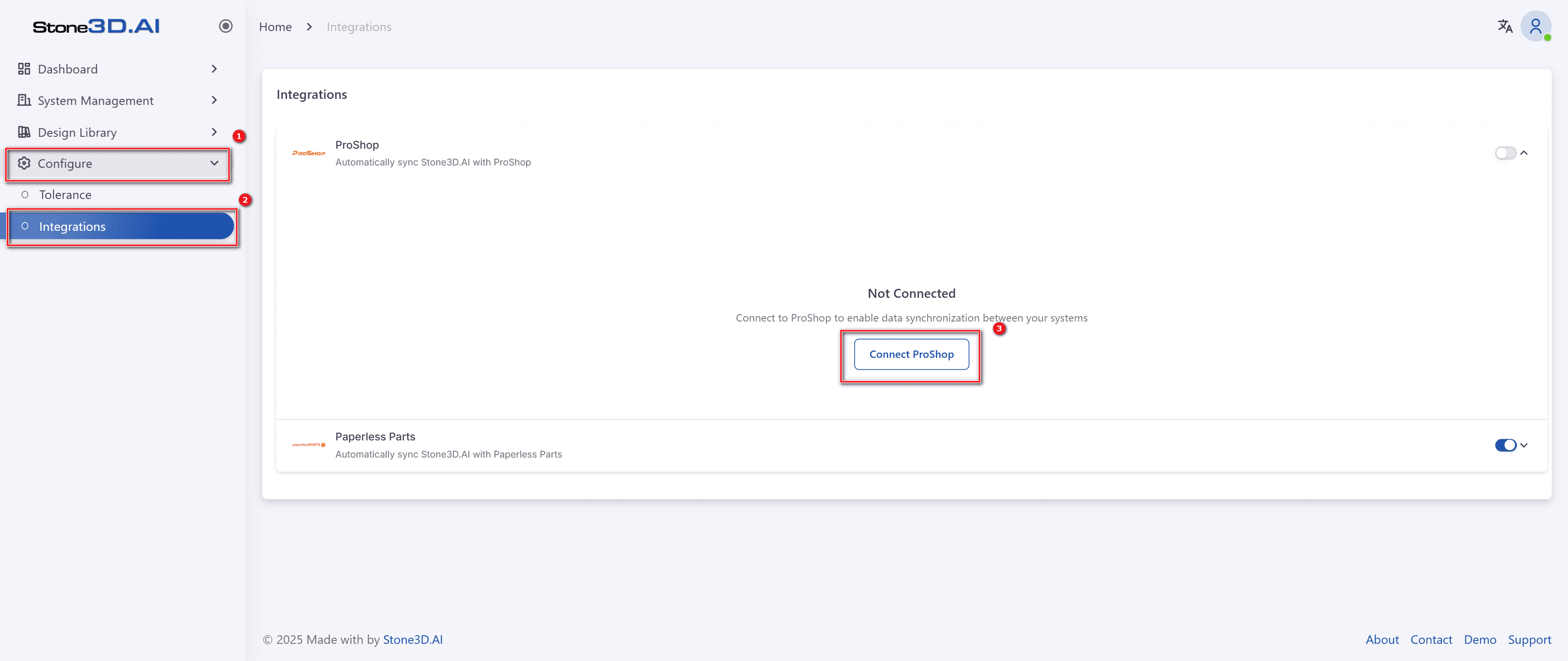
ProShopERP System Connection Setup:
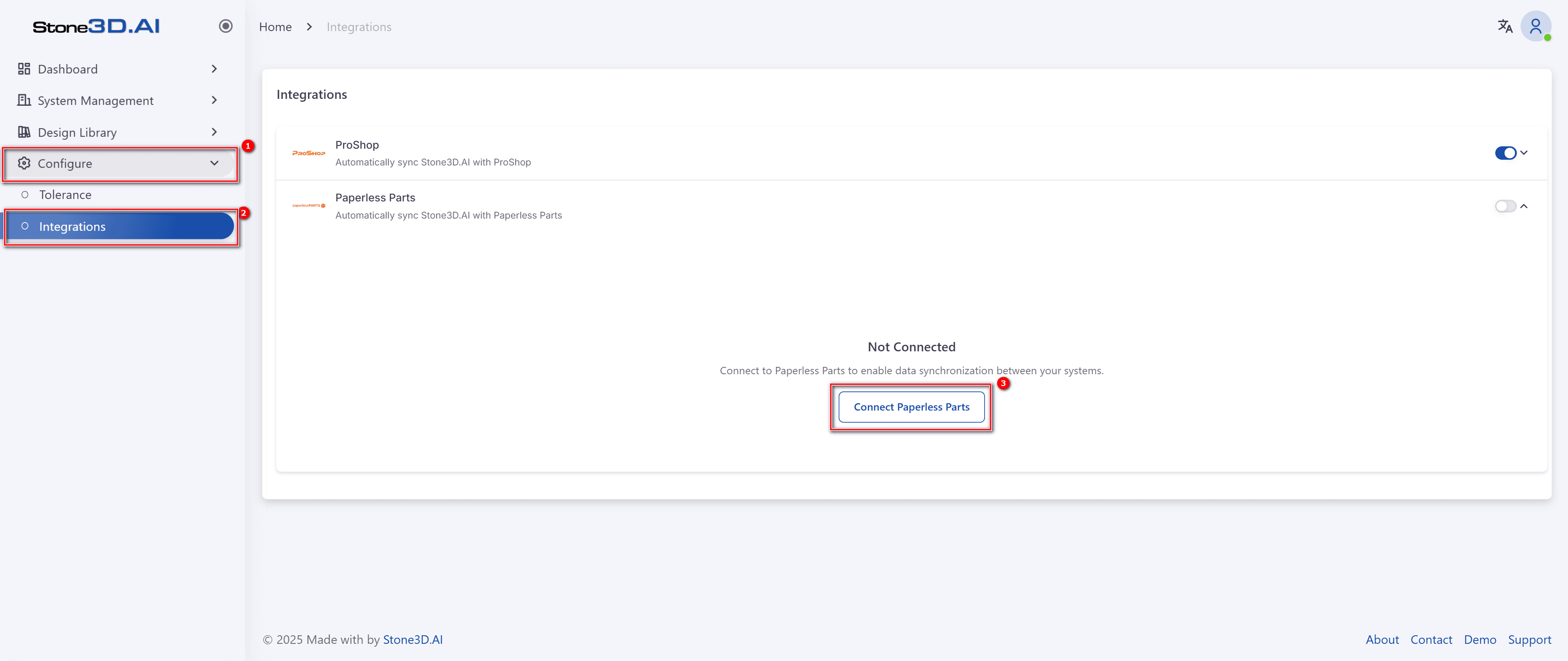
To integrate ProShopERP, go to Configure >> Integrations. In the ProShop integration tab, left-click on the toggle switch button.
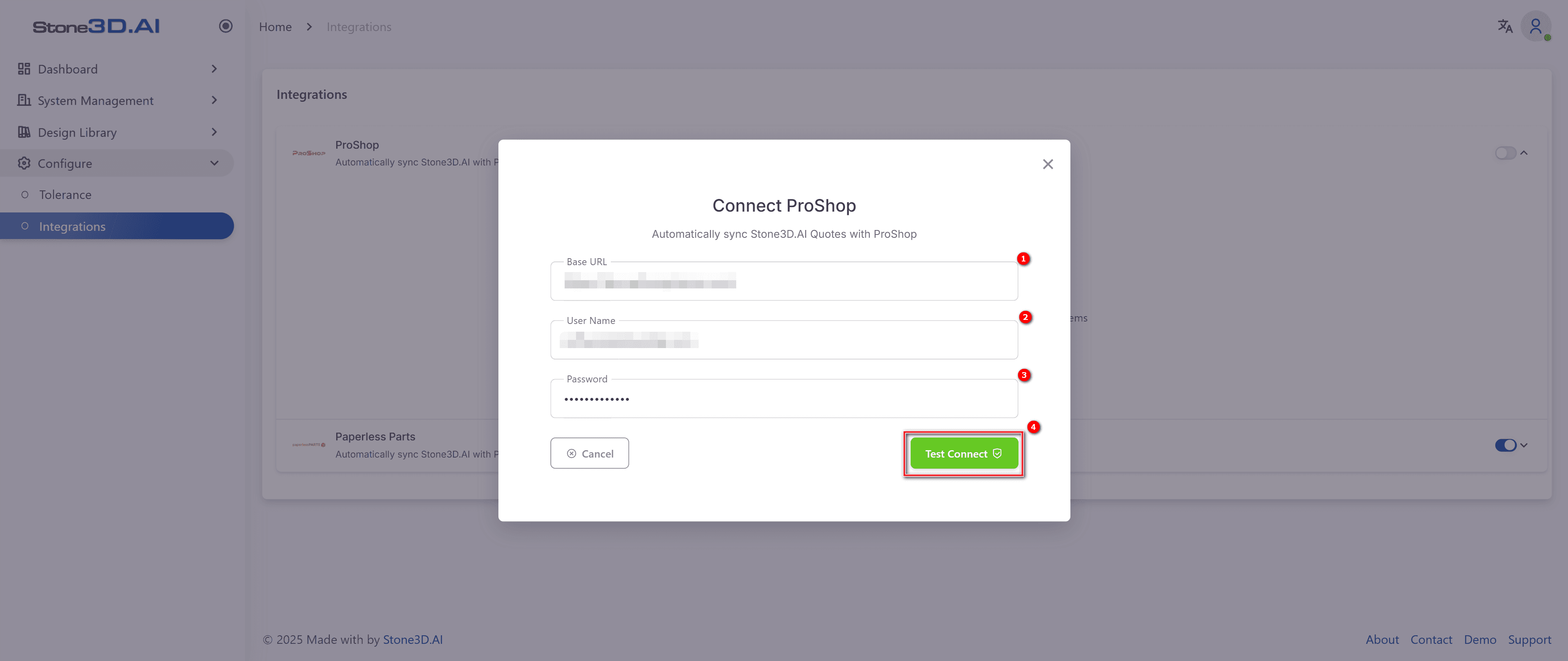
Enter the ProShop access credentials in the dialog box and click the Test Connect button.
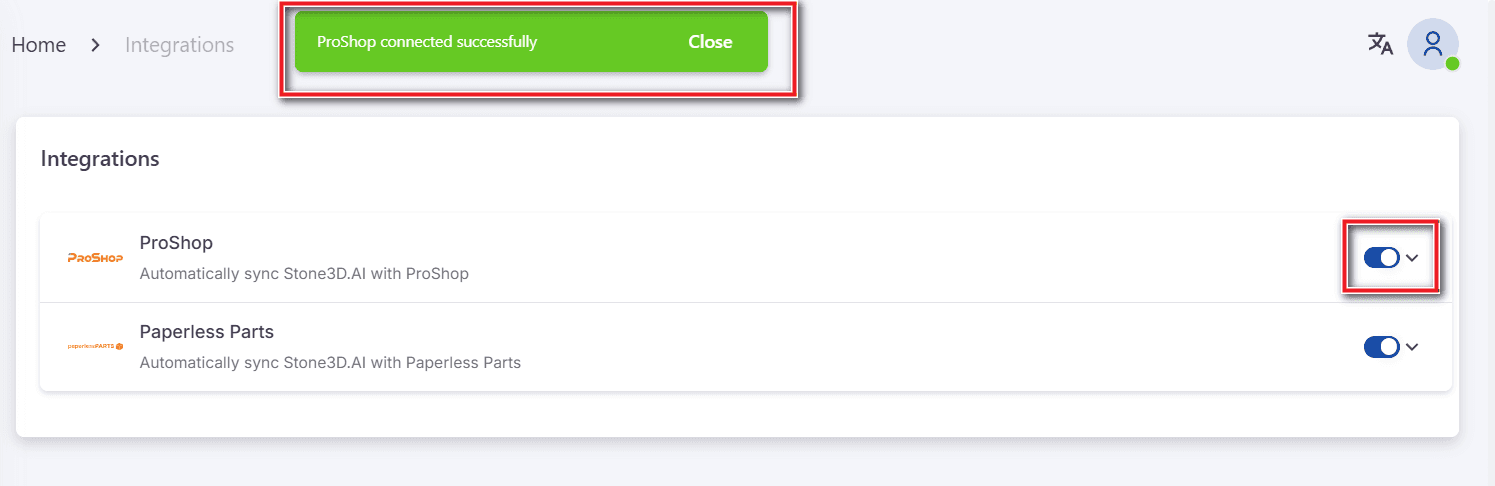
After successful integration, the software will display the message “Connect ProShop successfully”:
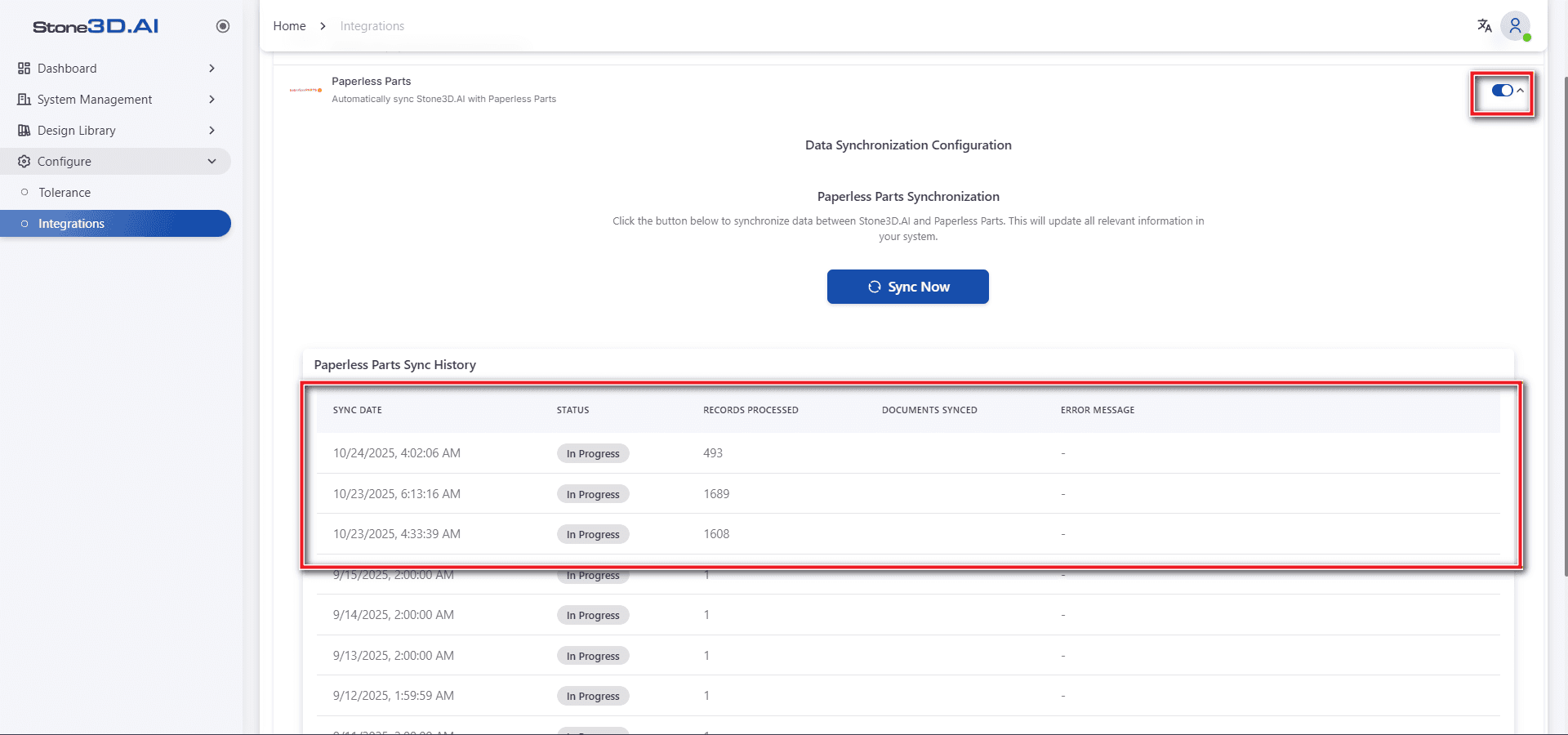
Paperless Parts Connection Setup:
Go to Configure >> Integrations. In the Paperless Parts integration tab, left-click on the toggle switch button that is currently off.
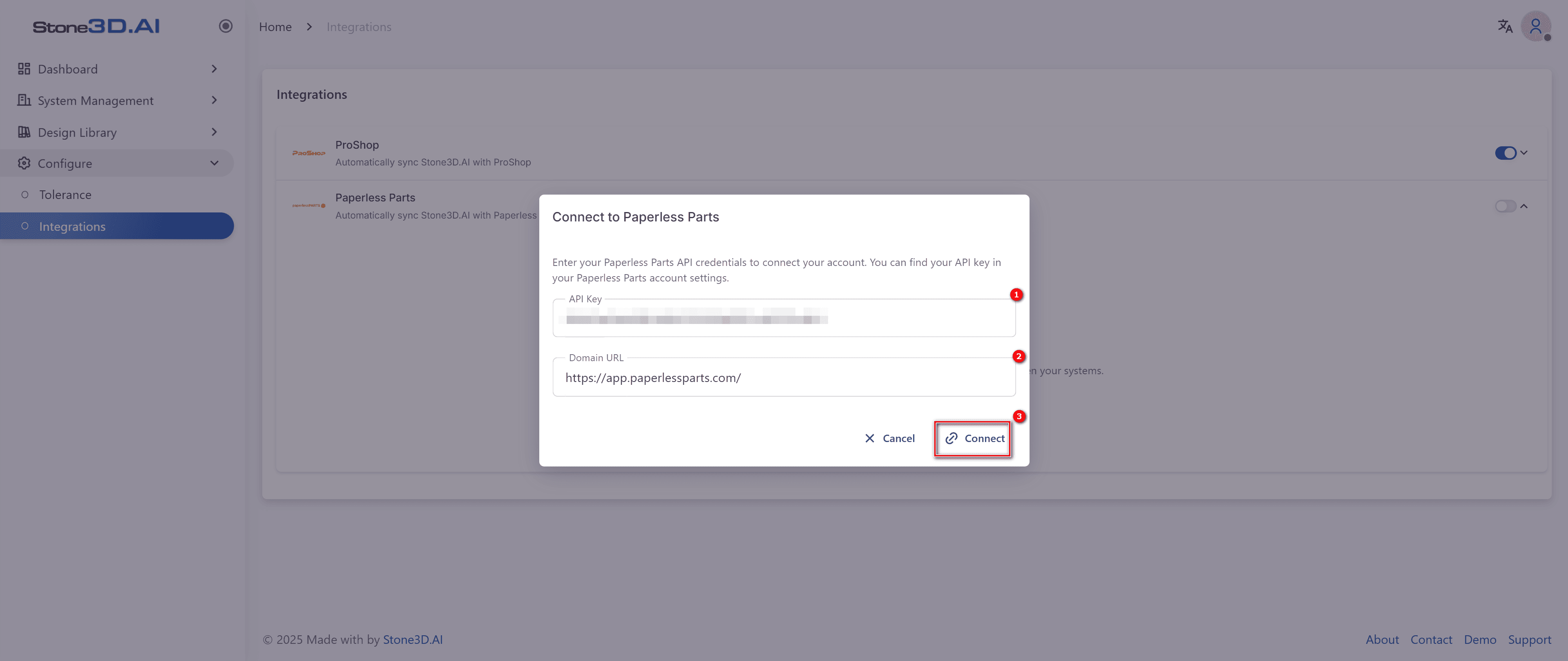
Enter the API Key and Domain URL to connect to Paperless Parts:
After successful connection, a list screen will be displayed: