System Administration
User Account Management
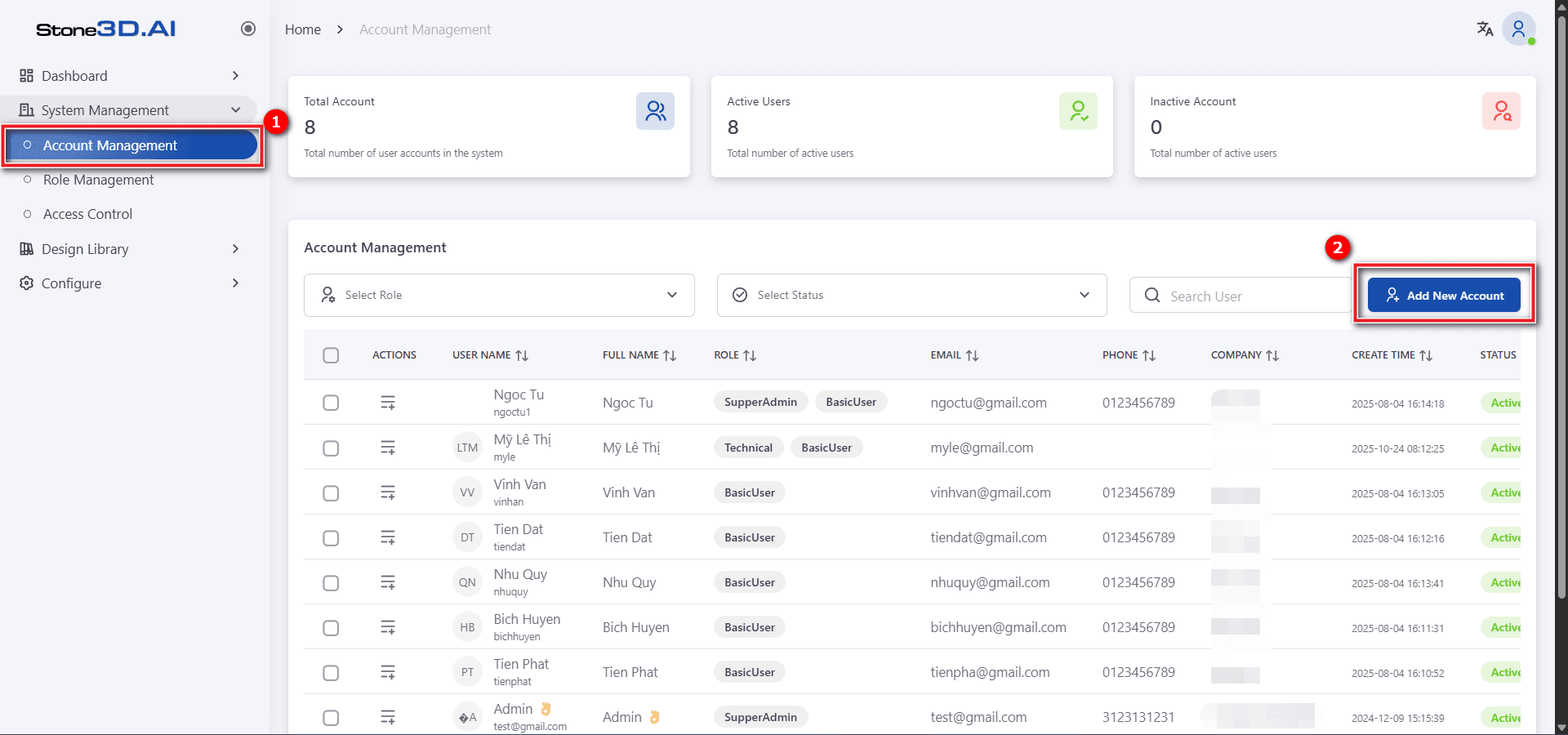
Access through System Management -> Account Management
Add a new user account:
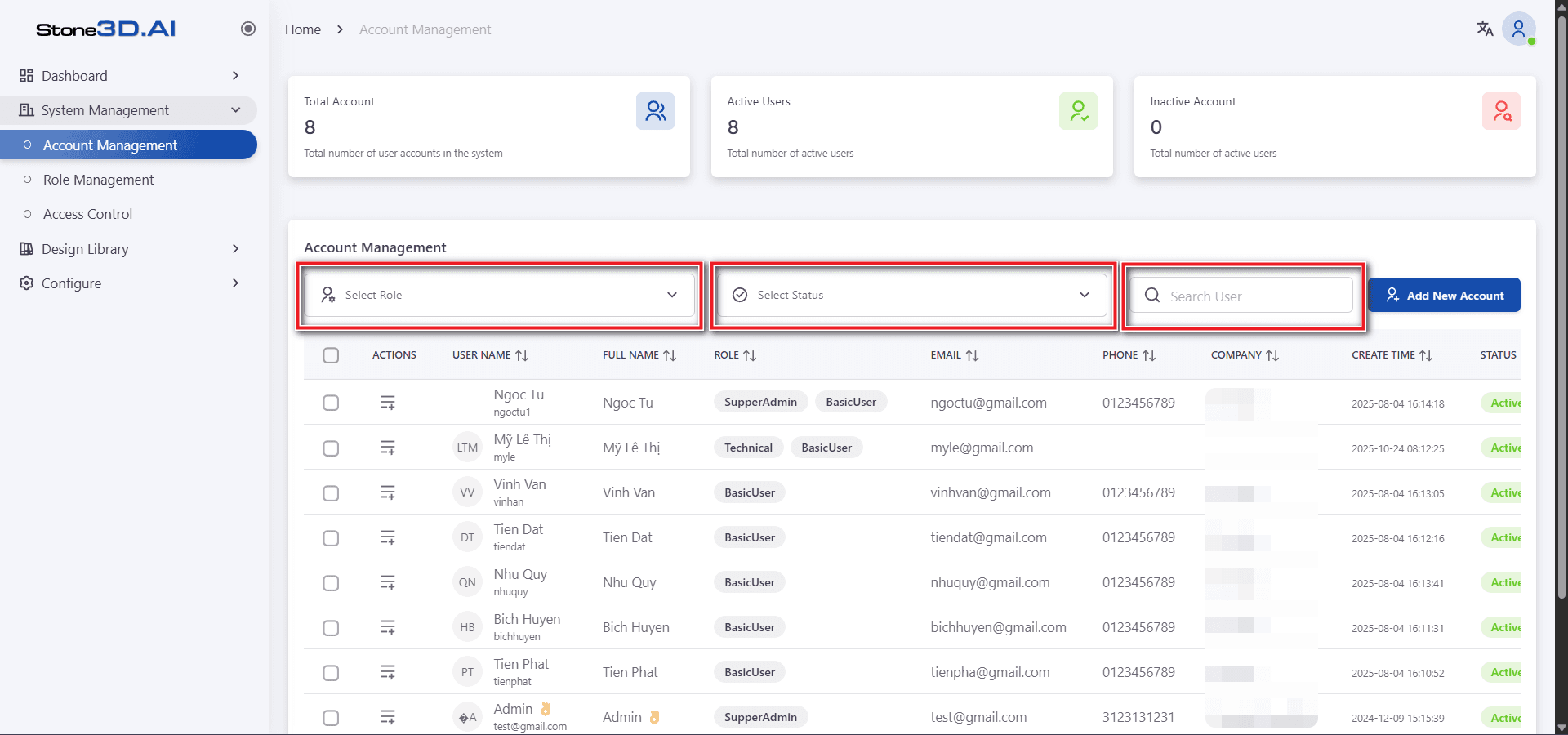
Filter and search users in the system:
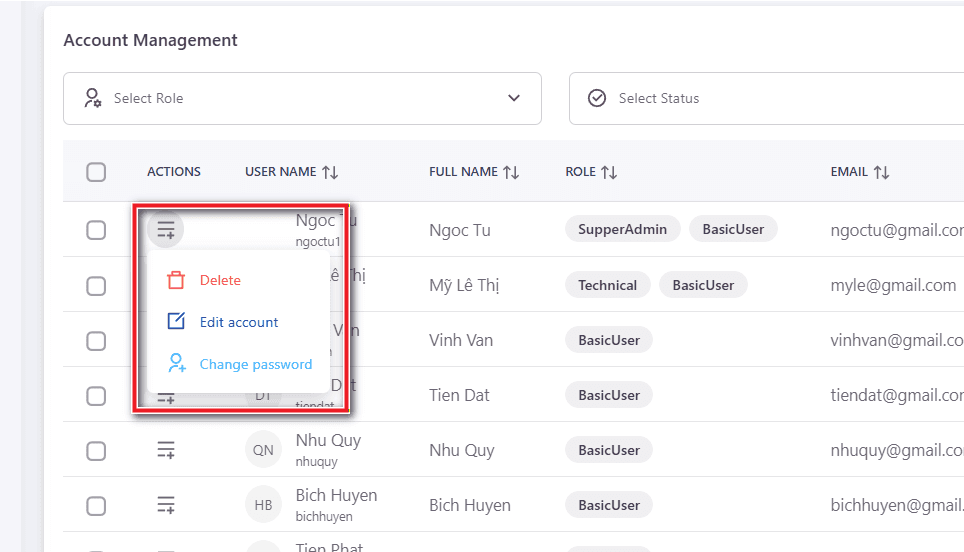
Select the list icon  corresponding to the user account in the ACTION column of the table to perform delete, edit, or change access password actions:
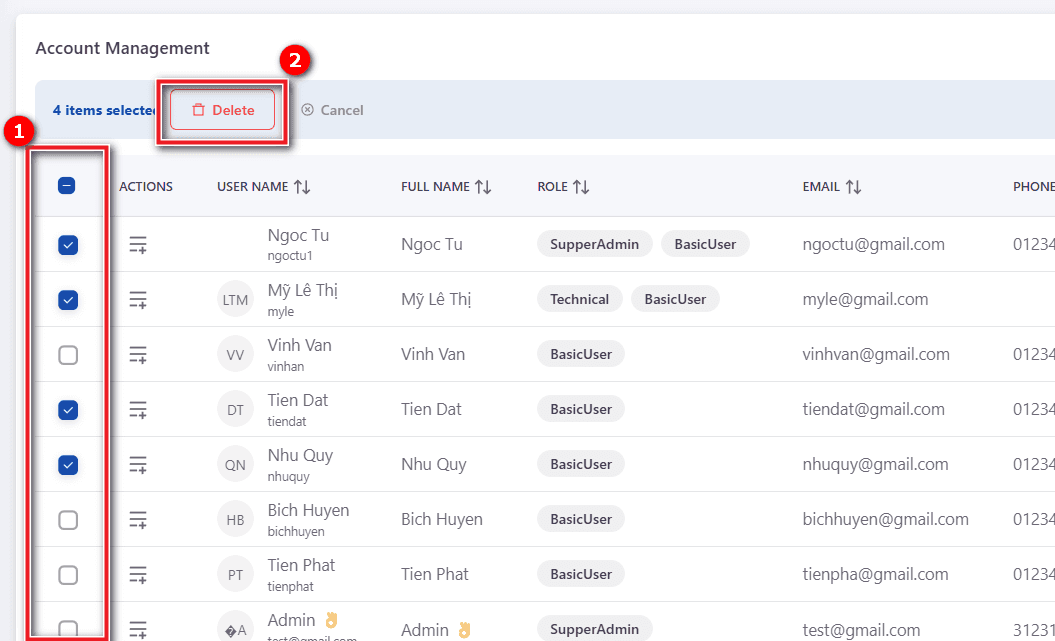
To delete in batch, check the checkboxes and press the Delete button:
Permission Management (For administrator accounts)
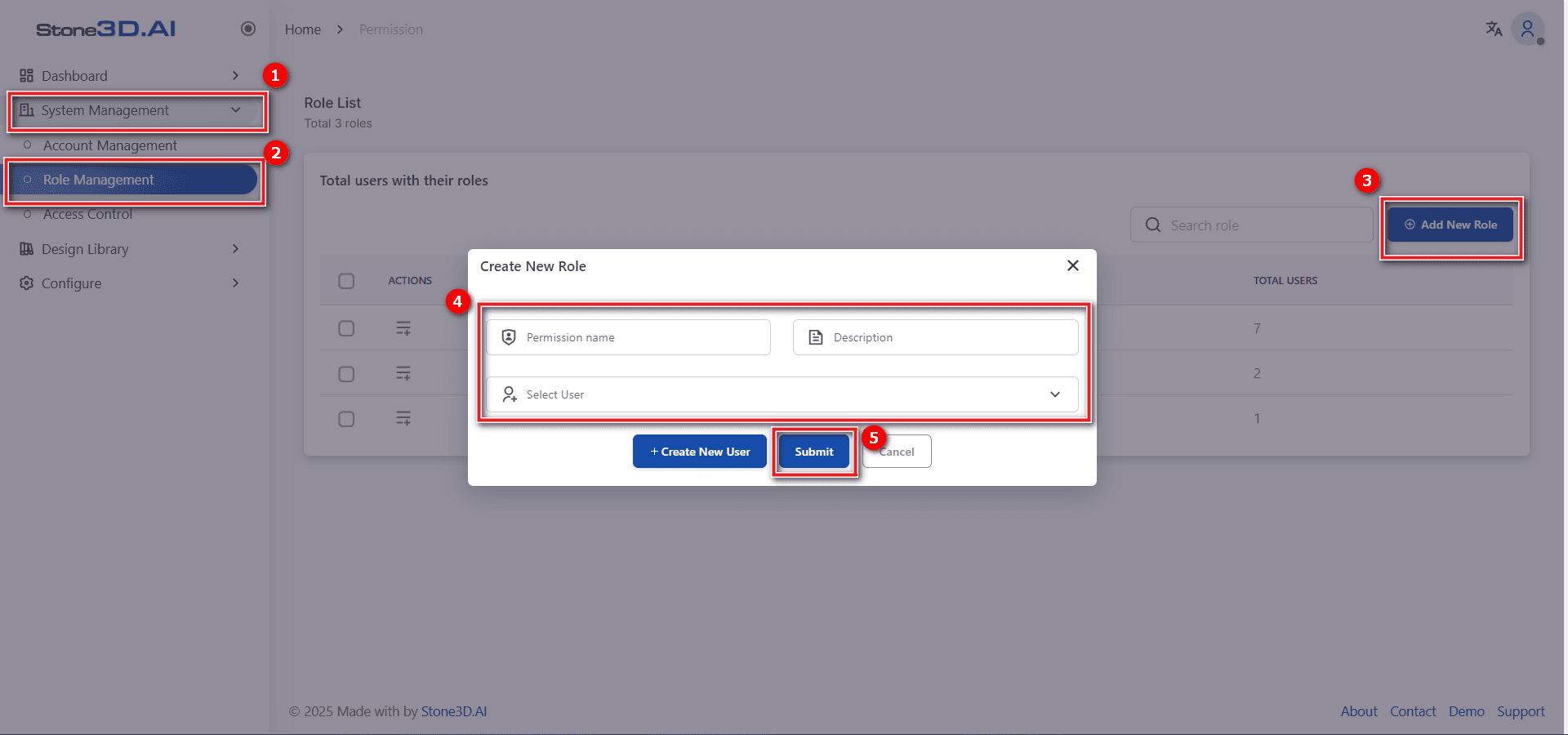
Access through System Management -> Role Management
Create new role group:
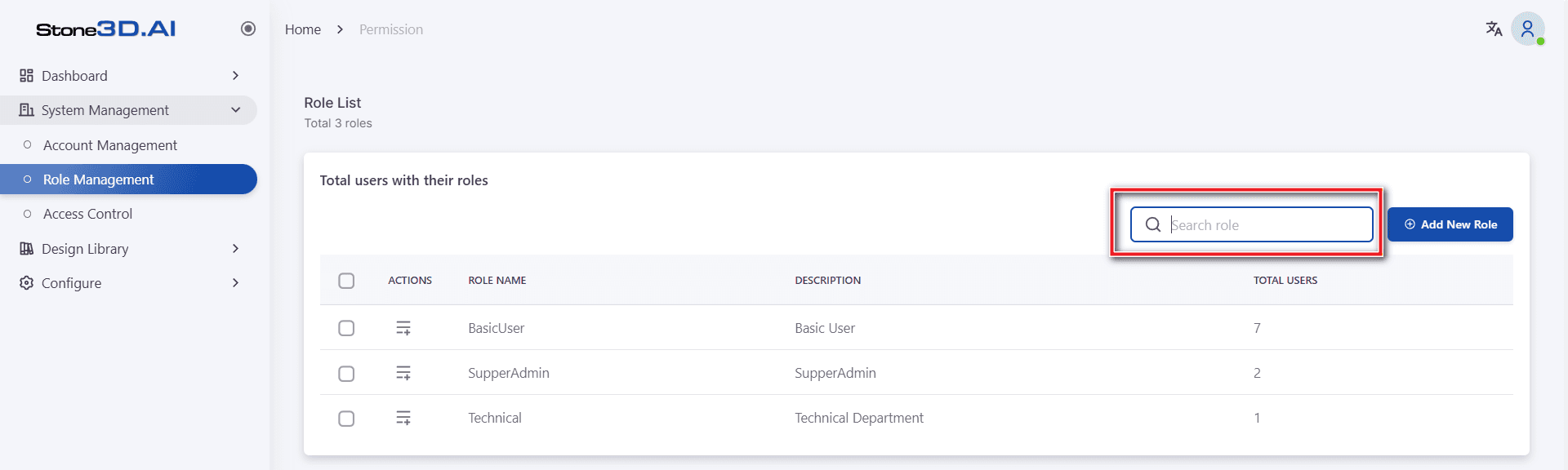
Search for role groups in the system:
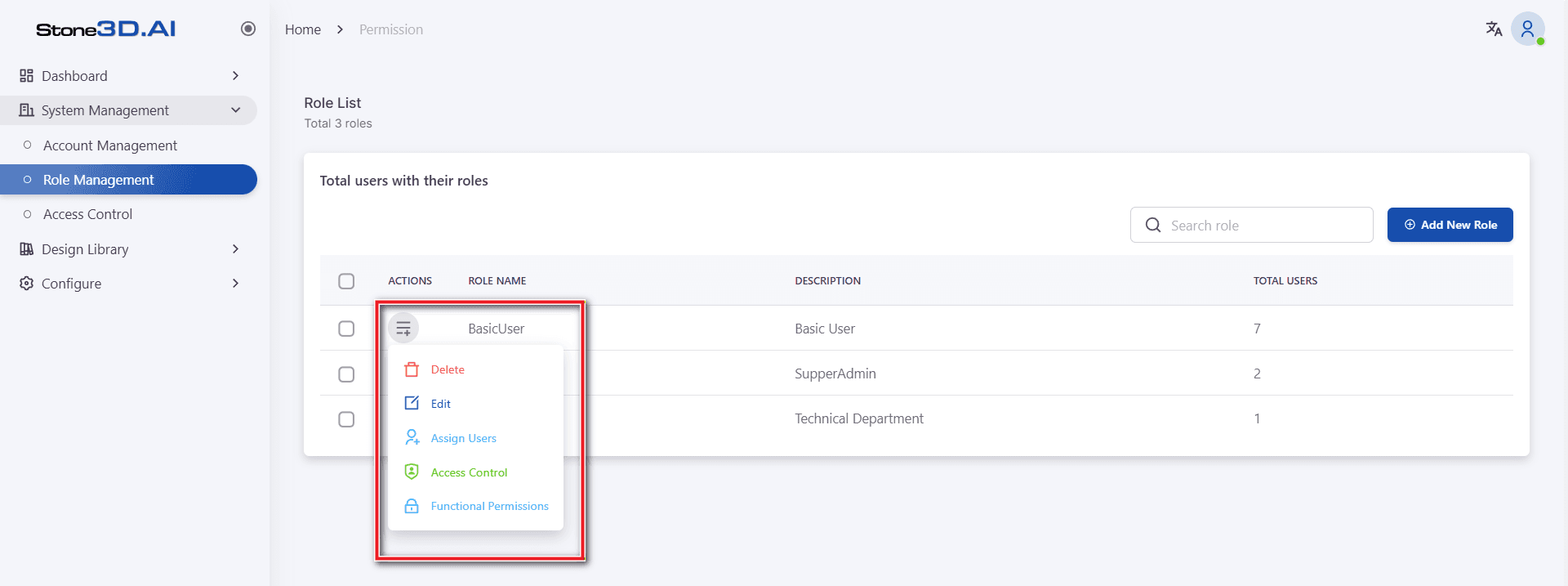
Select the corresponding list icon for the permission in the ACTION column of the table to perform delete, edit name, add users, or change permission level actions:
Add users to role group:
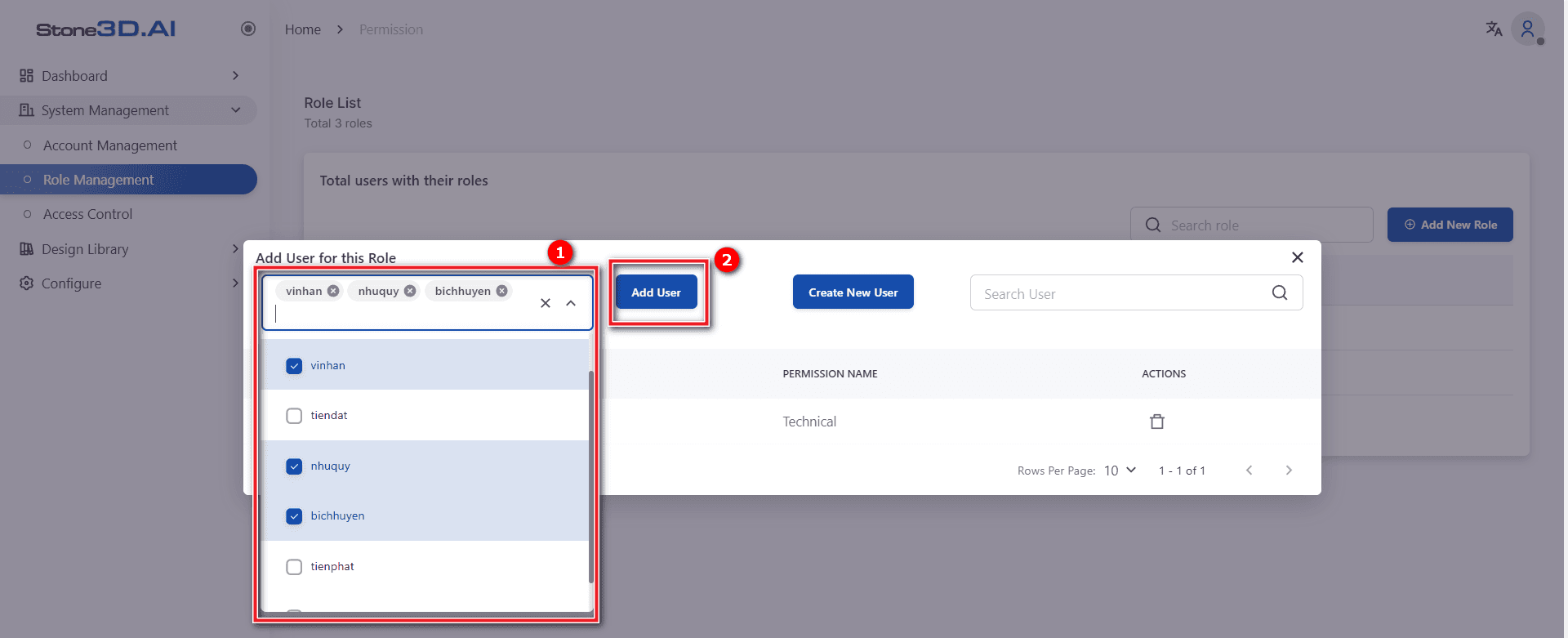
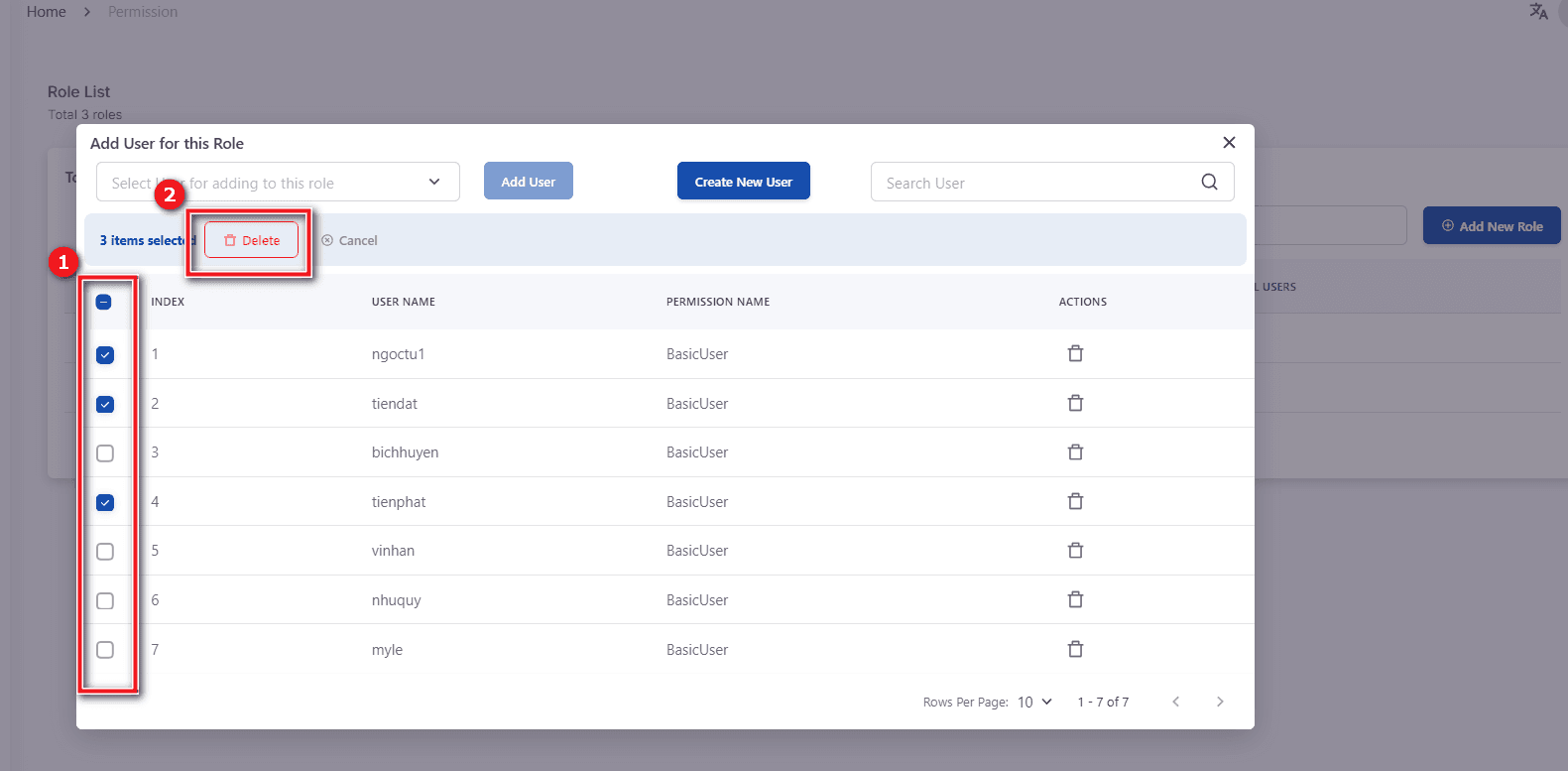
Remove users from role group by deleting each account individually when clicking the corresponding delete icon  or can delete in batch through checkboxes:
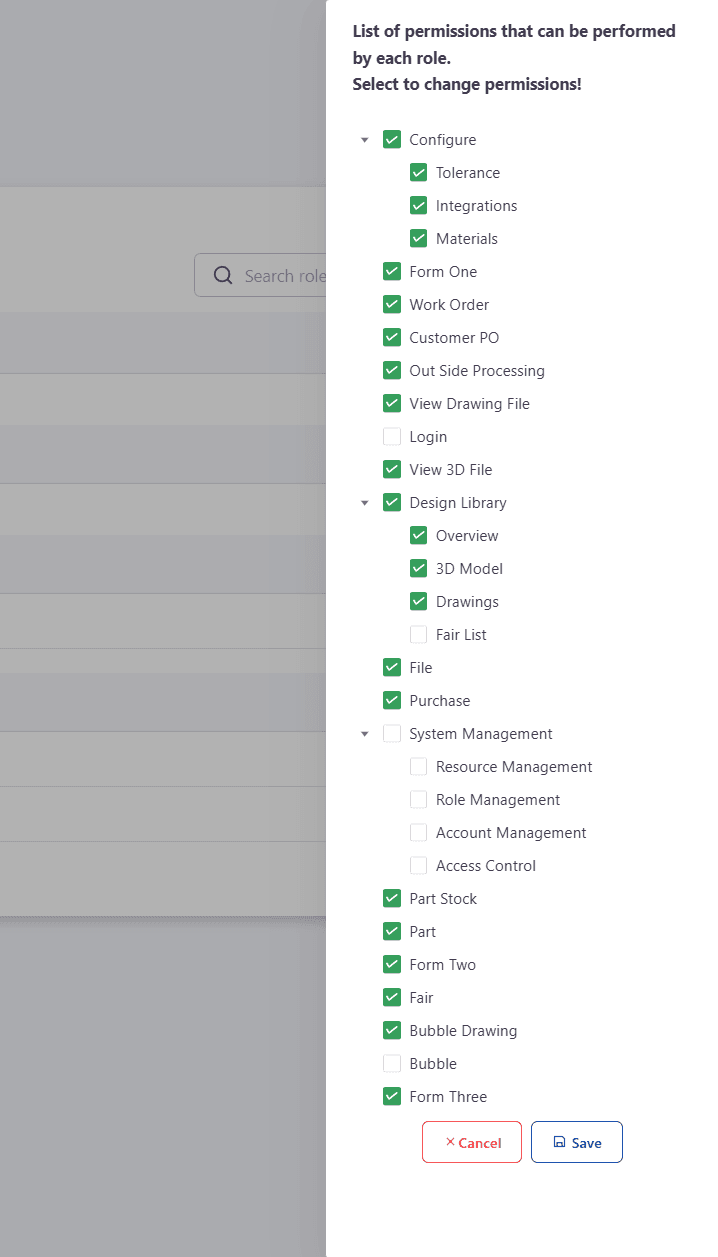
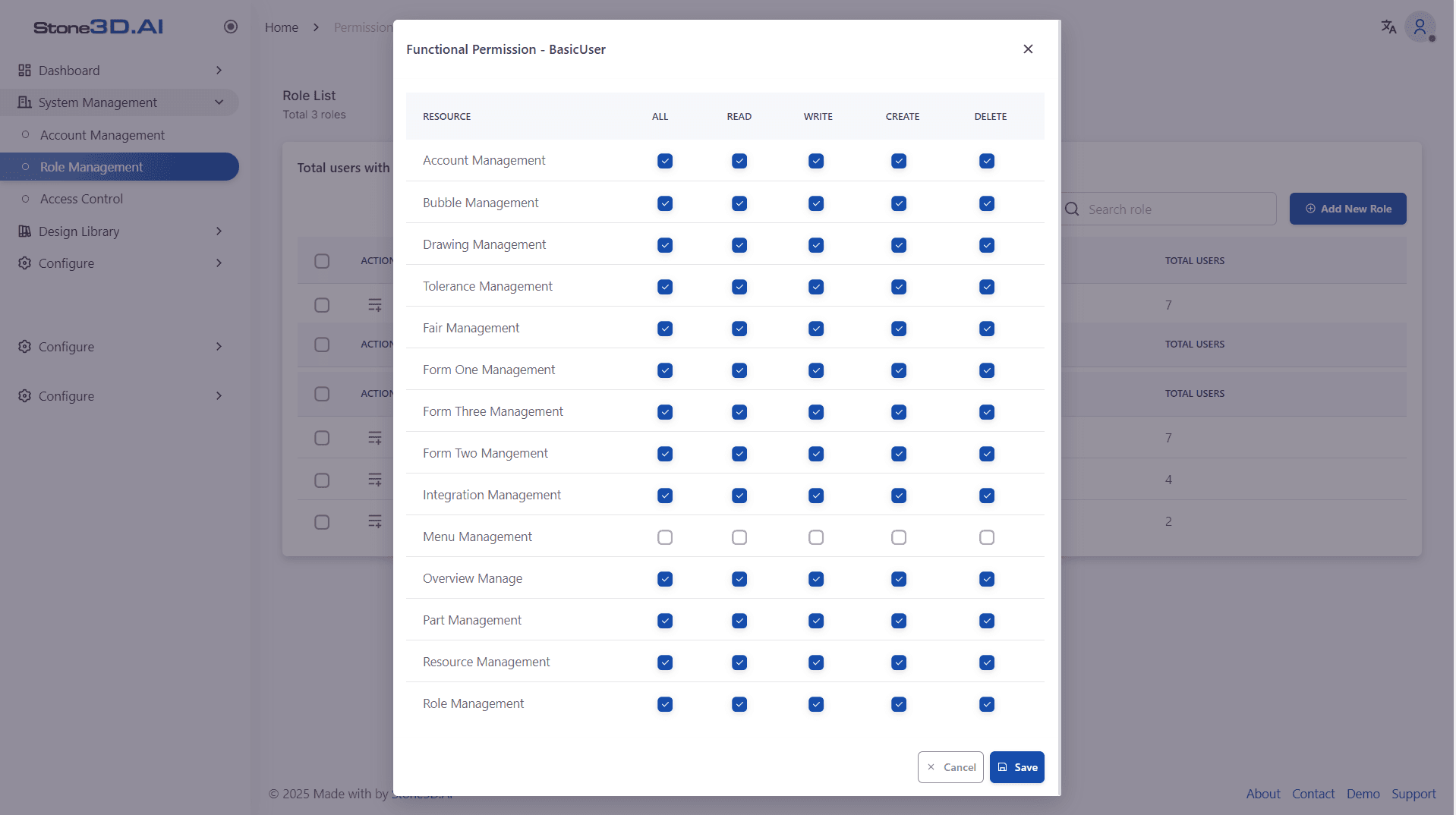
To change permission levels for the role group, select the list icon >> Assign Resources, check the items you want to grant permission to the group, press Save to save:
To change menu access permissions for each role group, select the list icon >> Menu Access