FAI/FAIR Management (First Article Inspection Report)
FAIR Management
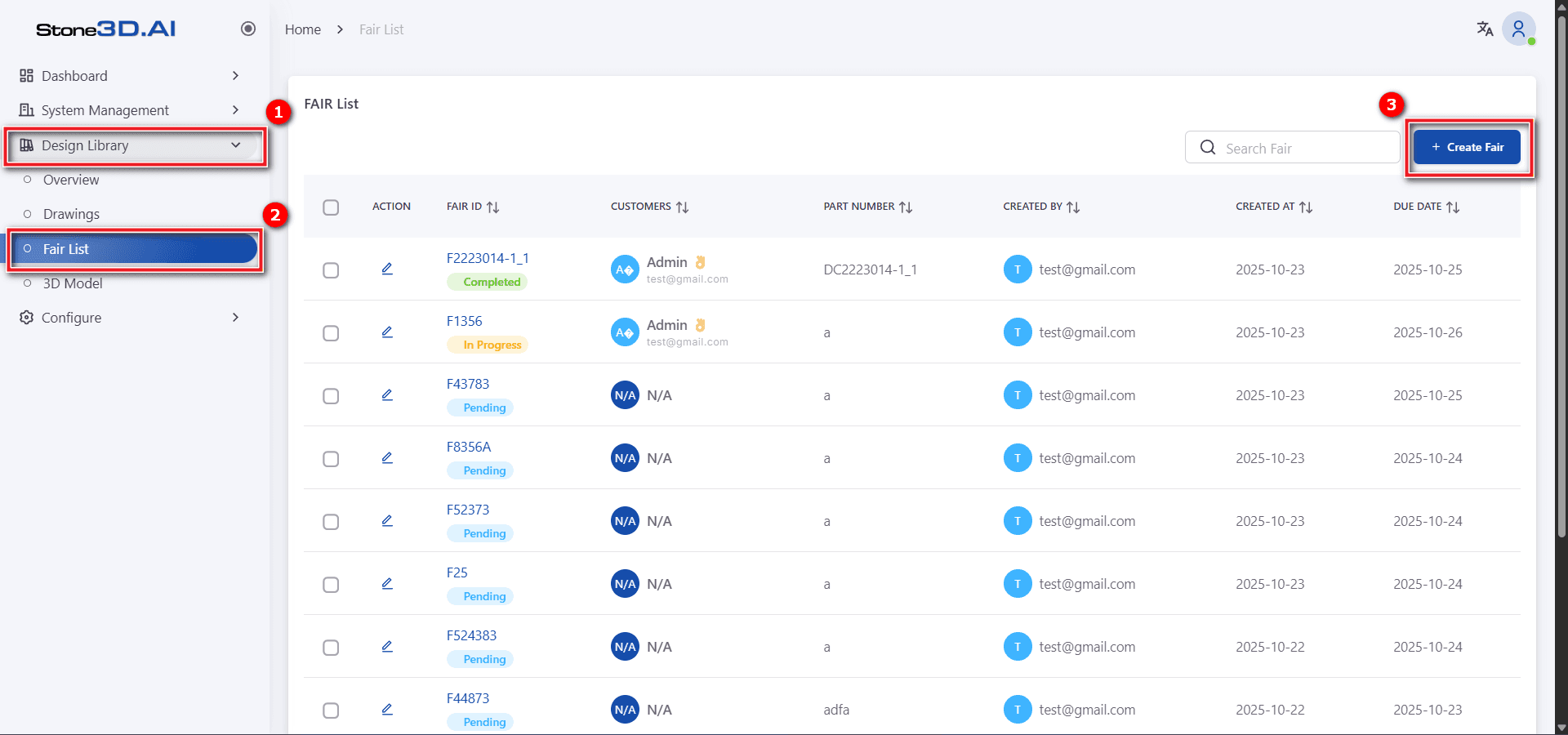
To create a new FAIR document, go to menu Design Library >> Fair List, then select Create Fair:
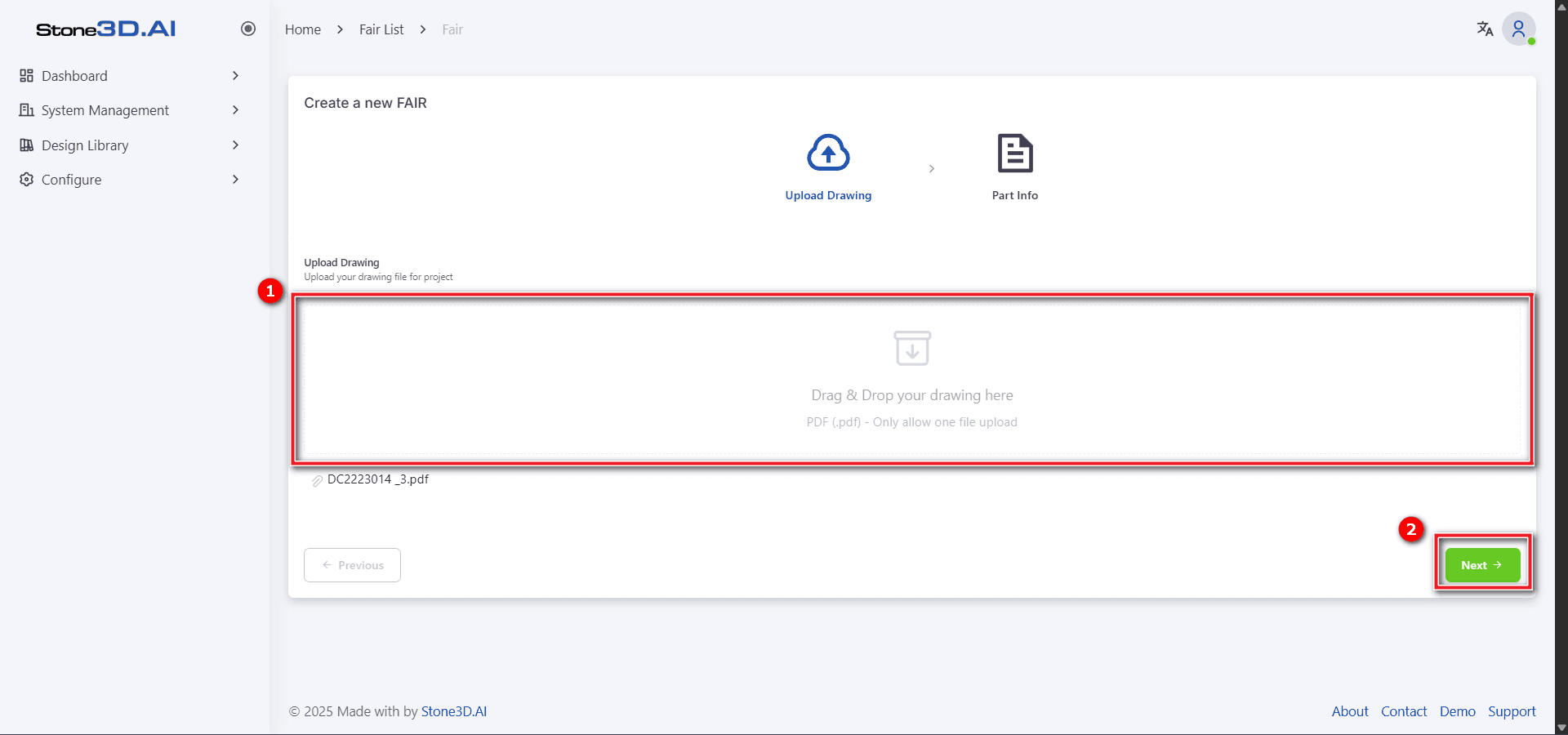
The Create a new FAIR interface is displayed. Follow the instructions from the software interface. First, upload the 2D drawing file that needs bubbling. After the program completes the file upload, fill in the required information (Basic Part Information).
Enter the required information (Basic Part Information) for the report forms according to AS9102 standard and other additional information.
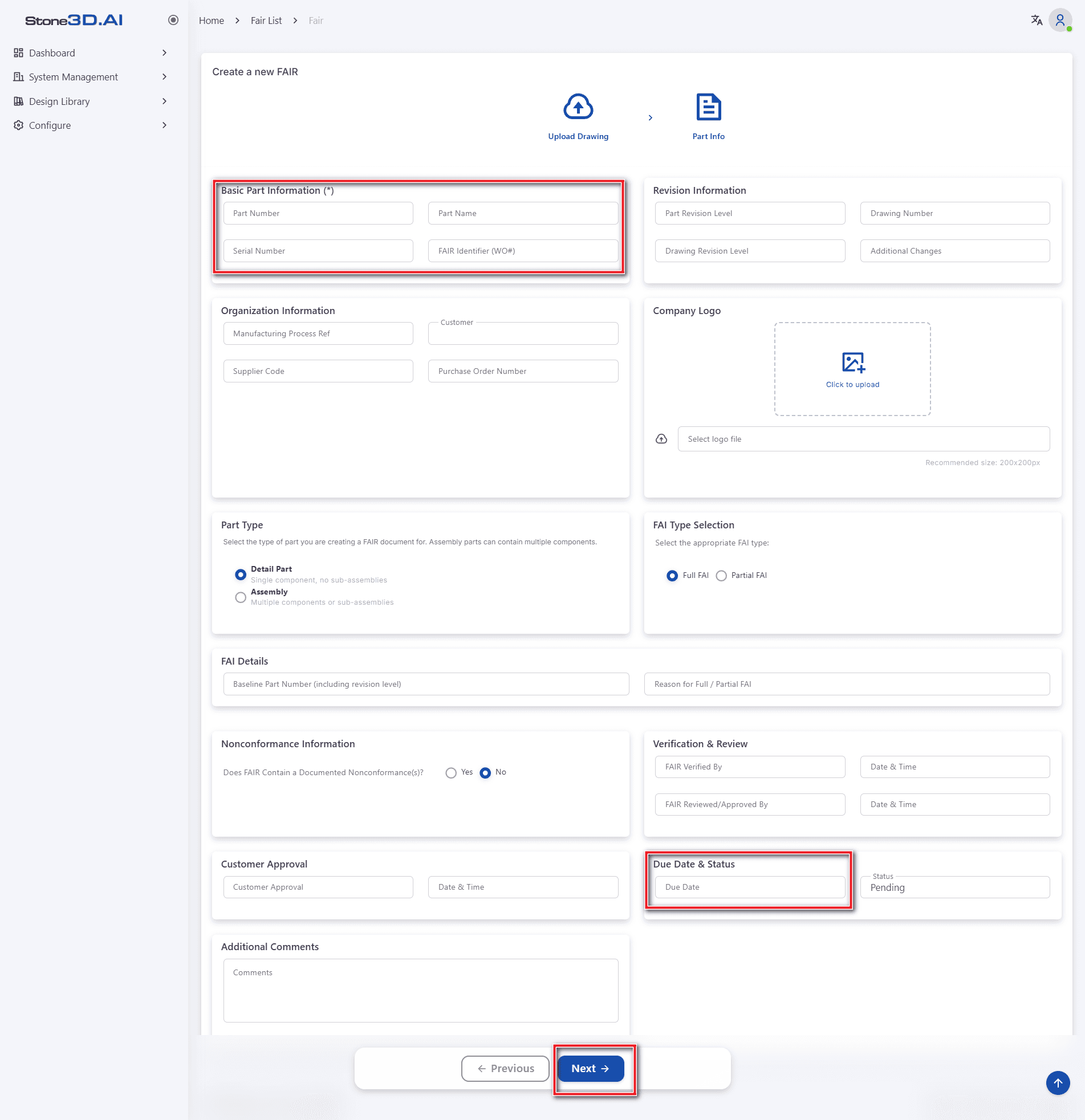
In the Part Type information field, for Assembly type to add an information field for a component part, click the Add Item button. To delete a row, click the delete icon:
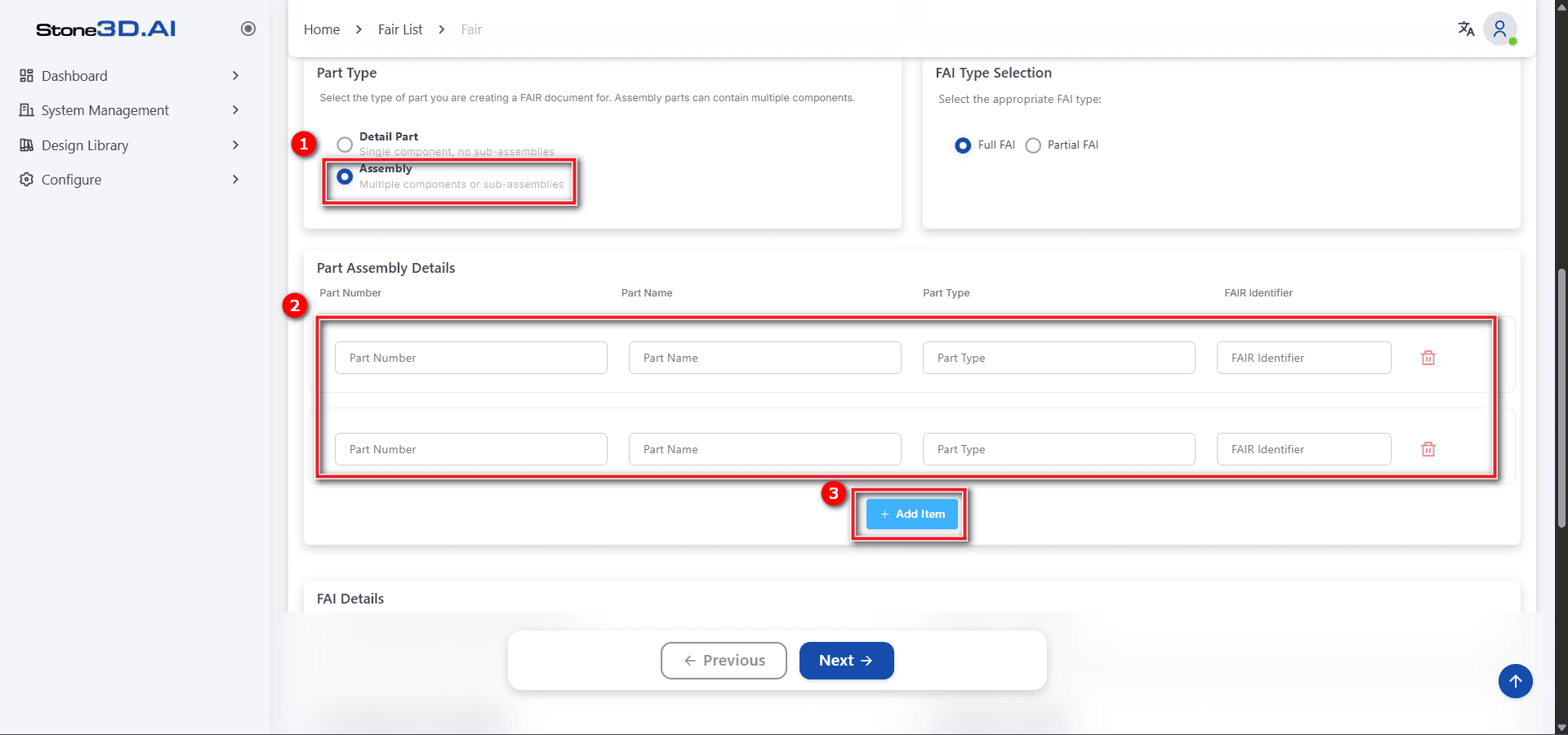
After clicking “Next”, the software will switch to the FAIR management interface just created. In this interface, users can completely modify and adjust the information fields entered previously.
Bubble Drawing Feature
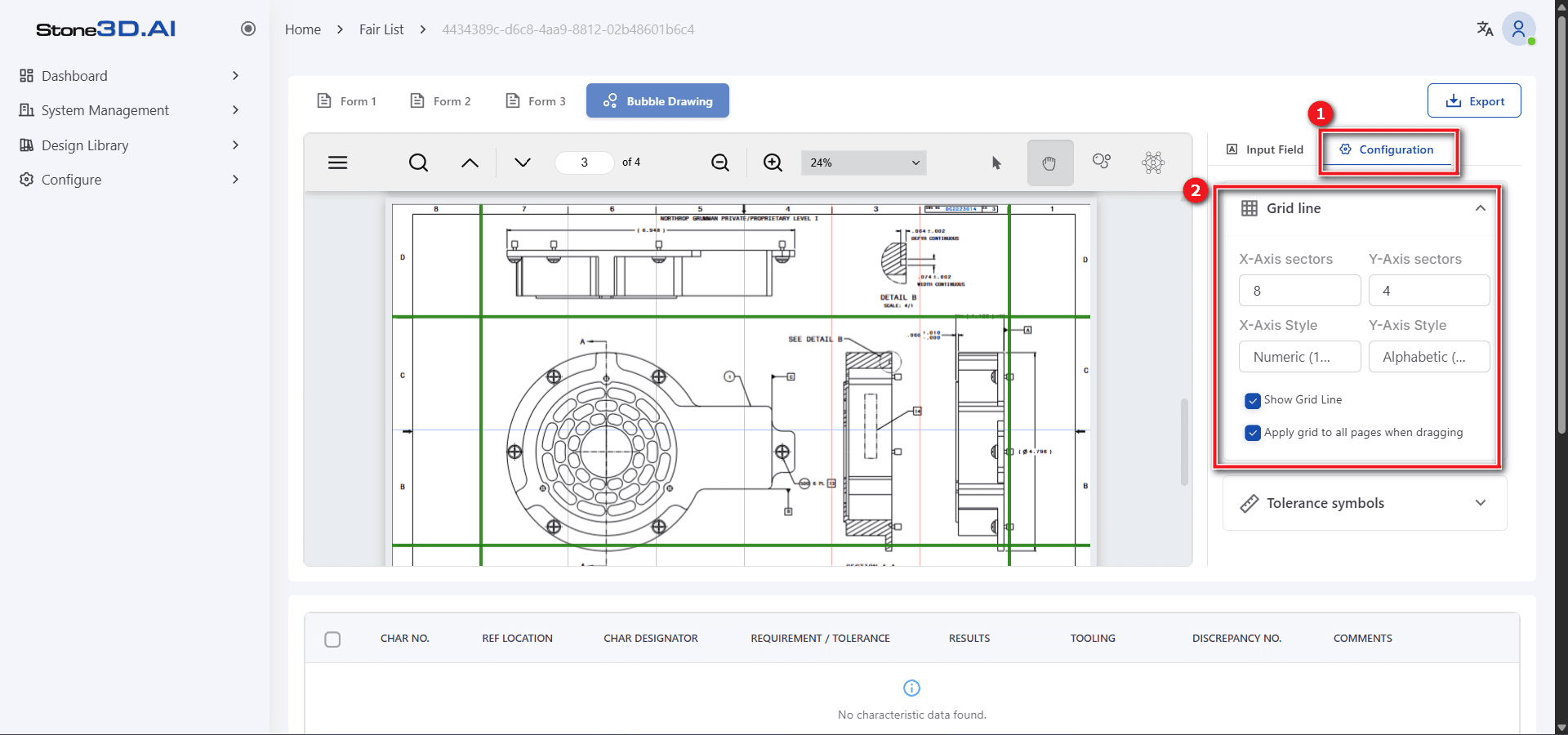
Configure GFI (Grid Feature Identifier) grid parameters:
In the menu, go to Configure >> Grid Lines
Enter X-Sectors, Y-sectors, X-Style, Y-Style information according to the GFI data shown on the drawing.
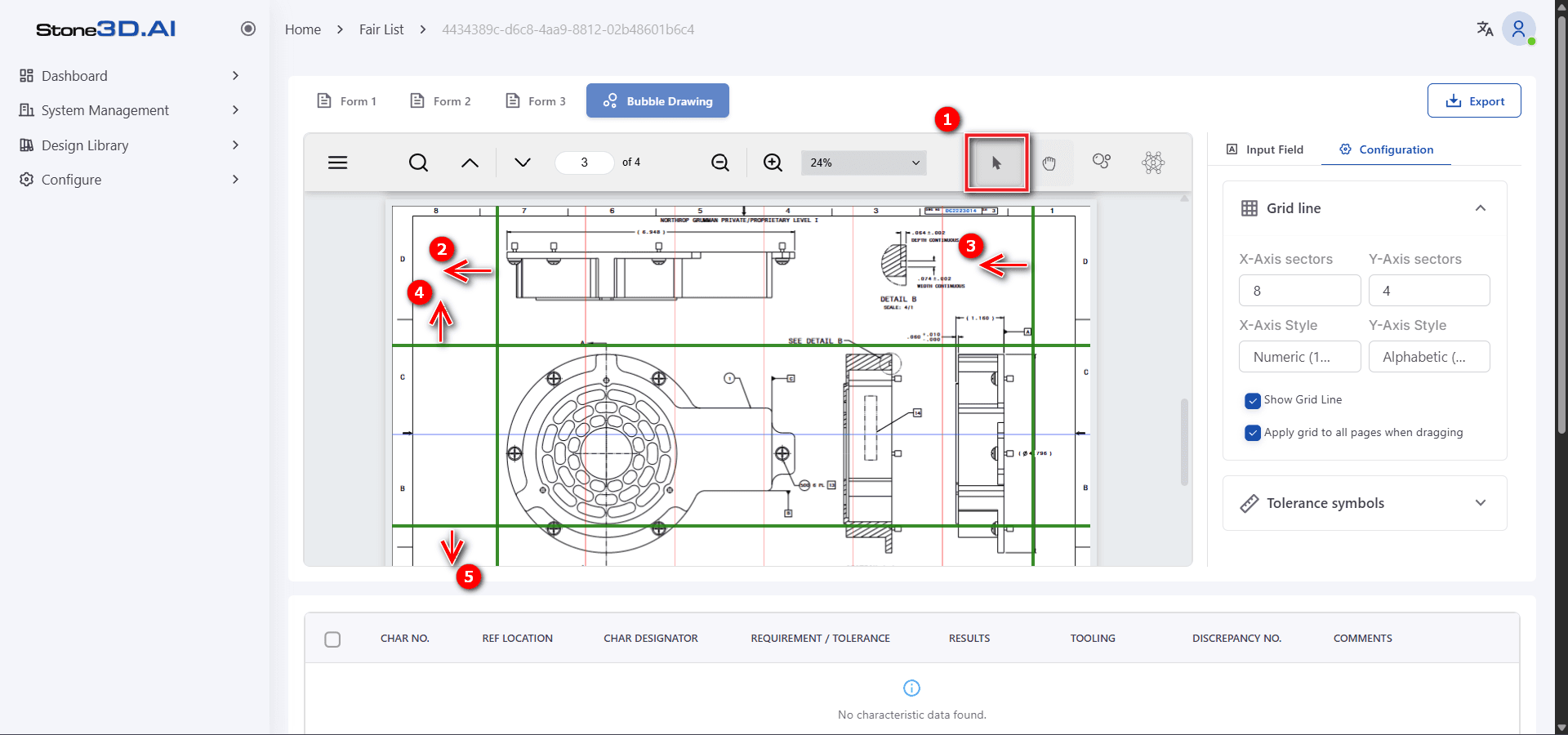
To adjust the grid position to match the GFI positions on the drawing, select the arrow icon on the toolbar, then hold down the left mouse button on the blue grid lines to change the position and spacing of the grids.
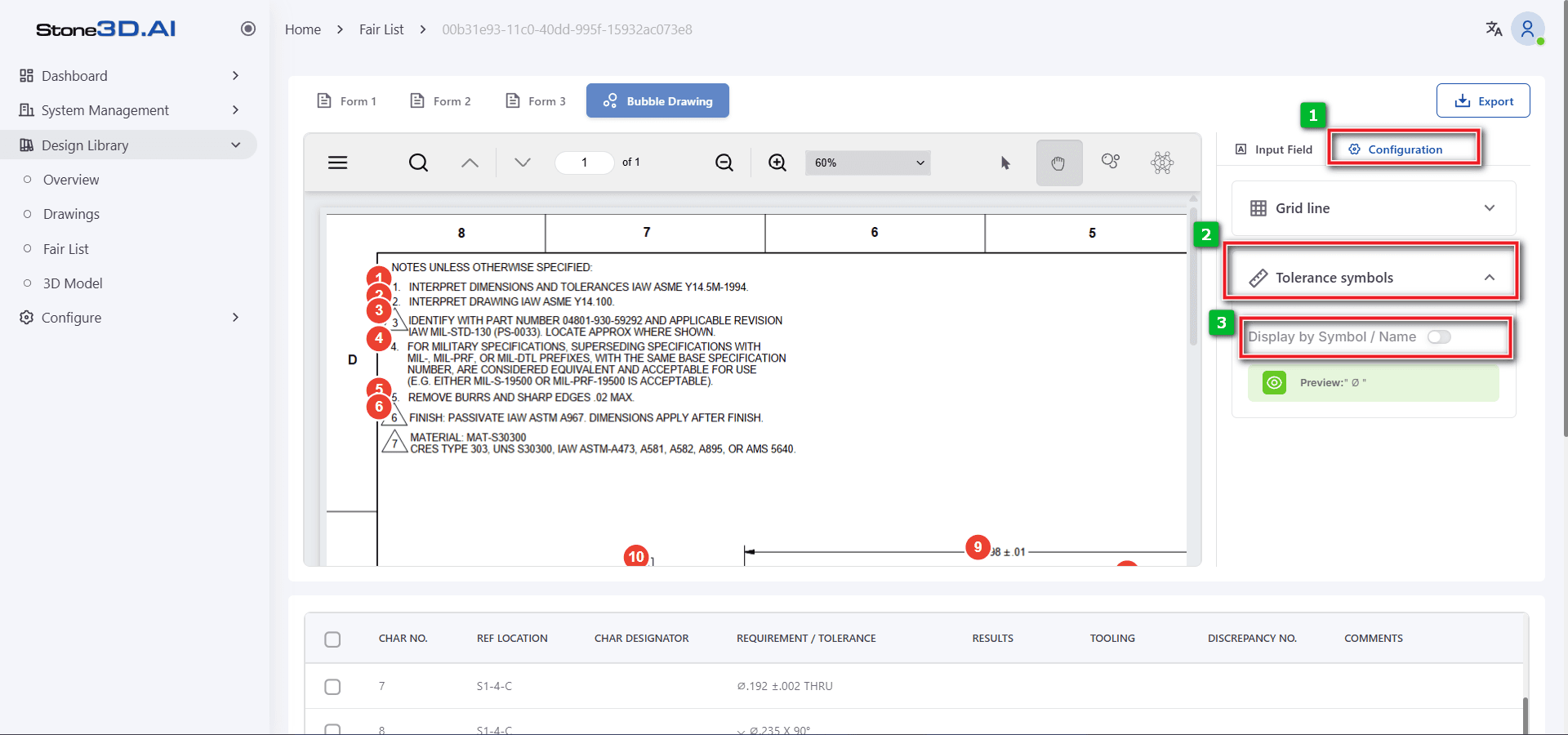
Configure tolerance and GD&T information display (Display by Symbol / Name):
On the menu, go to Configure >> Tolerance symbols
Check the “Display by Symbol / Name” button to switch between displaying tolerance symbols and GD&T as symbols or names.
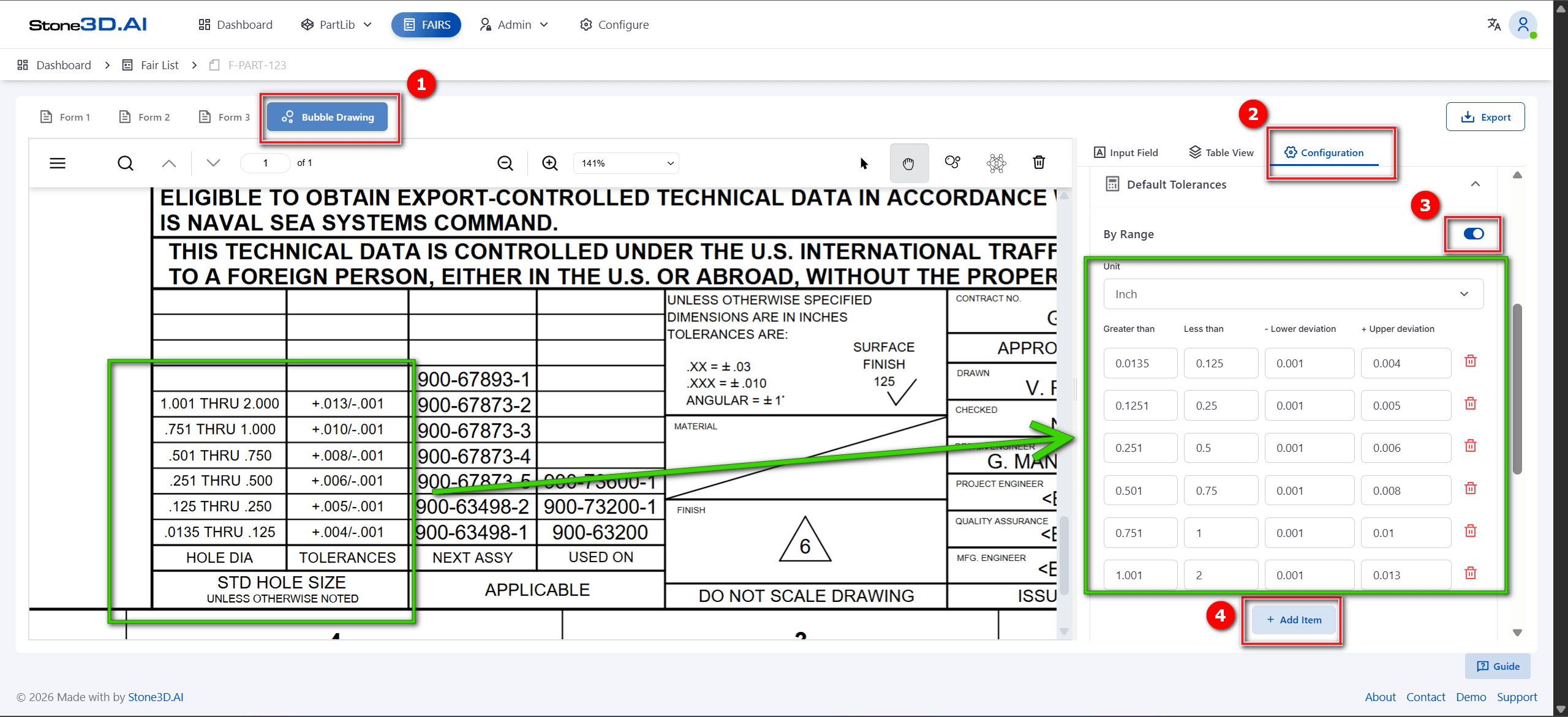
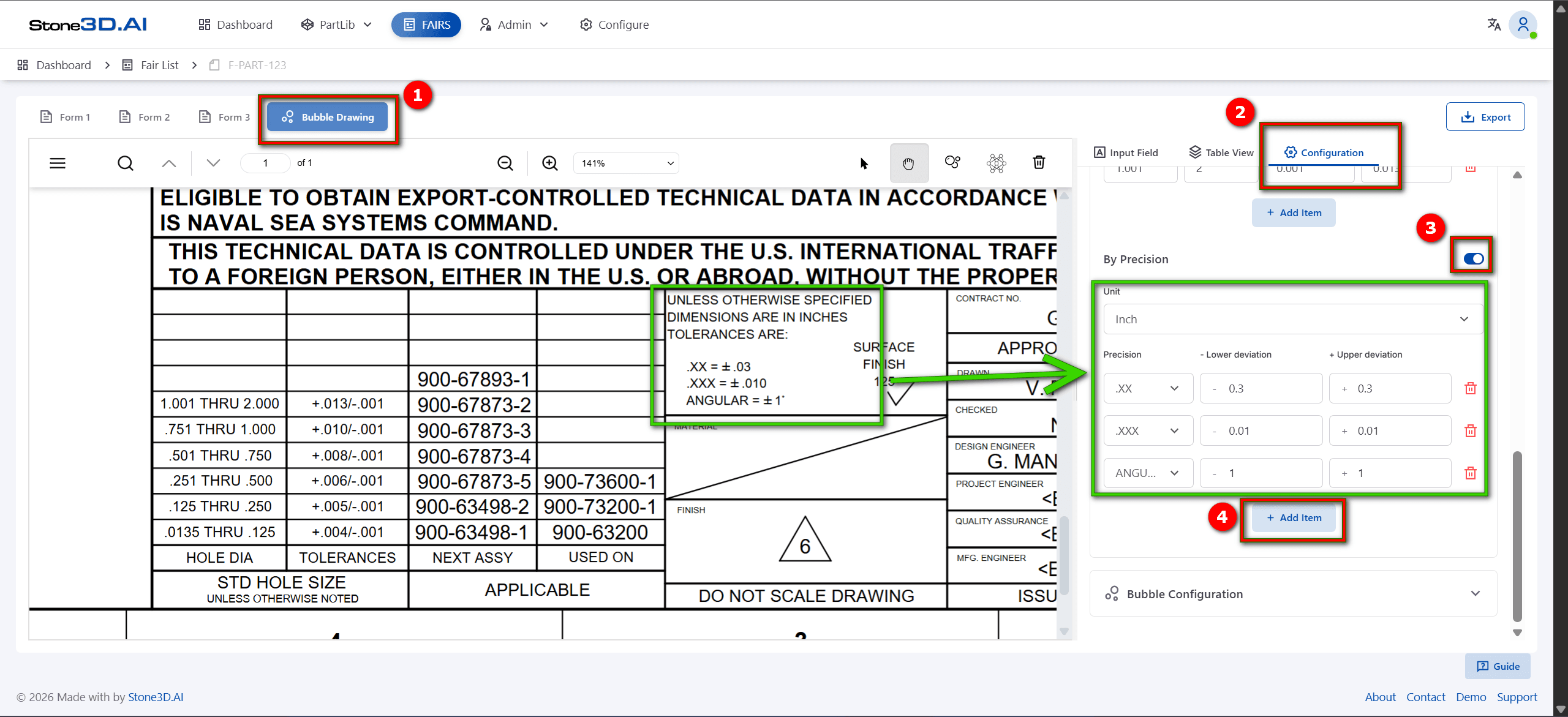
Configure default tolerance according to design drawing information
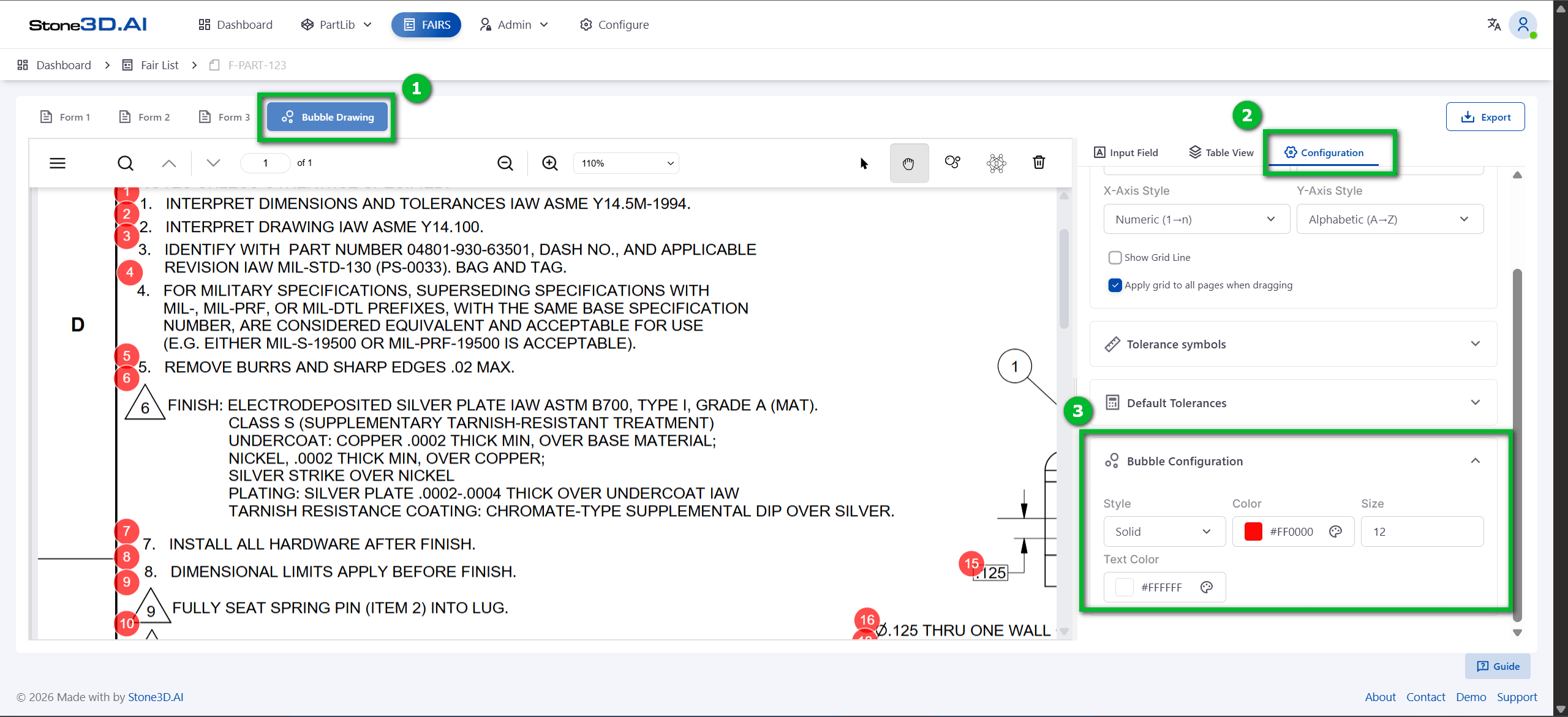
Configure bubble style in Bubble Drawing
Add bubbles to the drawing: Users can choose one of two features for adding bubbles manually or automatically to the drawing:
1. Manually add bubbles to the drawing:
On the toolbar, select the bubble icon  , then hover the mouse over the area containing information to extract and bubble.
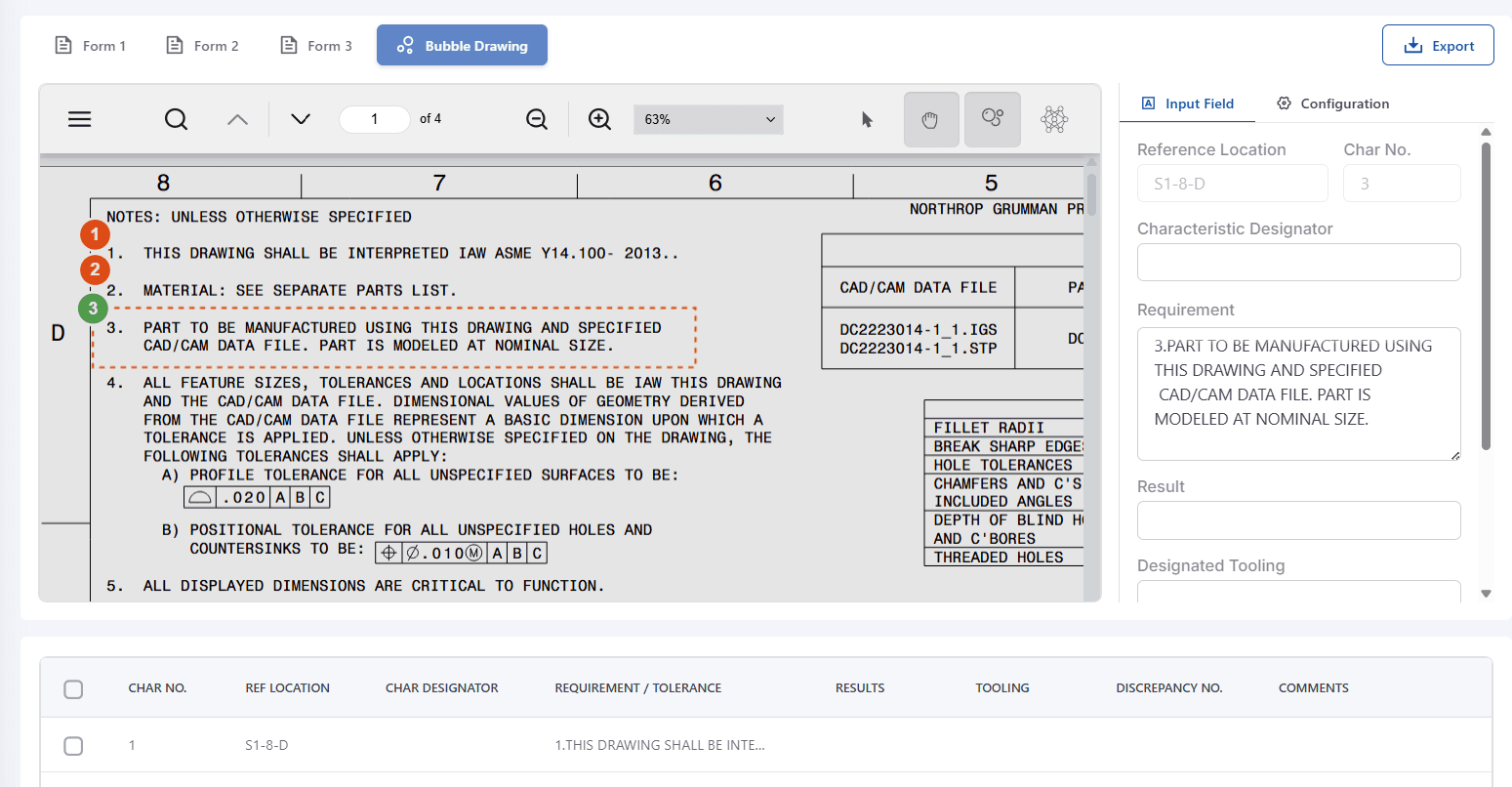
2. Automatically add bubbles to the drawing:
On the toolbar, select the Auto bubble icon  , then select the page number and click Start to begin automatic bubbling.
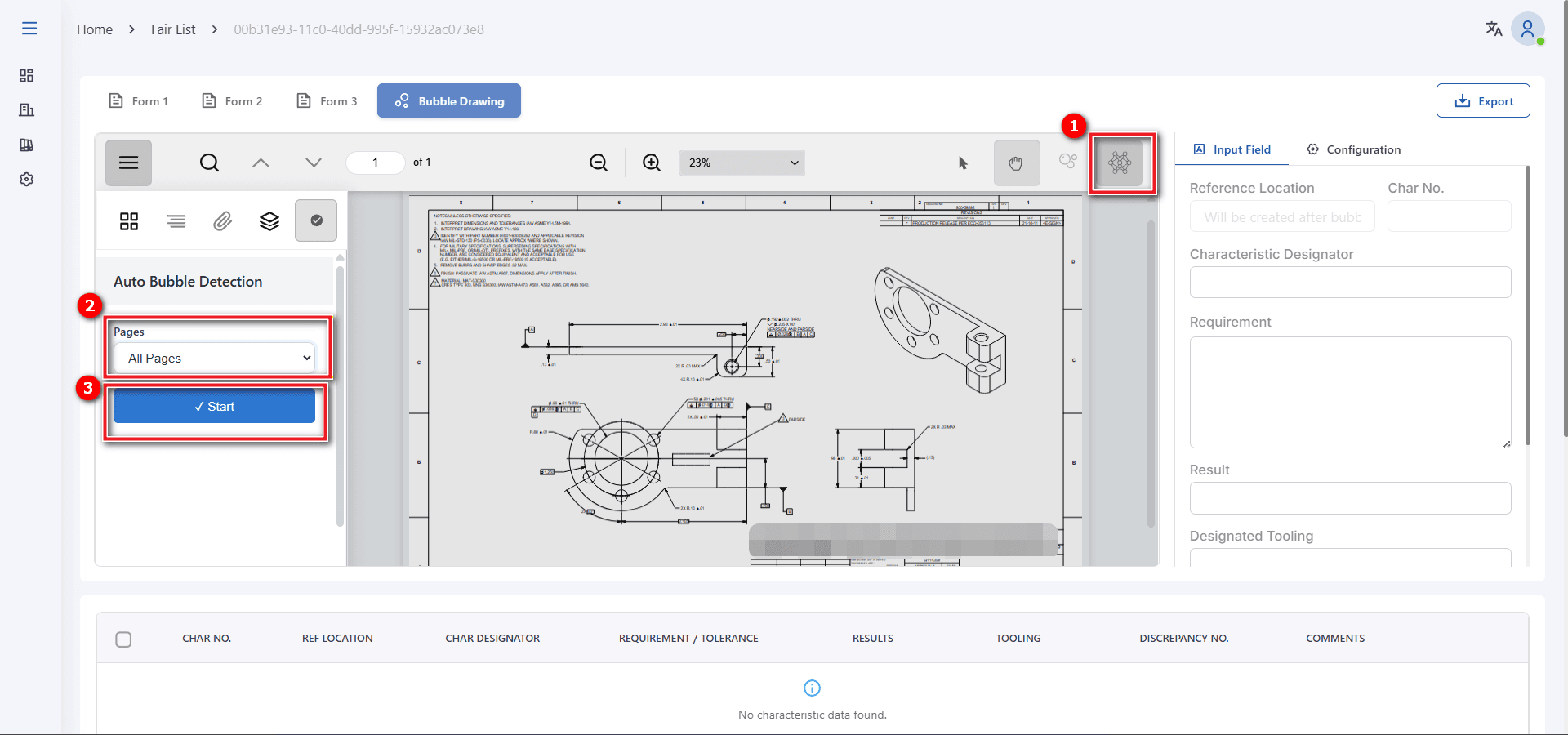
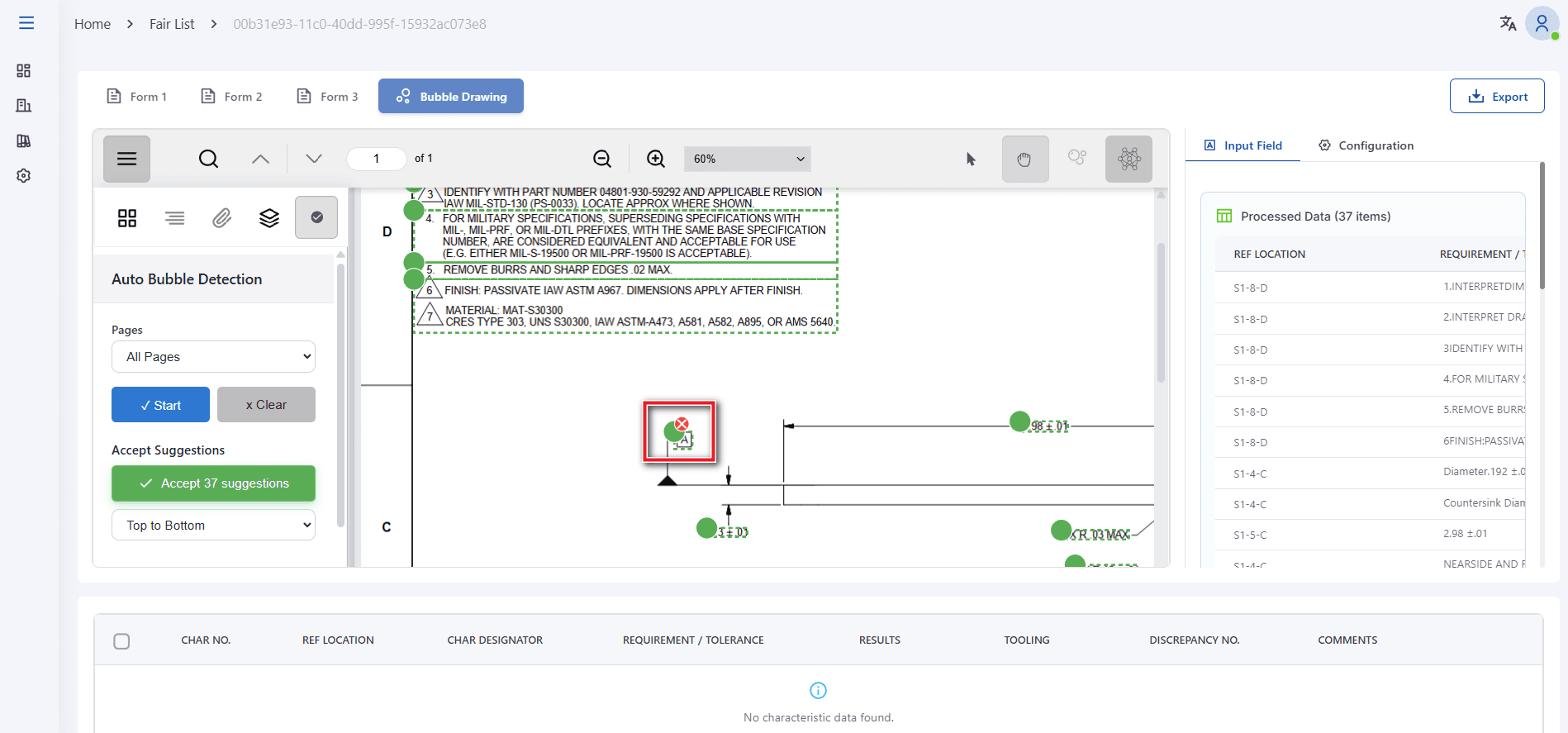
The system will automatically recognize information that needs bubbles such as: notes, tolerances, control frames,… and record temporary bubbles. Users can filter out unwanted bubbles by deleting individual temporary bubbles, or by selecting an area containing temporary bubbles to delete.
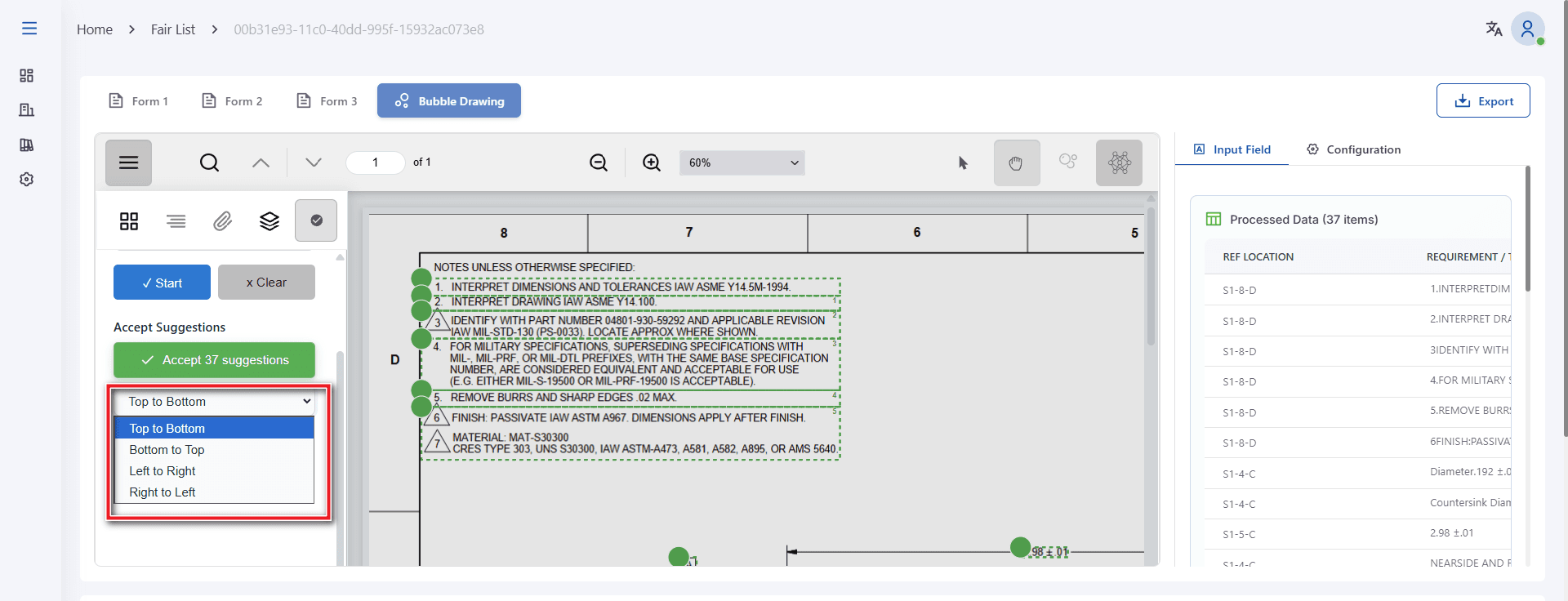
Select the index direction in the Select box:
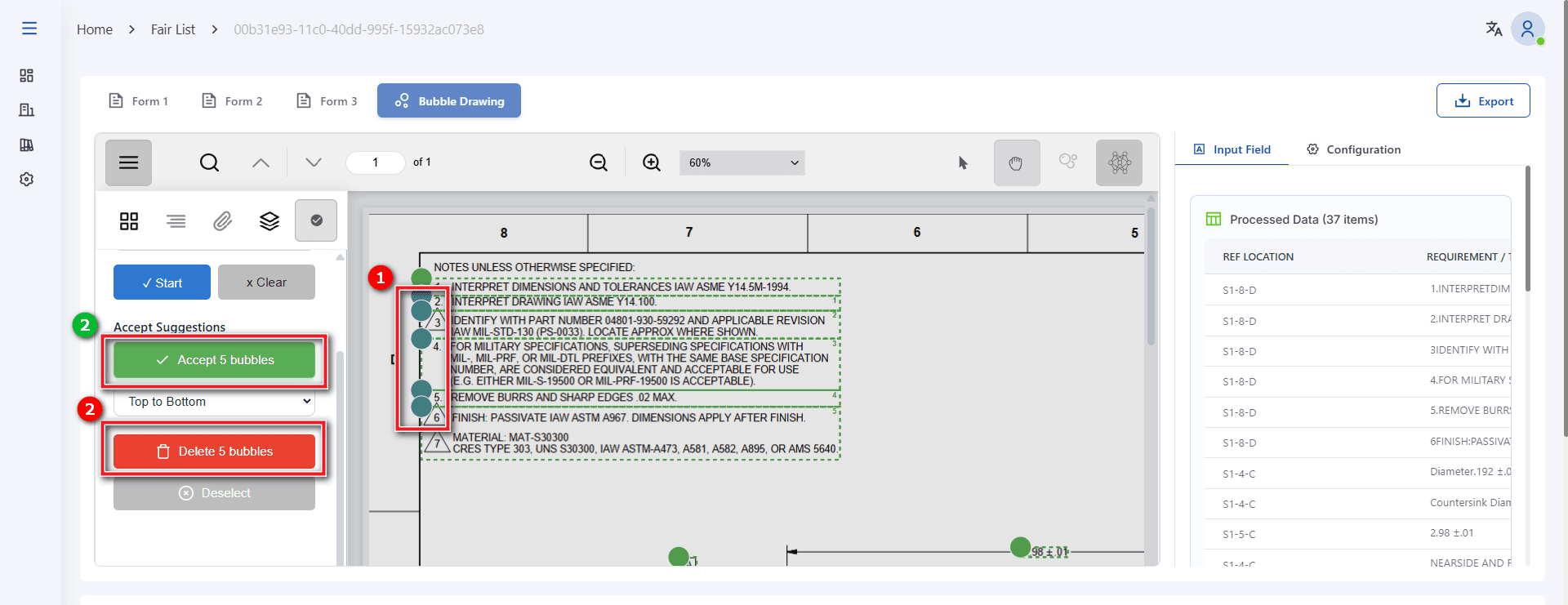
Select the temporary bubble area, click Accept to confirm bubbling or click Delete to remove. Click Deselect to cancel area selection:
Enter necessary additional information for the bubble:
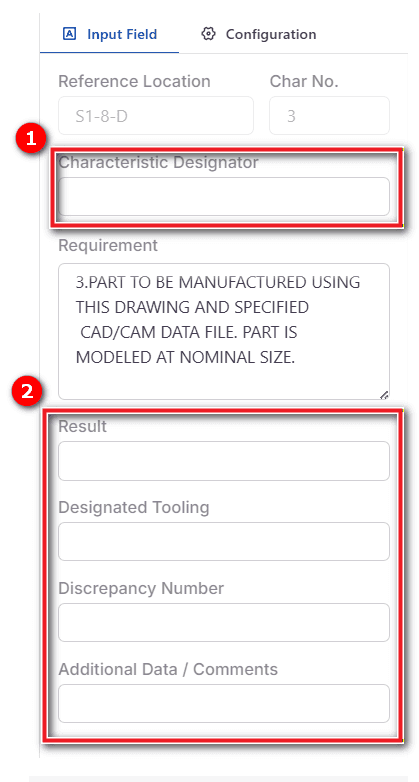
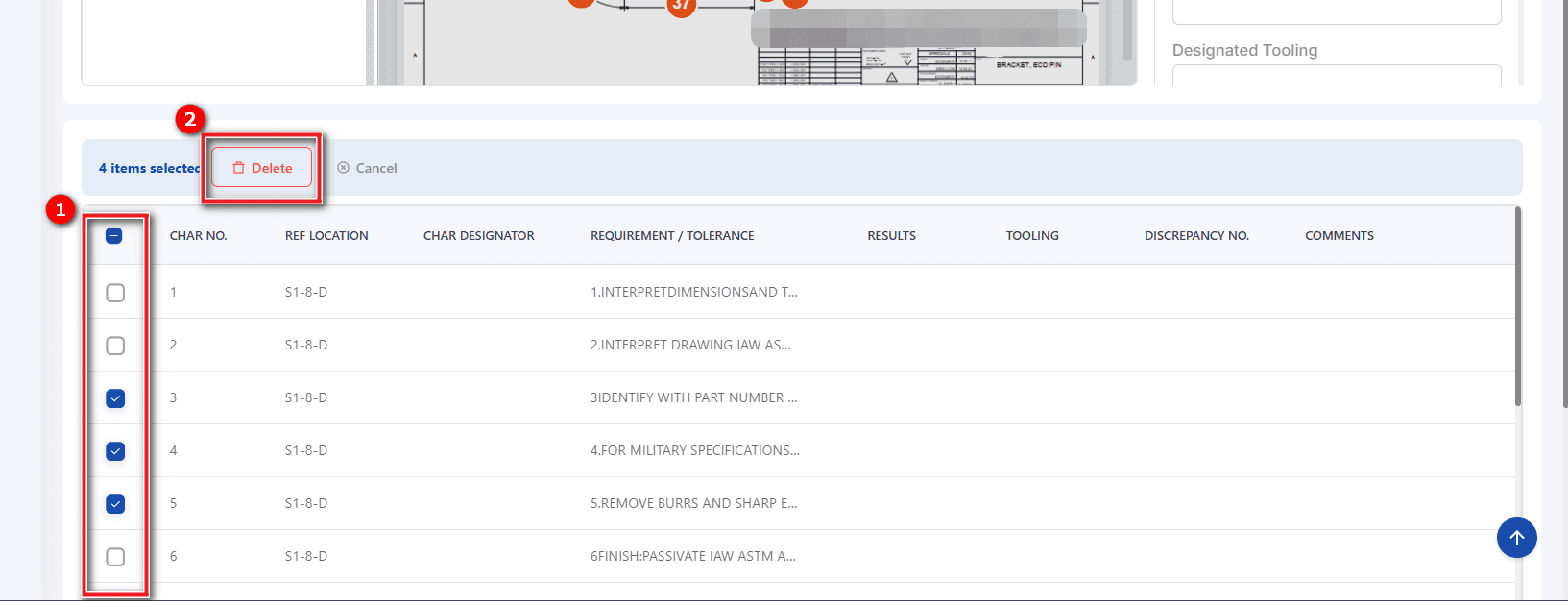
The list of extracted and bubbled information will be displayed in the Field Items table below the drawing.
You can retrieve information for each bubble by clicking on the corresponding item. You can also delete one or more information fields by checking the corresponding checkboxes and clicking Delete.
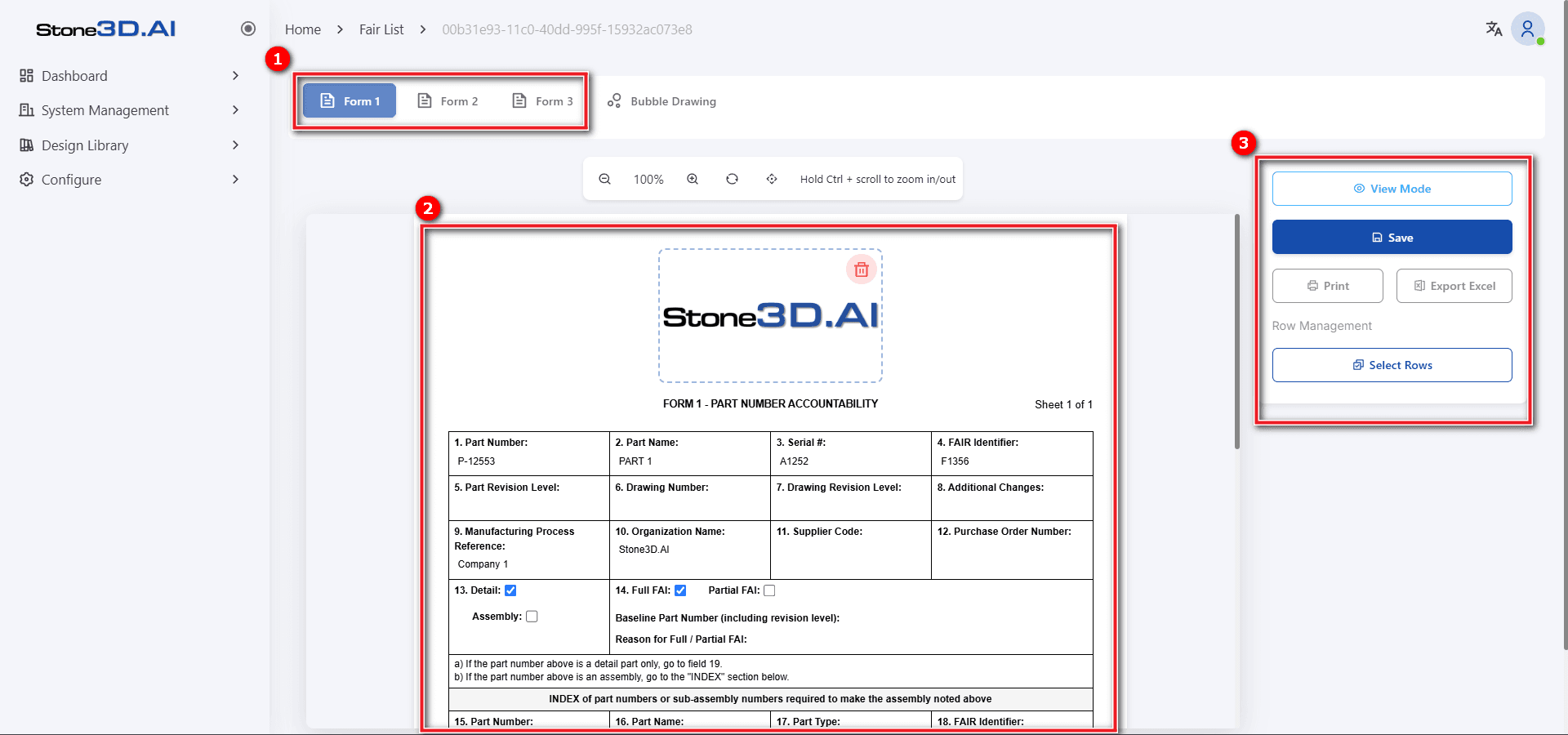
Create Inspection Report Forms (Form1, Form2, Form3) according to AS9102 standard
Users can edit and update information fields in Form 1, Form 2, Form 3, as well as perform export to print file actions.
Set default parameters for Bubble Drawing
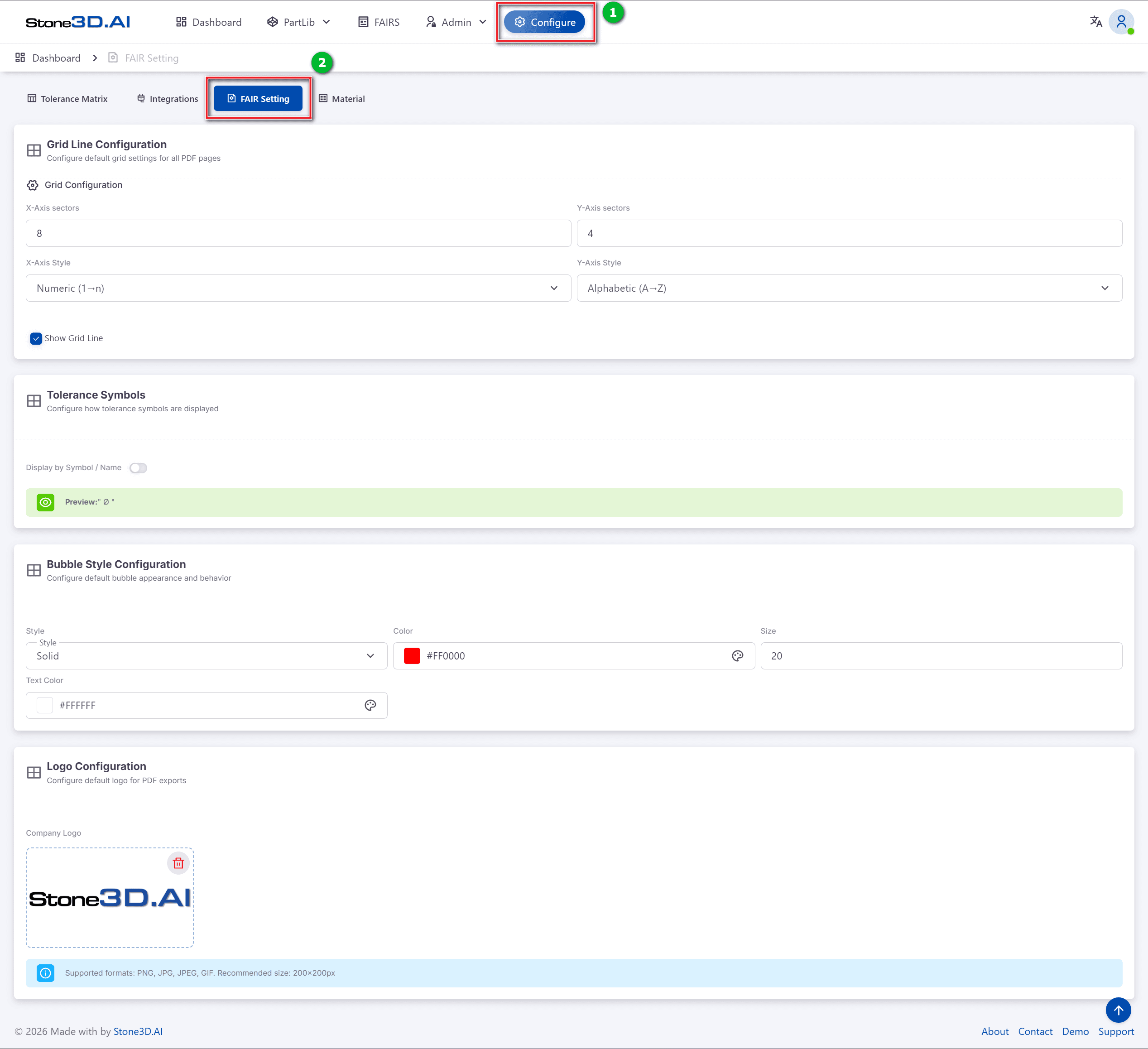
Users can preset default parameters for the Bubble Drawing tool. These settings will be automatically applied to newly created FAIRs.
- Grid Line Configuration: Configure grid lines for the drawing (X-Axis sectors, Y-Axis sectors, X-Axis Style, Y-Axis Style, Show Grid Line,… )
- Tolerance Symbols: Configure how tolerance symbols are displayed
- Bubble Style Configuration: Style, Color, Size, Text Color,…
- Logo Configuration