2D Drawing Management
Upload 2D Drawing
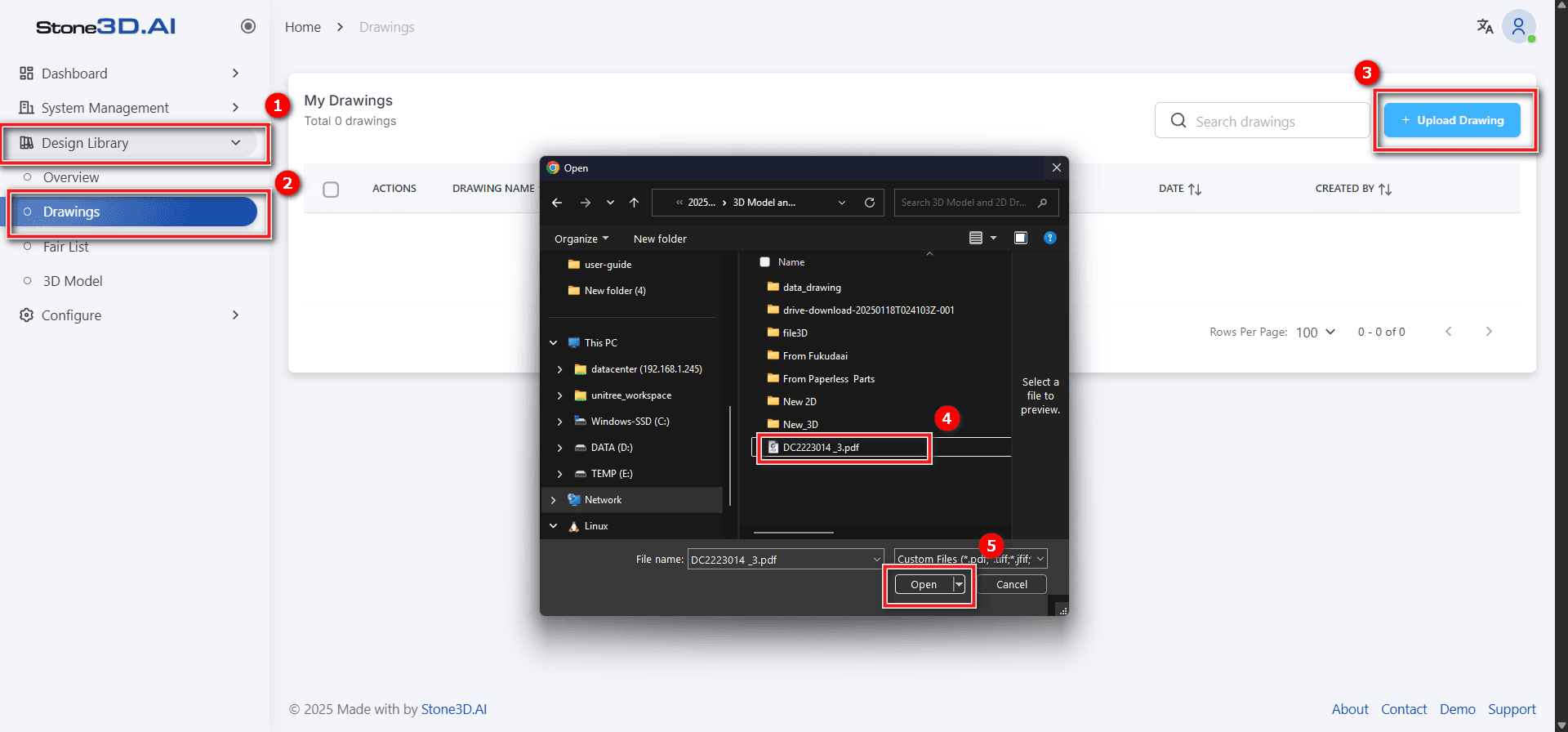
Left-click on the menu Design Library >> 2D Drawing >> Upload Drawing >> Select file with *.pdf format >> Open.
Open and Retrieve Information
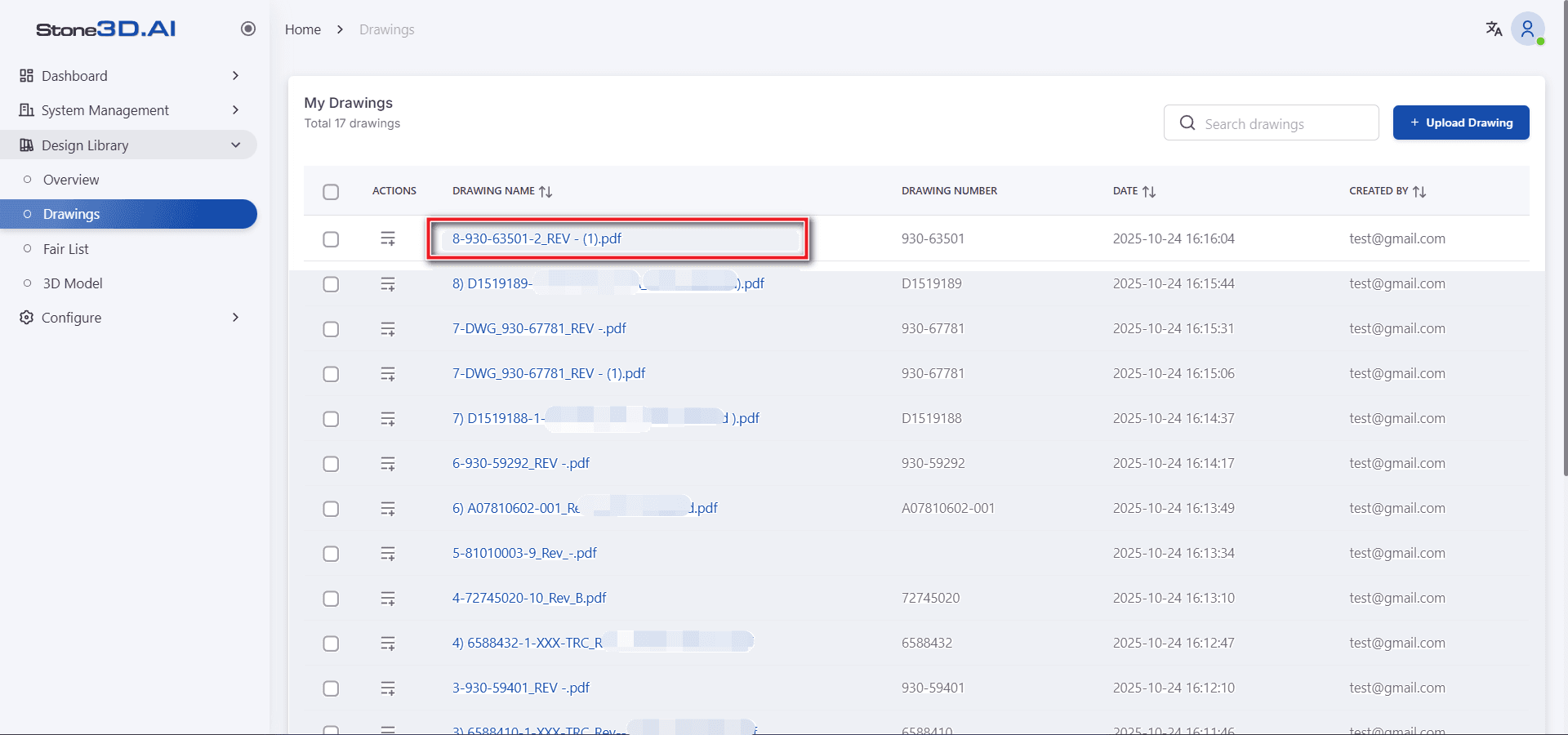
To open a 2D drawing, left-click on the drawing name:
Important information displayed in the drawing will be automatically extracted and shown on the right side of the interface:
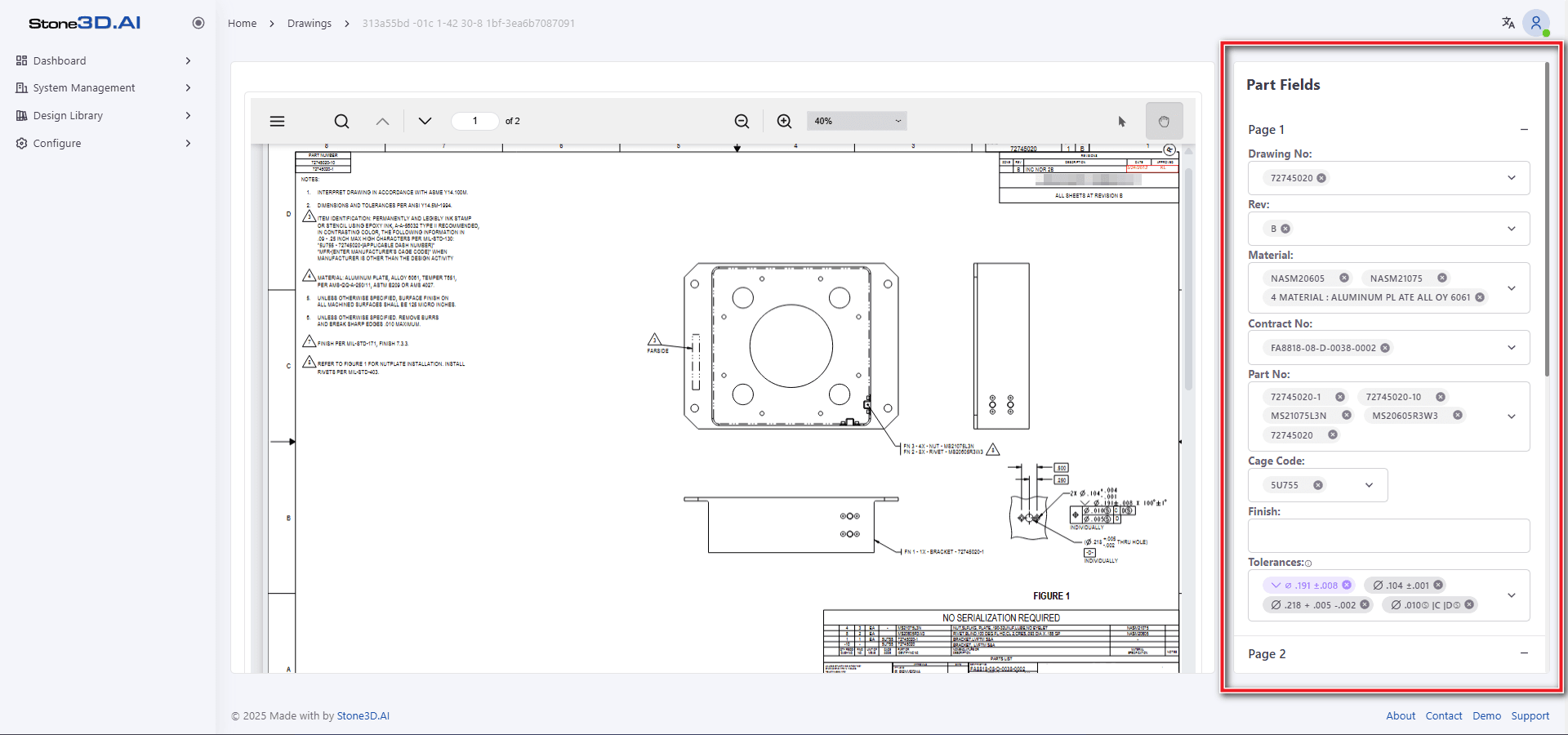
Basic information extracted from standard drawings includes:
- Drawing No.
- Part Number
- Contract No.
- Cage code
- Revision
- Size
- Material
- Surface Finish
- Tolerances
- Control frames
Information about Dimensional Tolerances and GD&T will be labeled with machining difficulty levels according to a scale with corresponding colors:
- Gray: None
- Blue: Low
- Orange: Standard
- Red: High
- Purple: Very High
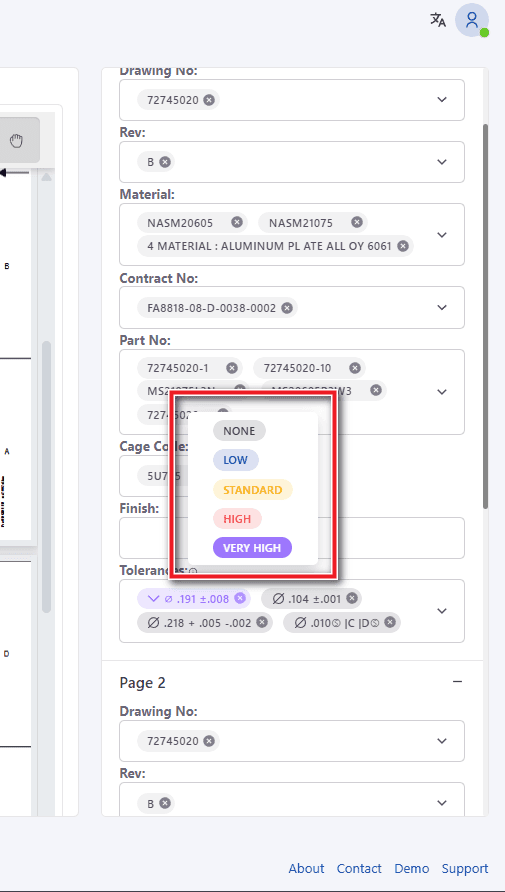
The difficulty threshold levels can be configured by users according to each company’s specific conventions. In the menu, access Configure >> Tolerance, and the parameter configuration table for label reference will appear:
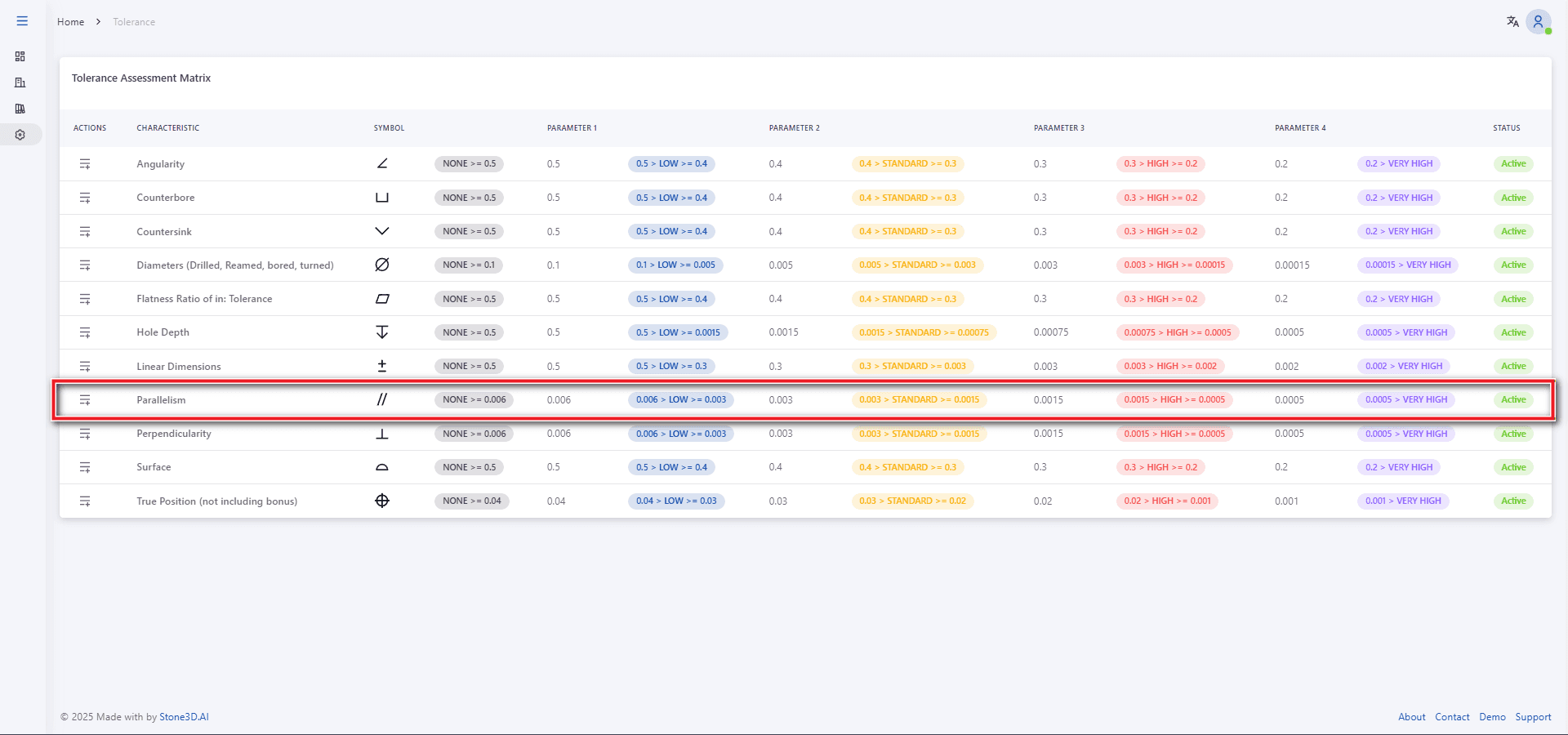
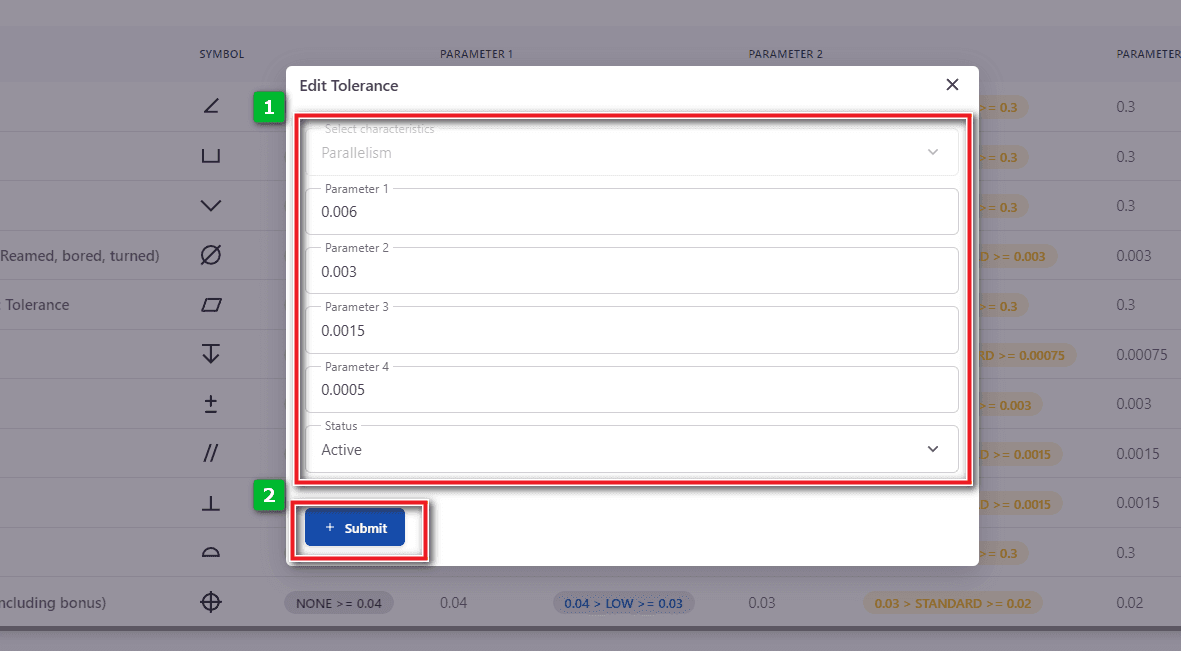
Select the ACTION >> Edit tab of the corresponding row to change the labeling threshold for tolerance parameters:
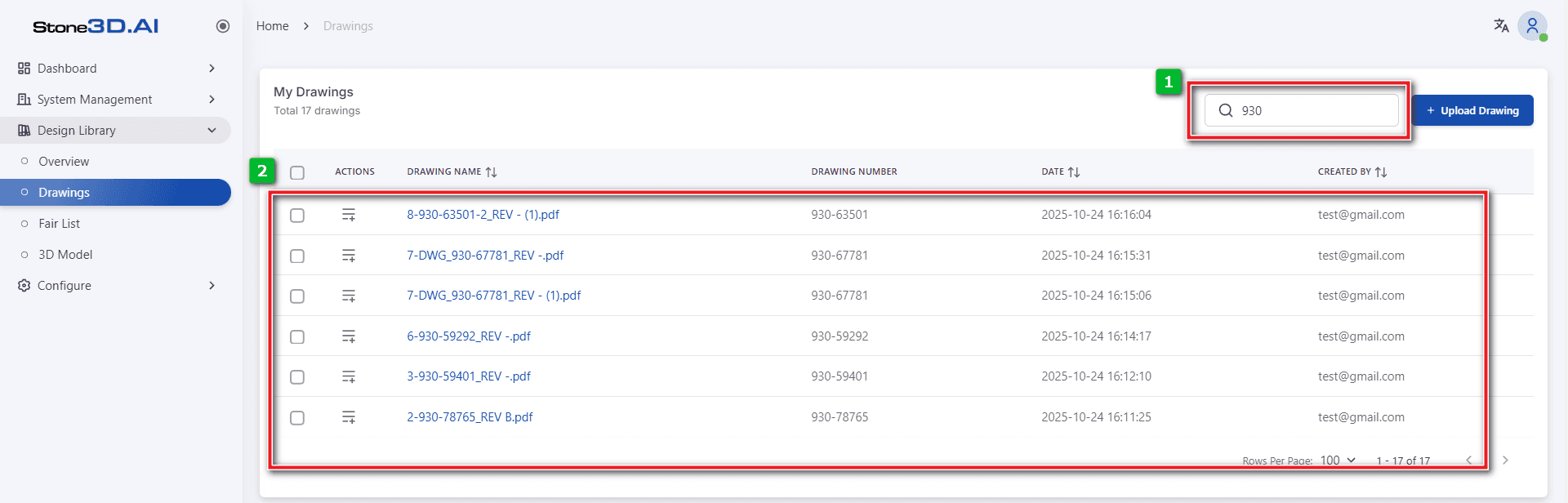
Search 2D Drawing
Enter search keywords in the [Find your drawing] box. The tool allows searching for 2D drawings by drawing name or drawing number:
Delete 2D Drawing
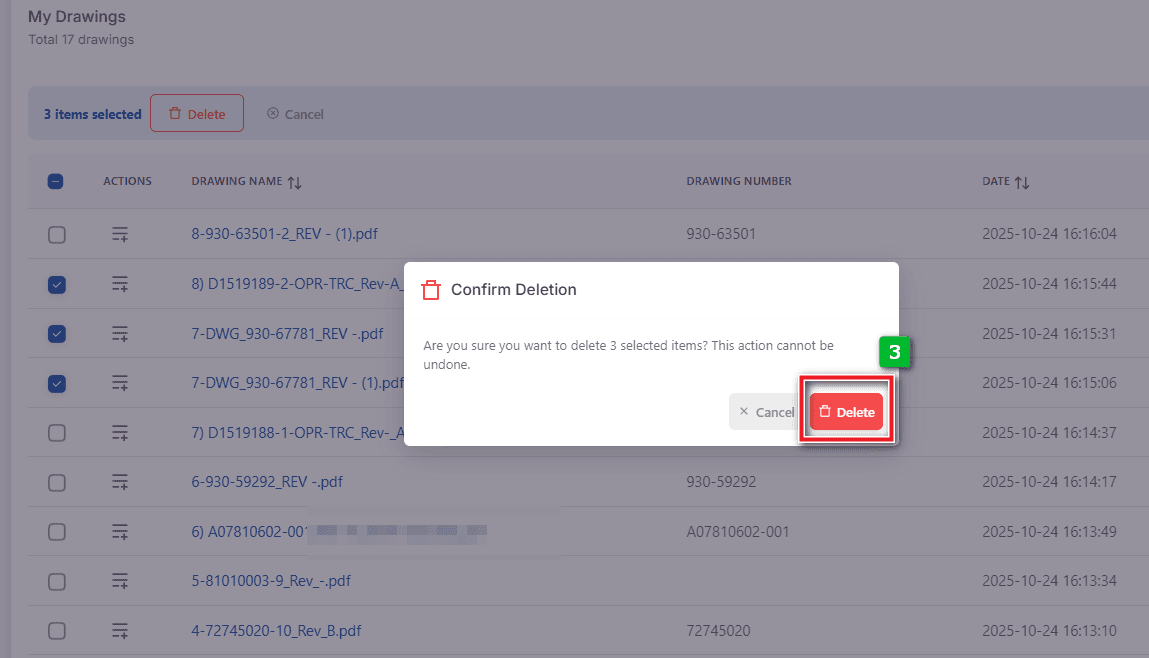
To delete files in batch, check the checkboxes of the files to be deleted and press the Delete button:
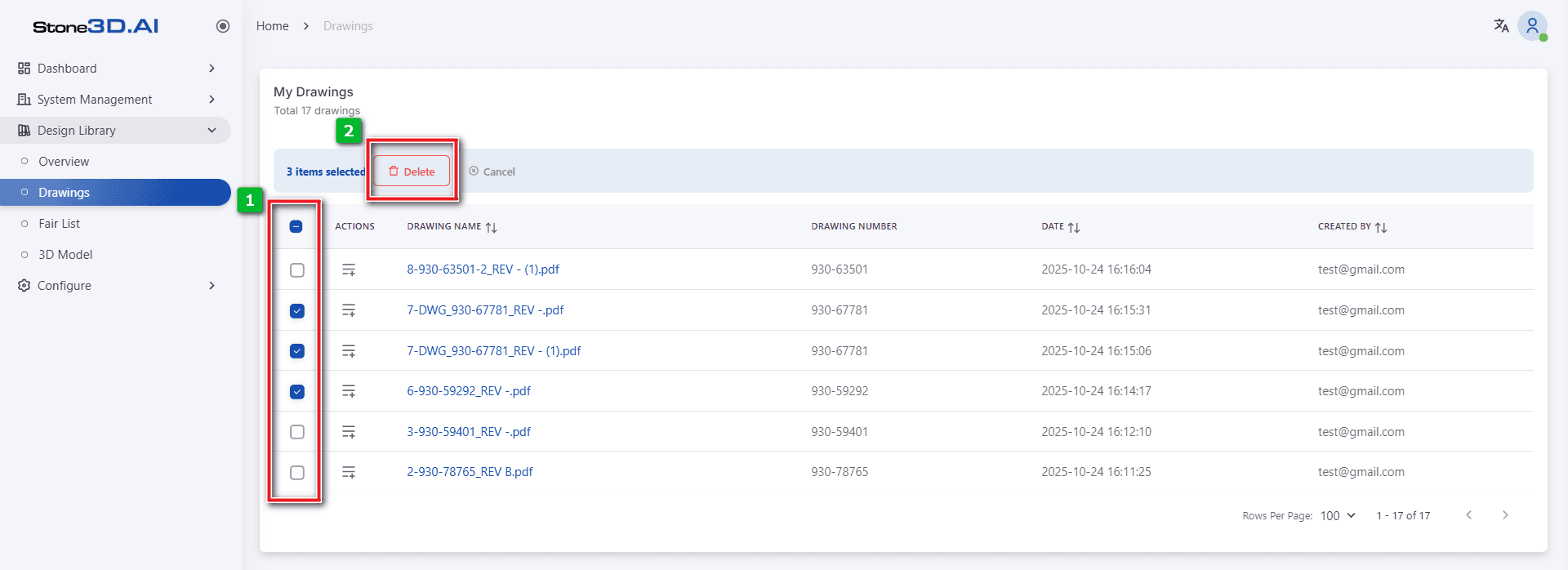
A confirmation popup will appear to confirm the deletion action: