Configuring Quantity (quoted quantities)
Why: Customers often want to know the price at several different quantity levels (e.g. the price for 1 unit, 10 units, 100 units) to decide on an order. Each quantity level — called a Quantity Tier — has its own Unit Price, Total Price, and Lead Time.
How to Open the Quantity Screen
Open the Line Item to configure
From the Quote panel, click the Line Item you want to set quantities for.
Open Change Quantities
In the right panel (Pricing & Quantities), click the Change Quantities link.
Manage the Quantity list
The Edit quantities dialog appears with two parts:
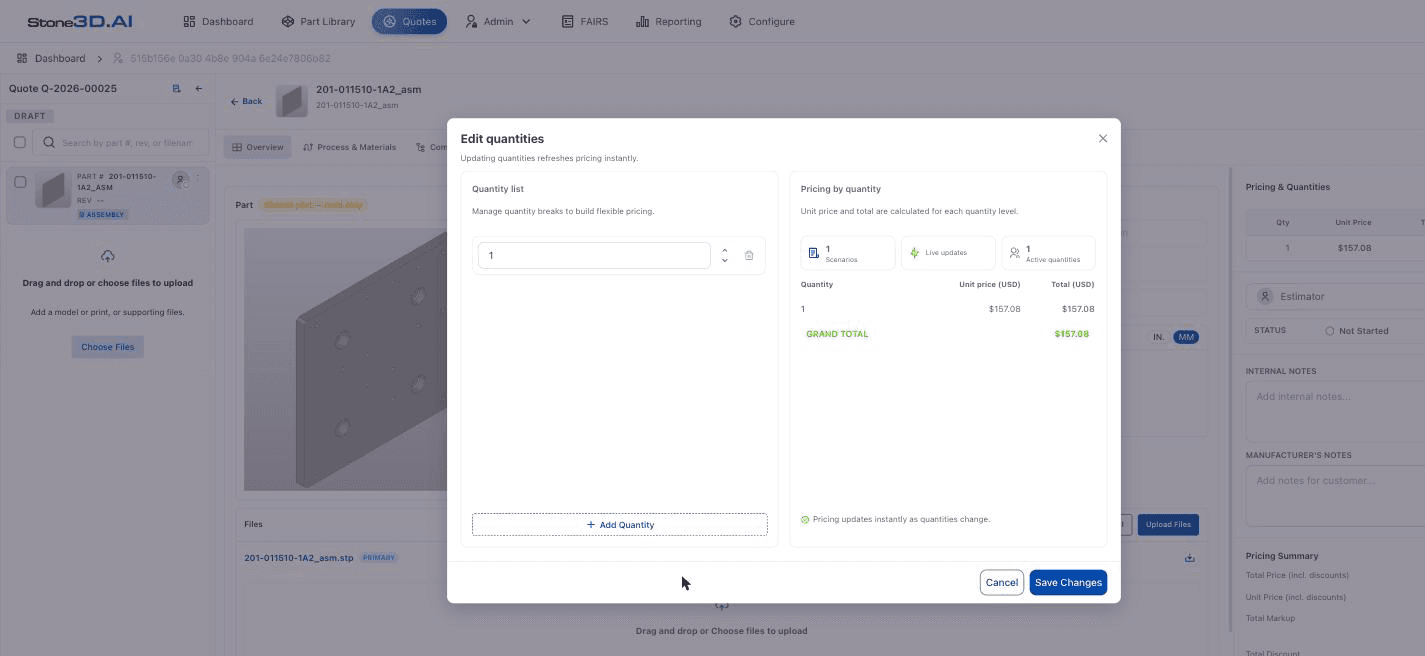
- Quantity list (left) — the list of current quantity tiers. Click + Add Quantity to add a new tier; use the trash icon to delete one.
- Pricing by quantity (right) — a table showing the Unit price (USD) and Total (USD) recomputed instantly for each tier, along with a GRAND TOTAL row.
Save changes
Click Save Changes to apply, or Cancel to discard.
The system explicitly states: “Pricing updates instantly as quantities change” — meaning every time a quantity tier is added or edited, Pricing is recomputed instantly in the same dialog, with no manual calculation needed.
What the Quantity Tier Affects
After saving, the Pricing & Quantities table in the right panel of the Line Item screen shows a full row for each quantity tier, each row containing: Qty, Unit Price, Total Price, Lead Time. The Line Item’s Pricing, Costing, and Lead Times tabs also display data corresponding to these quantity tiers (each tier is its own column/row in those tables).
Result: Every quantity tier the customer cares about now has its own Pricing row, ready to continue in the Pricing and Lead Time steps.