End-to-End: From RFQ to Customer Quote
This is the most important chapter in this set of guides — a continuous, hands-on walkthrough covering the entire process on one real Quote (Q-2026-00025, Part 201-011510-1A2_asm), to answer the question:
“I just received an RFQ from a customer. What do I need to do now to build a complete quote and send it back to the customer?”
1. Receive RFQ
      ↓
2. Review RFQ information
      ↓
3. Create Quote
      ↓
4. Add Parts
      ↓
5. Configure Quantity
      ↓
6. Configure Pricing
      ↓
7. Determine Lead Time
      ↓
8. Review Quote
      ↓
9. Generate Quote
      ↓
10. Send Quote to customer
Step 1 — Receive RFQ
What’s happening: Recording that the customer has sent a request for quote, with a specific RFQ number.
Why: Every action that follows (creating the Quote, adding Parts…) needs to stay aligned with this original request.
What to enter/select: The customer’s RFQ number (e.g. RFQ-DEMO-2026-01), the customer-side Contact’s name, and the list of Parts and quantities the customer needs quoted.
Result: There’s now enough information to start creating the Quote. (See details in Receive RFQ.)
Condition to move to the next step: The customer, RFQ Number, and at least one Part to be quoted have been clearly identified.
Step 2 — Review RFQ Information
What’s happening: Double-checking the information gathered before officially creating the Quote in the system — to avoid repeated edits later.
Why: Fixing information at the RFQ stage is always faster and less risky than fixing it after the Quote already has Pricing.
What to check: Whether the Contact is correct, whether the RFQ Number is correct, whether technical files (drawings/3D models) have been received, and whether the right Facility (manufacturing site) has been identified.
Result: The RFQ information is ready, with no obvious gaps remaining.
Condition to move to the next step: No open questions remain that need to be asked back to the customer before quoting.
Step 3 — Create Quote
What’s happening: Go to Quotes → Create Quote, fill in the General fields (RFQ Number, Send From Facility, Quote Due, Quote Expiration) and People fields (Contact, Salesperson, Estimator), then click Create Quote.
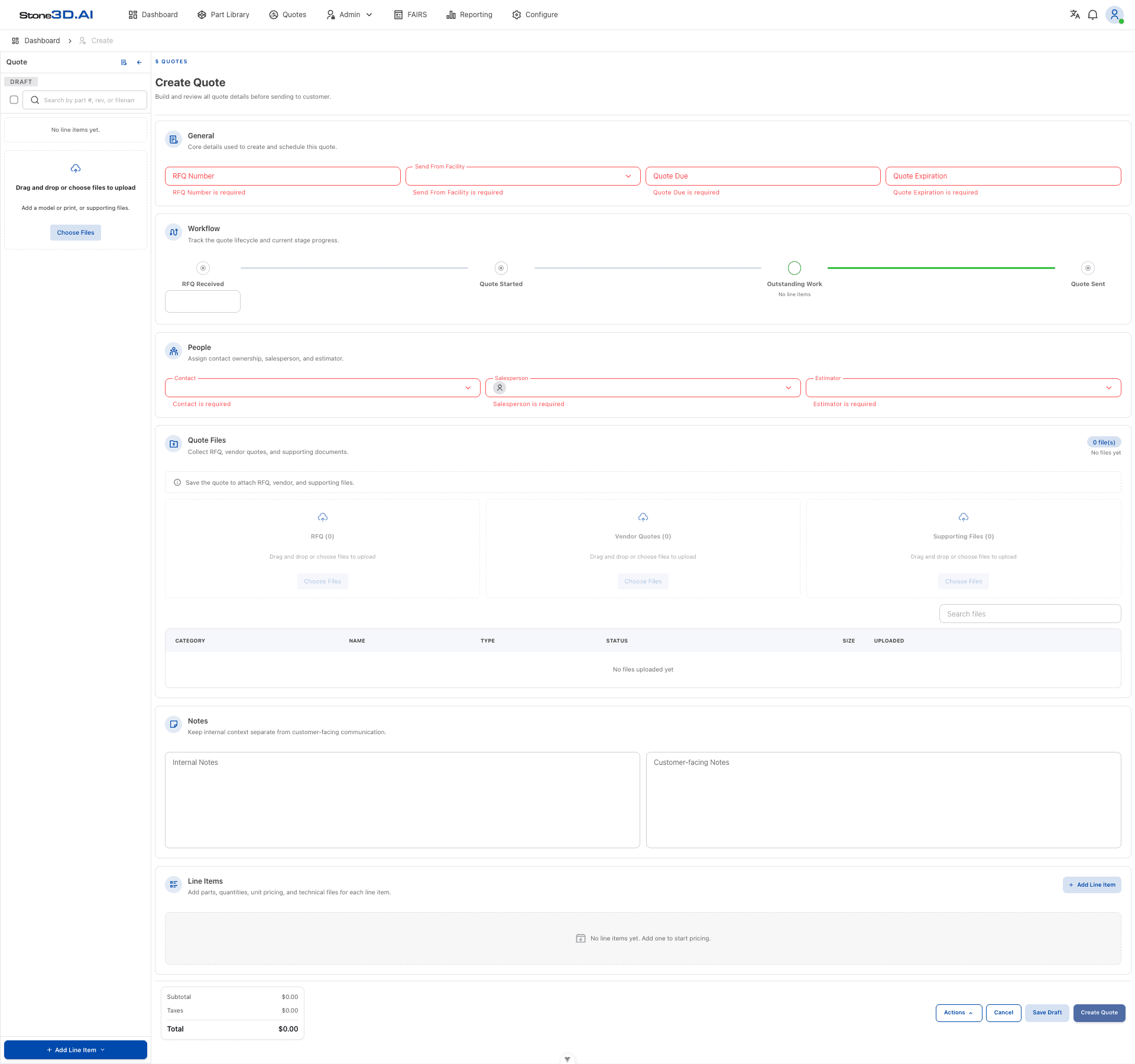
Why: All 7 of these fields are required (RFQ Number, Send From Facility, Quote Due, Quote Expiration, Contact, Salesperson, Estimator) — missing any one of them, the system blocks submission and shows an error right on that field, and the Quote is not created.
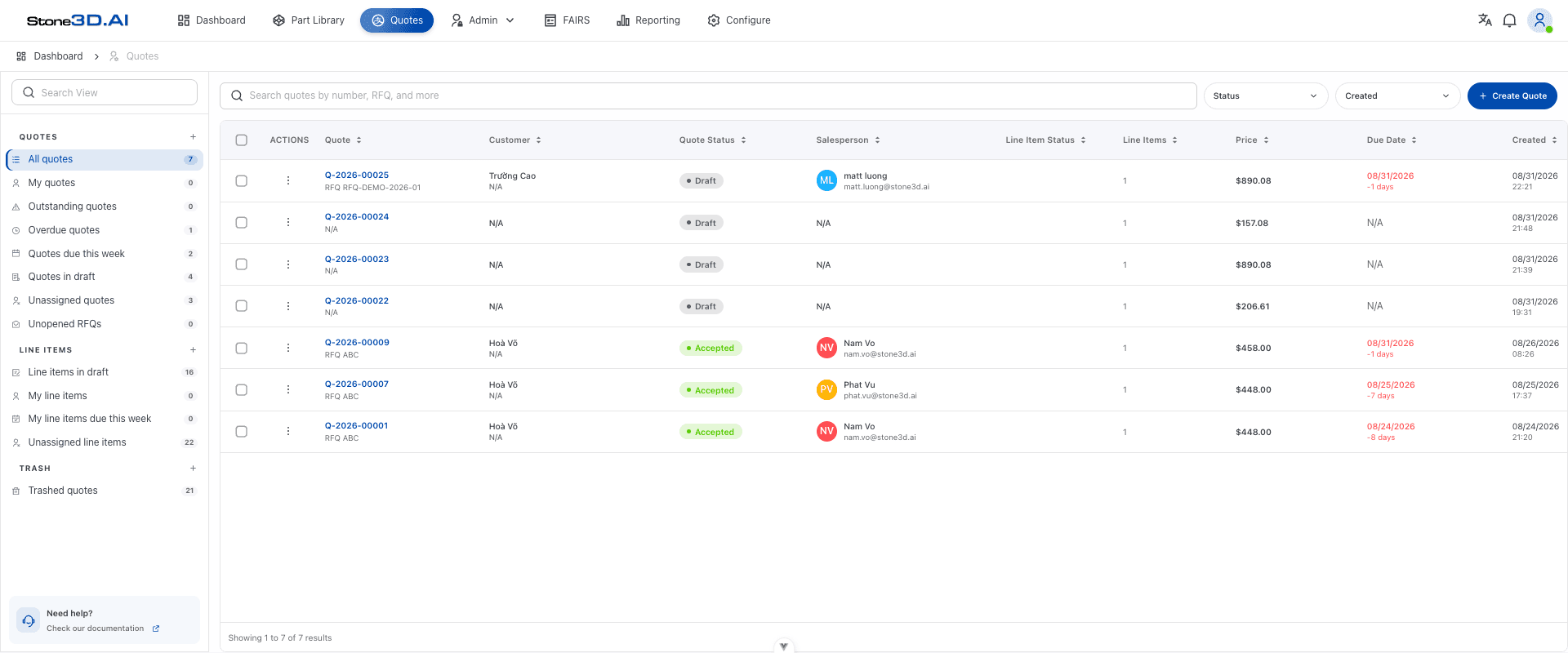
Result: In this walkthrough, once everything was filled in, the system showed “Quote Q-2026-00025 created successfully”, the Quote appeared on the list with Draft status, 0 Line Items, and appeared in the Unopened RFQs view (since it had an RFQ Number but no Part processed yet).
Condition to move to the next step: The Quote now officially exists in the system with its own code. (See details in Create Quote.)
Step 4 — Add Parts
What’s happening: Open the just-created Quote, click Add Line Item → Import Historical Work, find and select Part 201-011510-1A2_asm, preview it, then click Import item.
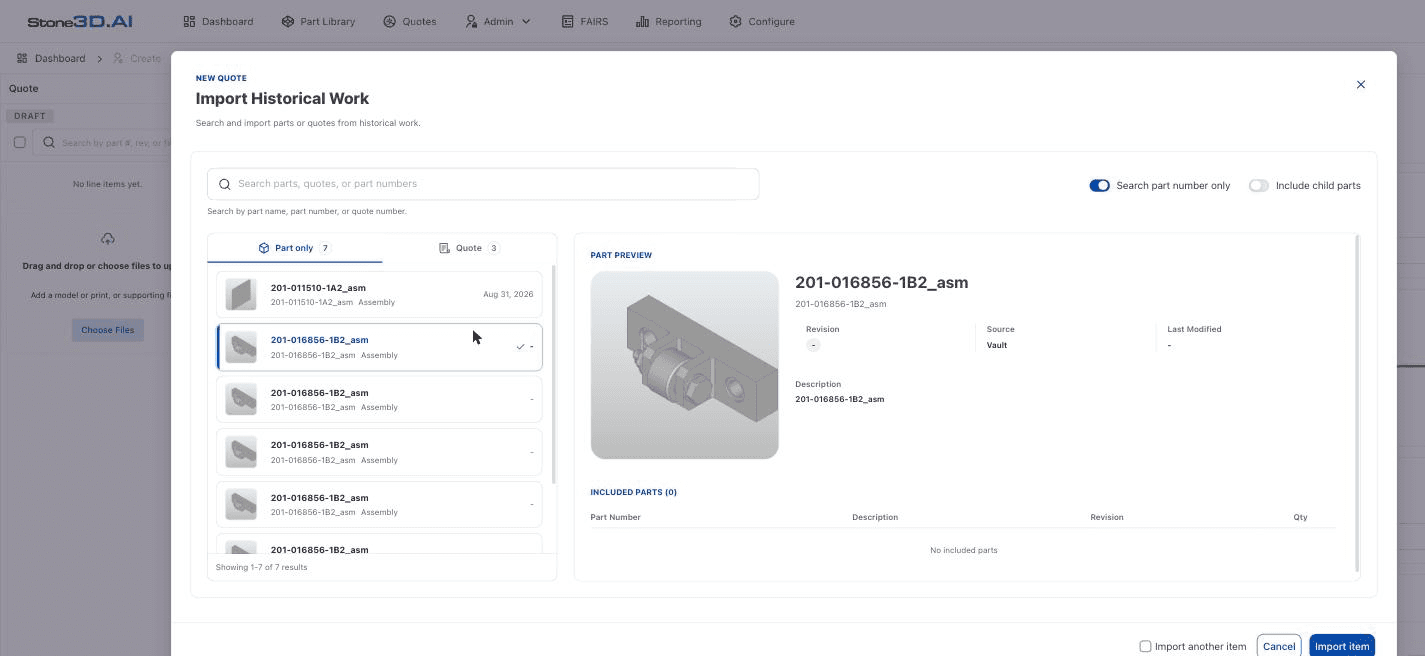
Why: Import Historical Work lets you inherit the Part’s existing data (geometry, files, BOM, and even historical Pricing if available) instead of entering everything again from scratch.
Result: The system shows “Imported historical item”. The new Line Item appears in the left panel, and the Quote’s Subtotal updates right away (in this example: $157.08, inherited from historical data).
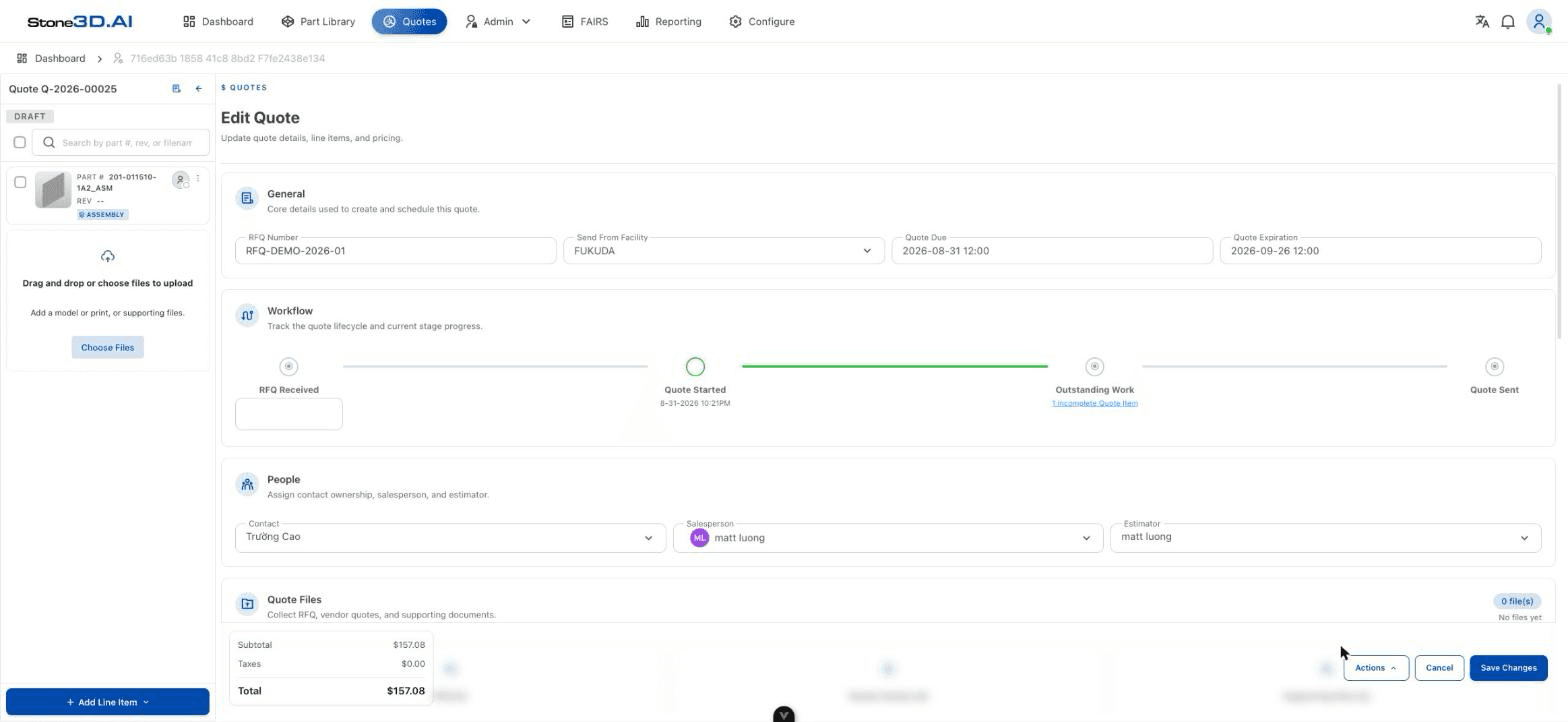
Open the Line Item to see the Part’s information (Part Number, geometry, attached files) on the Overview tab:
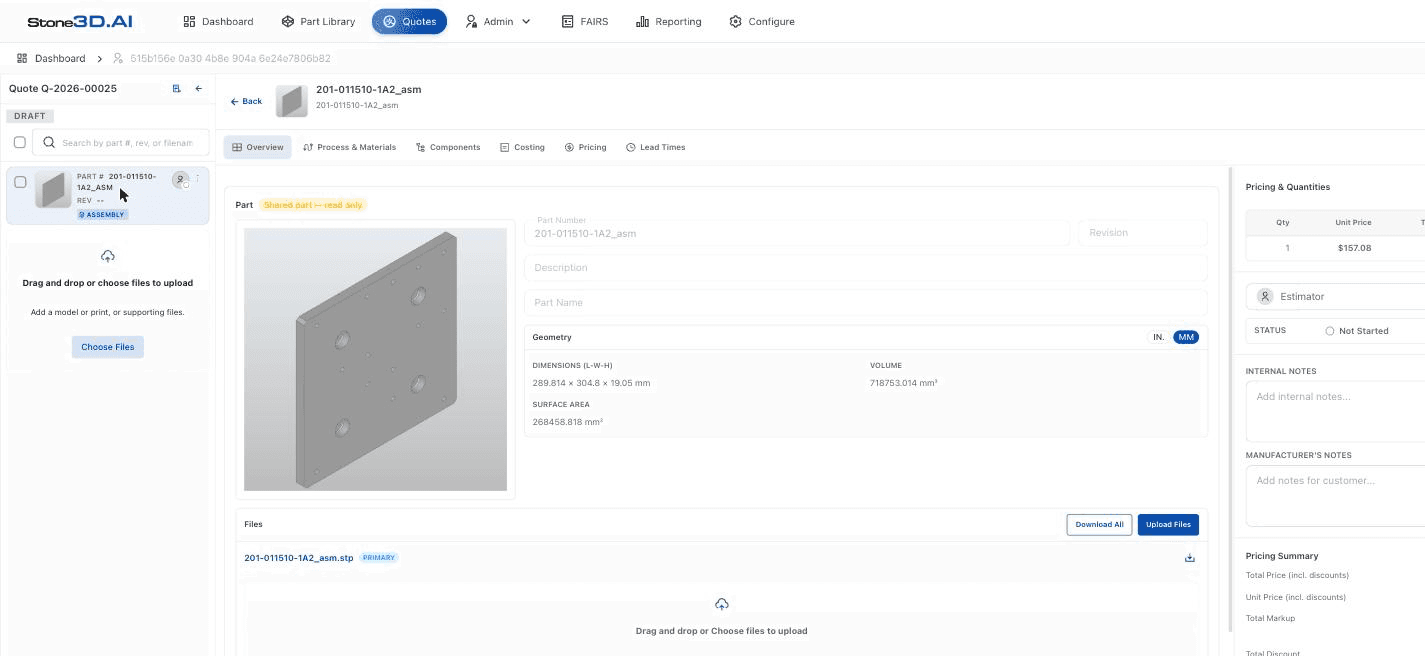
Condition to move to the next step: Every Part the customer requested has been added as a Line Item. (See details in Add Parts.)
Step 5 — Configure Quantity
What’s happening: In the Line Item, click Change Quantities to view/edit the list of quantity tiers.
Why: The customer needs to know the price at the specific quantity level(s) they care about.
Result in this example: The Line Item has a single Quantity Tier (Qty = 1), with a Unit Price of 157.08, correctly reflected in the Pricing by quantity table with a GRAND TOTAL of $157.08.
Condition to move to the next step: Every quantity level the customer requested has been set up. (See details in Configure Quantities.)
Step 6 — Configure Pricing
What’s happening: Check the Costing tab to see the cost breakdown, then move to the Pricing tab to set Markup/Discount if needed.
Why: The sell price needs to correctly reflect the cost plus the desired profit margin.
Result in this example: The Costing tab shows that the entire **157.08. On the Pricing tab: Total Markup 0%, Total Discount 0%, so Total (excl. Discounts) = Total (incl. Discounts) = $157.08.
Condition to move to the next step: The Line Item’s final sell price has been confirmed as reasonable. (See details in Pricing.)
Step 7 — Determine Lead Time
What’s happening: On the Lead Times tab, enter the number of weeks in the LEAD TIME field.
Why: The customer needs to know the expected delivery time alongside the price.
Result in this example: Entering 2 into the Lead Time field — immediately, the Pricing & Quantities table in the right panel updates the Lead Time column to “2 Weeks” for the Qty = 1 row.
Condition to move to the next step: Every Quantity Tier has a determined Lead Time. (See details in Lead Time.)
Step 8 — Review Quote
What’s happening: Change the Line Item’s Status to Completed, then go back to the Quote screen and (if needed) reload the page to check the Outstanding Work block.
Why: This is the signal the system uses to confirm the Quote is ready — with no Line Item overlooked.
Result in this example: After changing the Line Item Status to Completed and reloading the page, Outstanding Work shows “All quote items complete”.
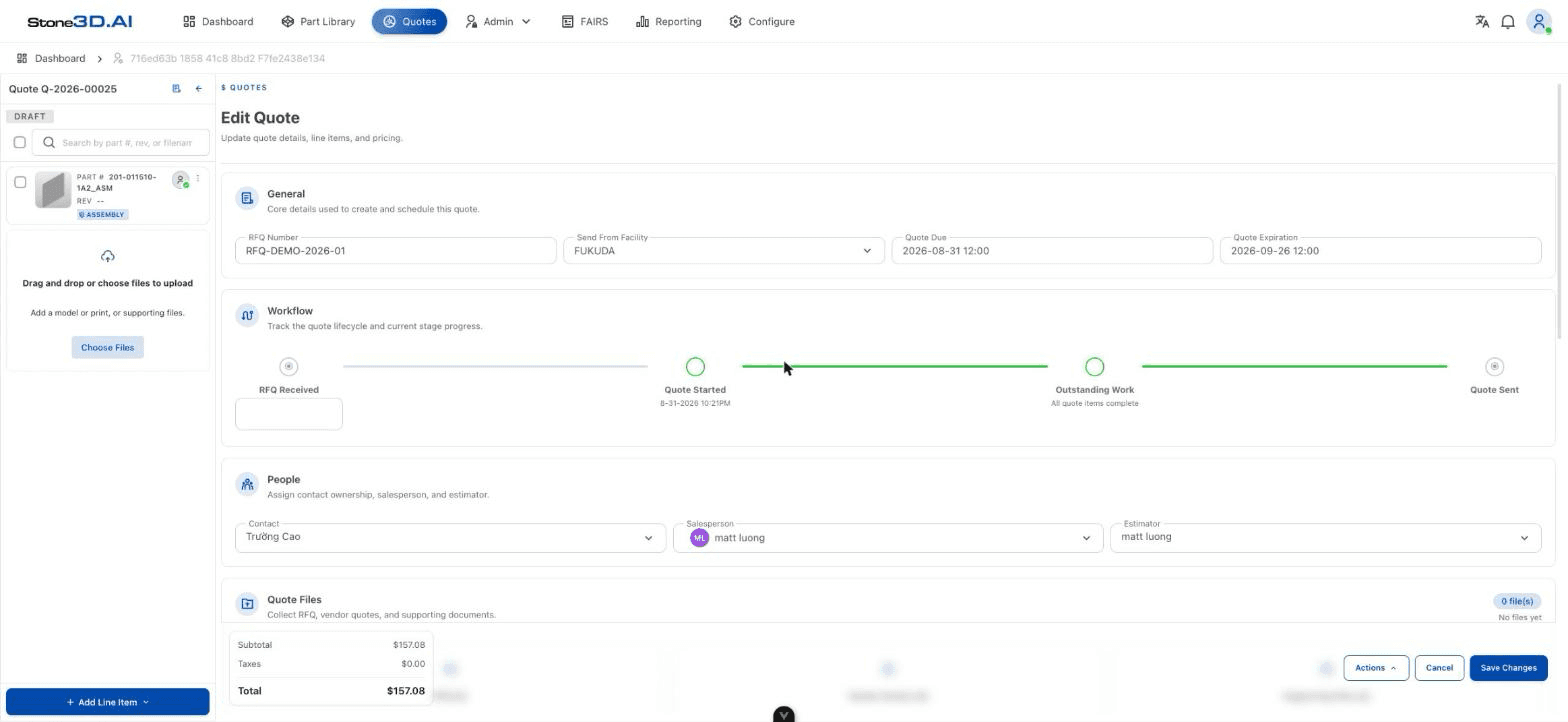
Cross-check against the full checklist in the Review Quote chapter before continuing.
Condition to move to the next step: There’s confidence that nothing is missing from the Quote. (Note: the system does not automatically warn if Process & Materials hasn’t been selected — this must be checked manually.)
Step 9 — Generate Quote
What’s happening: Open Actions → PDF to download the quote file.
Why: This is the official document that will be sent to the customer.
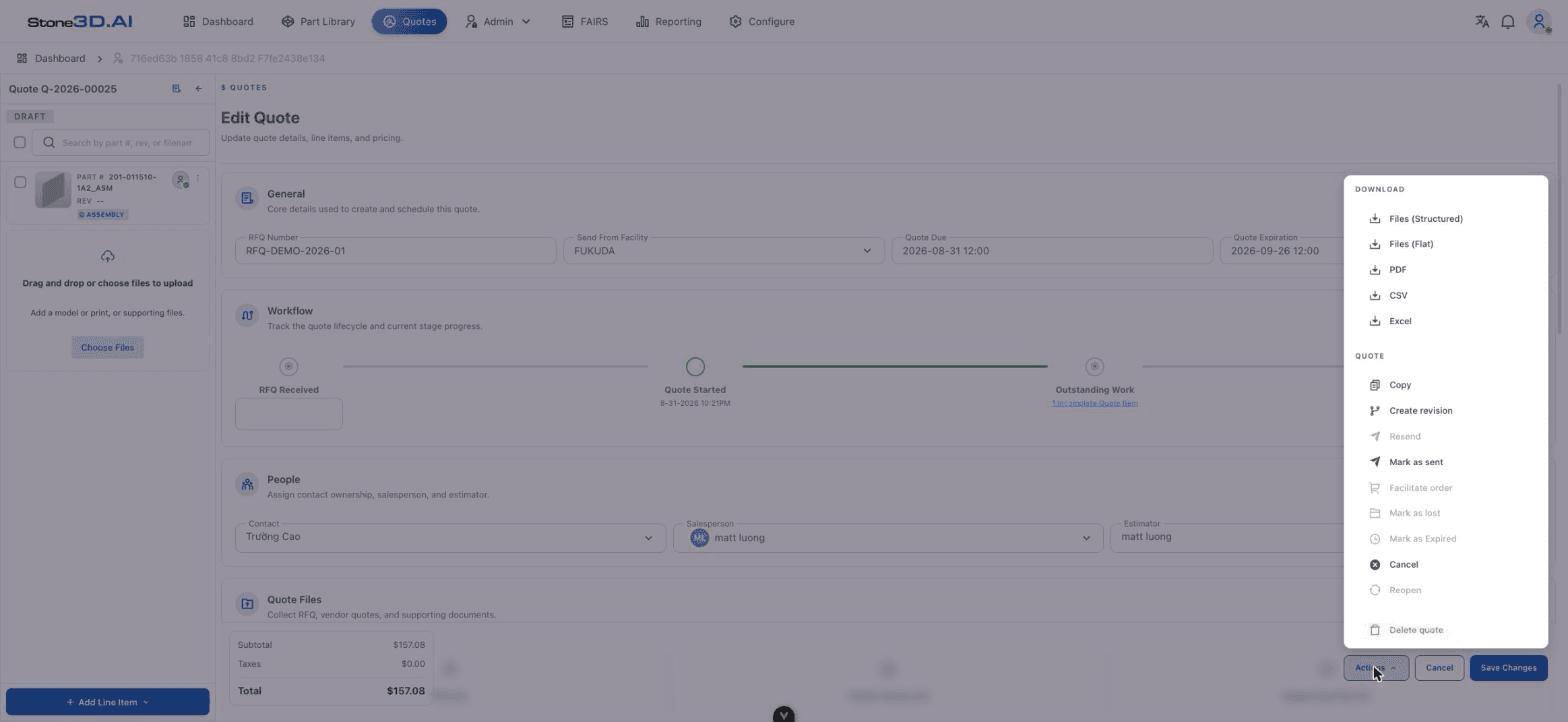
Result: The PDF file is downloaded to the machine via the browser (with no in-app preview).
Condition to move to the next step: The quote file is ready to send. (See details in Generate / Export Quote.)
Step 10 — Send Quote to Customer
What’s happening: Attach the PDF file to an email/customer contact channel, then go back to the system and select Actions → Mark as sent to record it.
Why: The actual sending happens outside the system (there’s no integrated email-sending feature); “Mark as sent” only serves to record the internal status.
Not verified: during this walkthrough on Q-2026-00025, the Mark as sent action returned the error “Action failed. Please try again.”, even though every Line Item was Completed and the Quote had been Saved. The cause has not been determined (suspected: the Line Item had no Process selected on the Process & Materials tab). This step in the document describes the flow as designed, not a fully successfully verified result — this needs to be confirmed by the development team.
Expected result: The Quote switches to a sent status, and the Quote Sent milestone in the Workflow block is marked complete.
Summary
| Step | Verified with real UI testing? |
|---|---|
| 1–2. Receive & review RFQ | ✅ (via the data fields in Create Quote) |
| 3. Create Quote | ✅ Fully verified, including validation |
| 4. Add Parts | ✅ Fully verified, including assembly BOM |
| 5. Configure Quantity | ✅ Fully verified |
| 6. Configure Pricing | ✅ Fully verified |
| 7. Determine Lead Time | ✅ Fully verified |
| 8. Review Quote | ✅ Fully verified (Outstanding Work) |
| 9. Generate Quote | ✅ The action itself was confirmed; the PDF file’s content was not checked |
| 10. Send Quote to Customer | ⚠️ Not verified — “Mark as sent” returned an error during testing |
The draft Quote Q-2026-00025 (RFQ RFQ-DEMO-2026-01, customer Trưởng Cao) created while writing this document is still in the system with Draft status — it can be used to re-test step 10, or deleted if it’s no longer needed.