Review Quote — Checking Before Sending to the Customer
Why: Before moving the Quote to a status ready to send to the customer, the person responsible needs to review all the information to avoid mistakes in price, quantity, or missing technical files.
Review Signals Available in the System
The Workflow block on the Quote screen has an Outstanding Work milestone that automatically updates based on Line Item statuses:
- While any Line Item is still incomplete: shows a link “N incomplete Quote Item” (e.g. “1 incomplete Quote Item”).
- Once all Line Items are complete: shows “All quote items complete”.
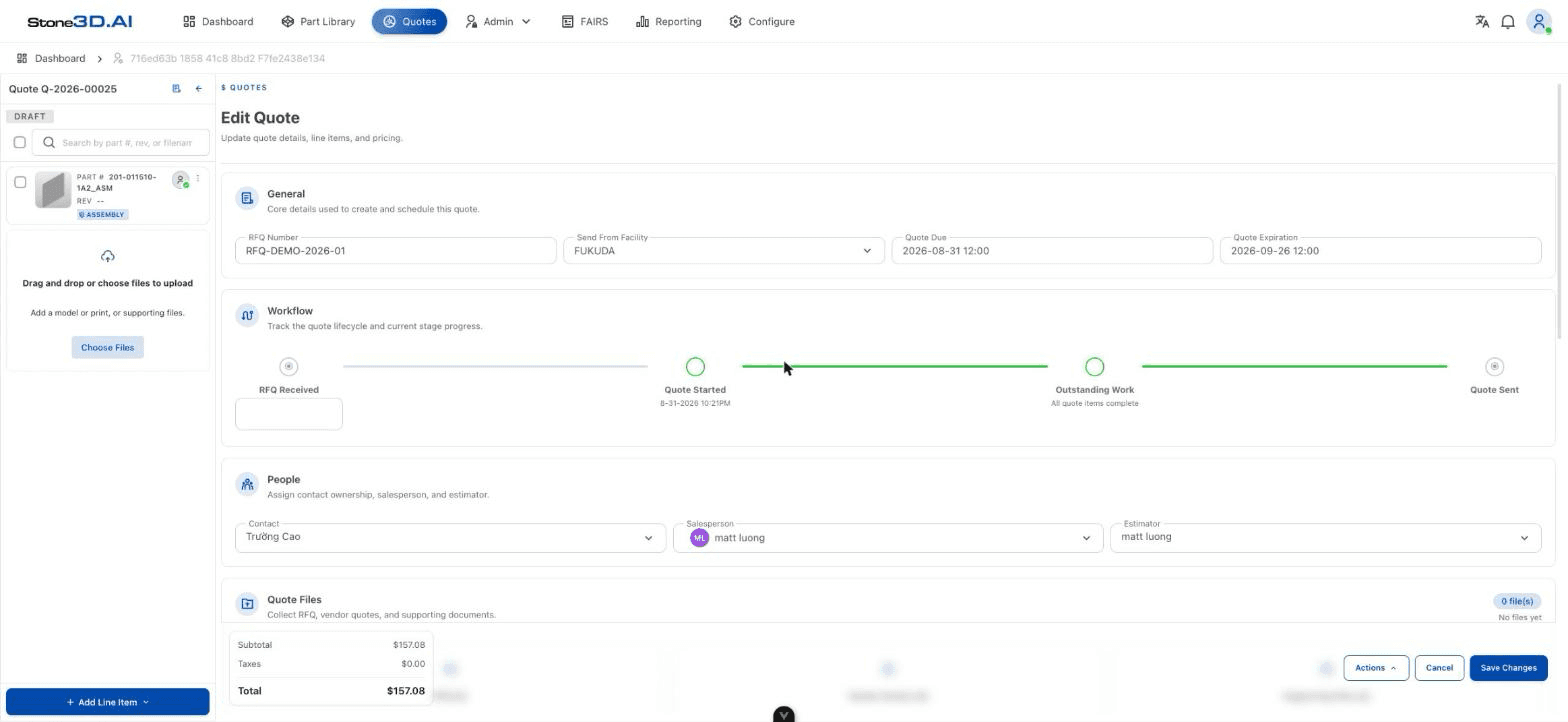
A Line Item’s “complete” state is determined by the Status field in the right panel of the Line Item detail screen (see Quote Lifecycle for the full list of Statuses). After changing the Status, if “Outstanding Work” on the Quote screen doesn’t update right away, reload the page — in real-world testing, the value only reflects correctly after a reload.
Quote Review Checklist
Is the customer correct?
Check the Contact field in the People block — the right contact person, the right customer company.
Is the RFQ correct?
Check that the RFQ Number and (if any) the RFQ Received date match the customer’s original request.
Are all Parts present?
Review the left panel — every Part the customer requested has been added as a Line Item, with the correct Part Number/Revision.
Is the Quantity correct?
Go into each Line Item, open Change Quantities — confirm that every quantity level the customer needs is present (see Configure Quantities).
Is the Pricing complete?
Check the Pricing tab of each Line Item — Unit Price/Total Price are reasonable, and Markup/Discount (if any) match what was agreed (see Pricing).
Has the Lead Time been determined?
Check the Lead Times tab — every Quantity Tier has a non-zero Lead Time (unless intentionally left blank).
Are the files/drawings complete?
Check the Quote Files block (RFQ / Vendor Quotes / Supporting Files) and the Overview tab of each Line Item (the Files section) — the necessary drawings/models have been attached.
Have warnings/validation been resolved?
Make sure there are no remaining validation errors displayed (red border) on the Quote’s General/People screen.
Is the Quote’s total correct?
Review Subtotal / Taxes / Total in the left panel of the Quote screen — it matches the sum of the Line Items.
Is the Quote Status correct?
Confirm the Quote is in the right status to continue (usually Draft, ready for Completing the Quote).
Note from testing: even when Outstanding Work reports “All quote items complete”, a Line Item on the Process & Materials tab can still show “No Process Selected”. The current system does not automatically block or warn the user about this at the Review step — treat this as something that needs to be checked manually, especially if the Part requires in-house machining (not a Part made up only of purchased components).
Result: After completing the checklist, the Quote is ready to move on to Completing the Quote.