Lead Time — Determining Delivery Time
Why: Besides price, delivery time is something customers always need to know before deciding to order. Lead Time is configured separately for each Quantity Tier, since larger quantities usually require longer production time.
Where Lead Time Is Shown
- The Pricing & Quantities table in the right panel of the Line Item screen — the Lead Time column, shown alongside Qty/Unit Price/Total Price for each quantity tier.
- A dedicated Lead Times tab on the Line Item detail screen.
How to Set the Lead Time
Open the Lead Times tab
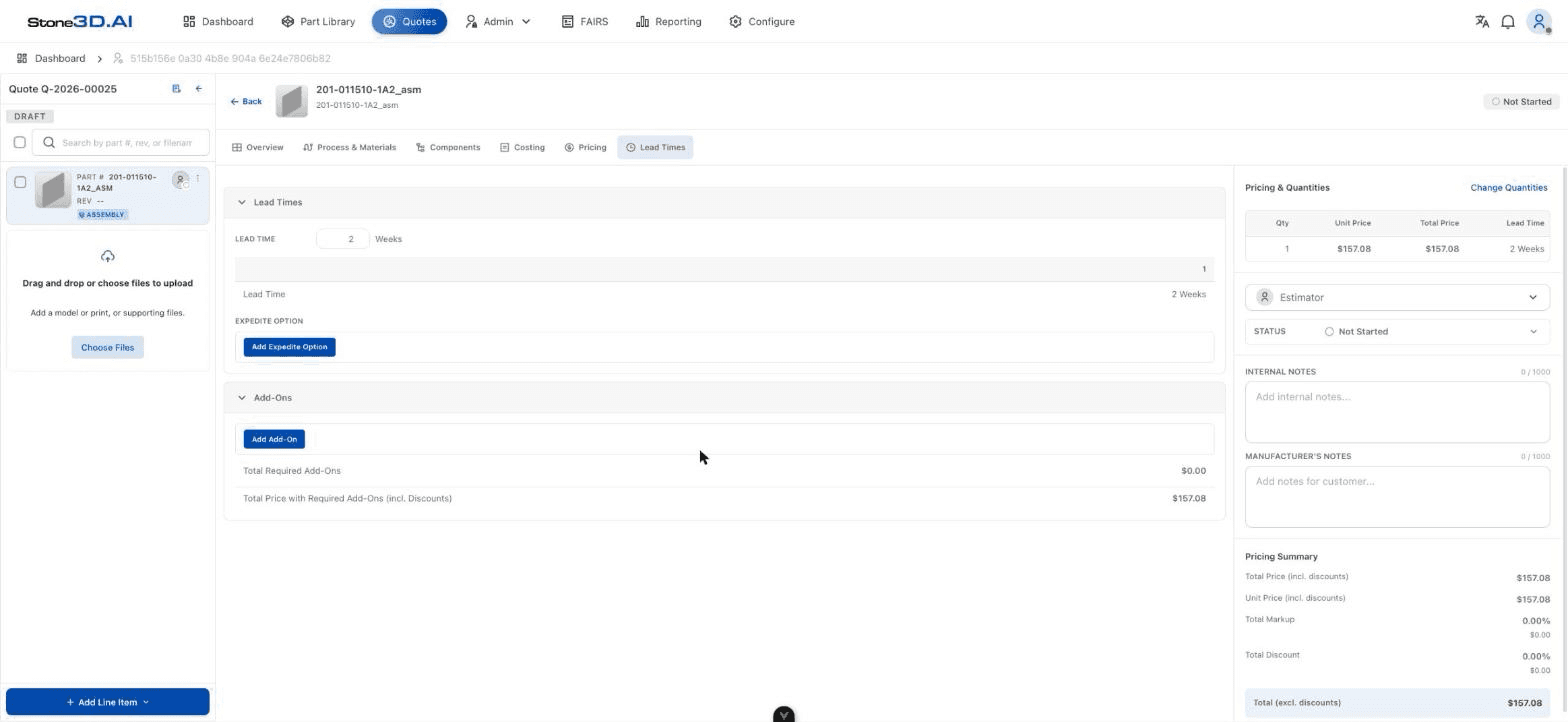
On the Line Item detail screen, select the Lead Times tab.
Enter the number of weeks
In the LEAD TIME field, enter the number of weeks for the currently selected quantity tier.
(Optional) Add an expedited option
If the customer wants to receive the order sooner than standard, click Add Expedite Option to set up an additional shortened Lead Time option (usually with a surcharge).
(Optional) Add a required Add-On
In the Add-Ons block, click Add Add-On to add mandatory accompanying charges (e.g. a special handling fee). Total Required Add-Ons and Total Price with Required Add-Ons (incl. Discounts) update automatically.
Result: As soon as Lead Time is entered, the value is reflected immediately in the Pricing & Quantities table in the right panel — confirmed through testing: entering “2” in the Lead Time (Weeks) field made the corresponding Qty row show “2 Weeks” right away in the summary table.
How Lead Time Changes with Quantity
Because each Quantity Tier is its own row in the Pricing & Quantities table, Lead Time is also set independently for each quantity level — larger quantities may need a longer declared Lead Time corresponding to actual production capacity.
Factors That Affect Lead Time
- Quantity — the larger the quantity, the longer the machining/aggregate time.
- Process & Materials — the selected material type and machining process can have different material ordering or machining times (see also Add Parts).
- Expedite Option — an expedited option allows the standard Lead Time to be shortened.
The Lead Time value in the test example was entered manually. Whether the system automatically suggests a Lead Time based on the selected Process/Material has not been verified in this round of testing.
Result: Every Quantity Tier of the Line Item now has both price and delivery time fully set, ready to move on to Review Quote.