Part Details
Select a part from the Part Library to open its detail view.
The Part Detail page provides access to the part’s 3D model, files, quotes, and bill of materials.
CAD View
The CAD view displays the 3D model of the selected part or assembly.
The viewer provides tools for interacting with the 3D model, including viewing and analyzing the geometry.
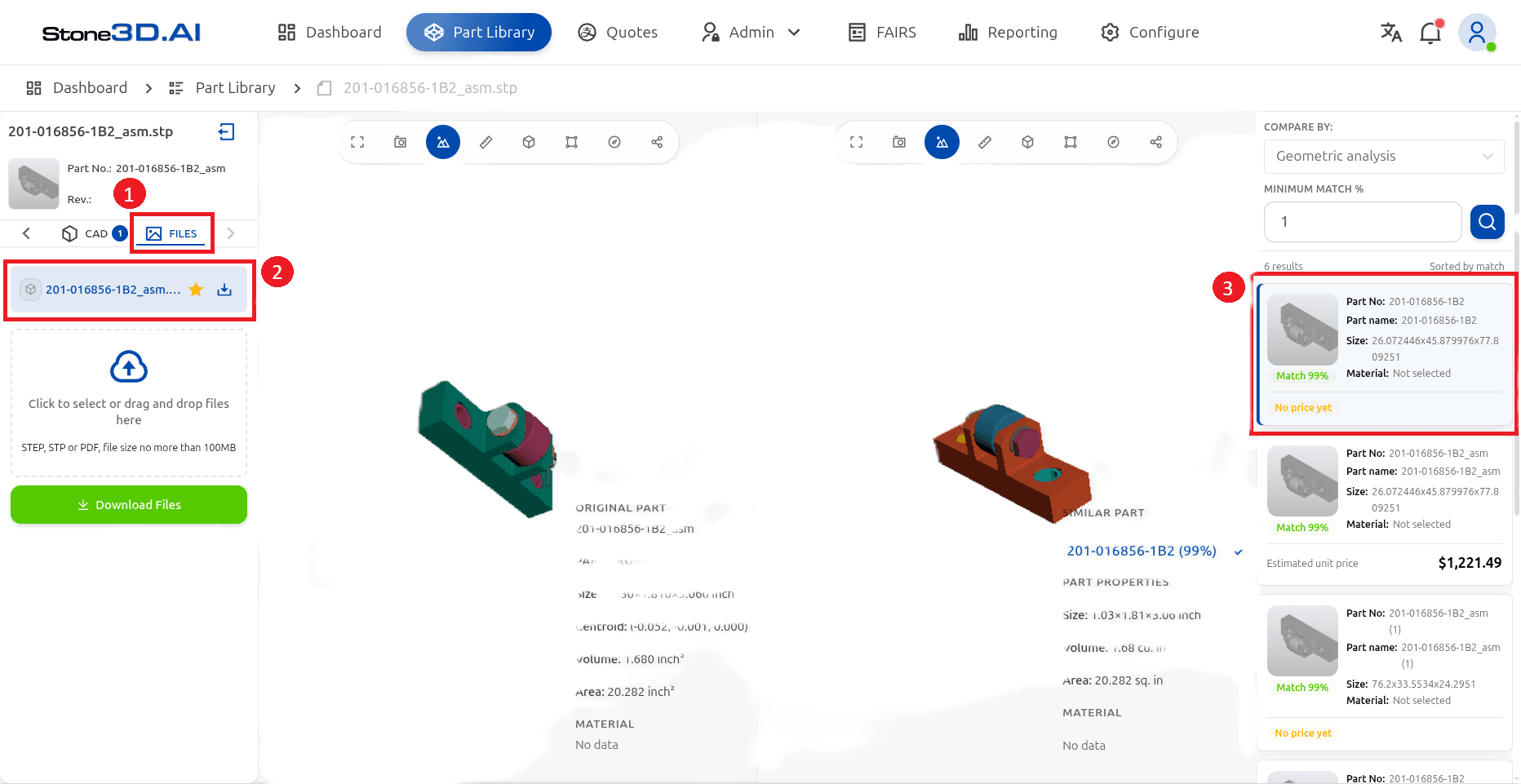
Files
The Files tab displays files associated with the selected part.
Users can review the uploaded files and download them when required.
The file list can contain CAD files and supporting documents such as technical drawings.
View 2D Drawings
When a 2D drawing is available, select the drawing from the Files tab to open it in the drawing viewer.
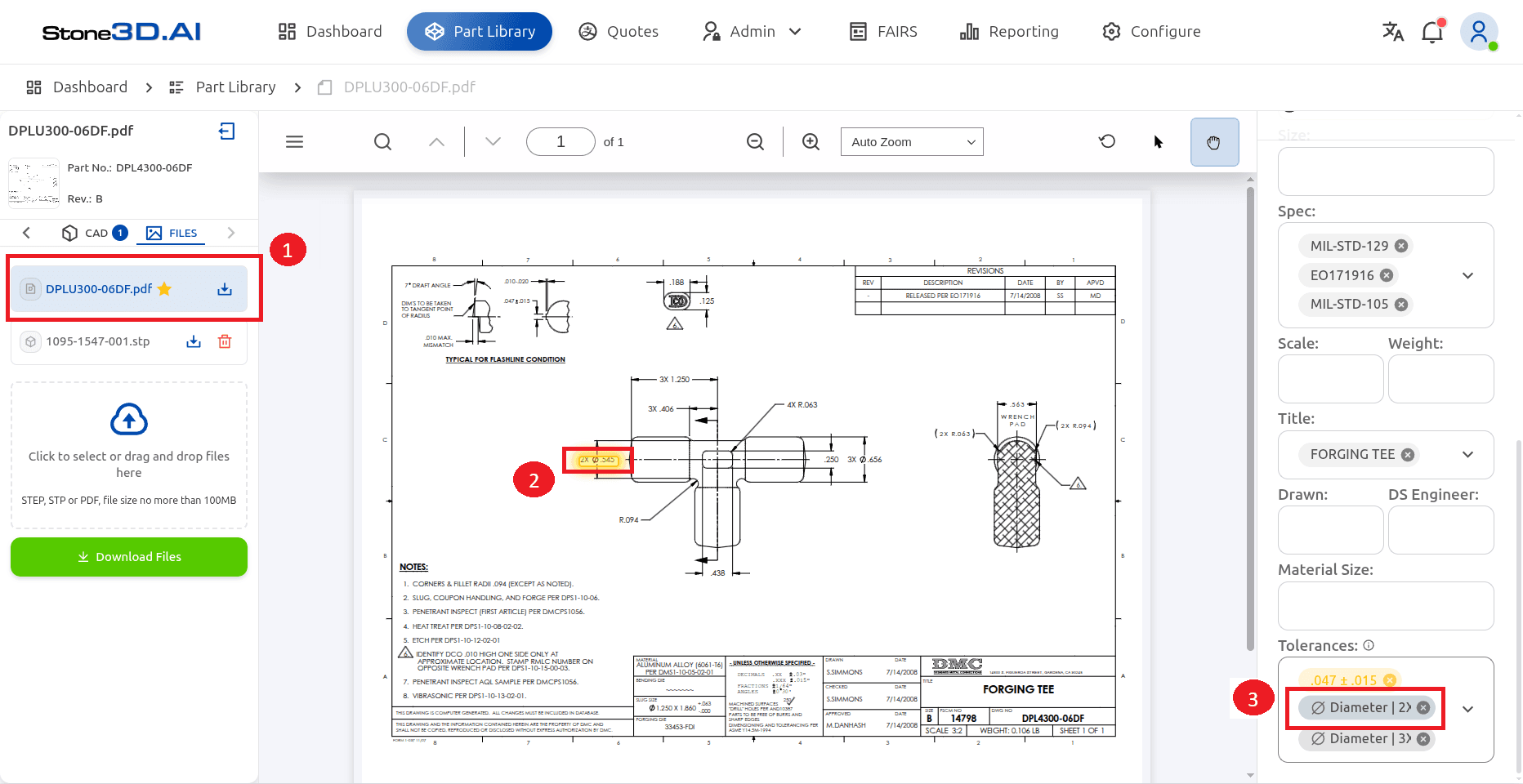
The drawing viewer allows users to inspect the uploaded 2D drawing and review the information associated with the part.
The drawing information panel displays available drawing metadata such as specifications, title, material size, and tolerances.
Link a Part to a Quote
The Quote tab displays quotes associated with the selected part.
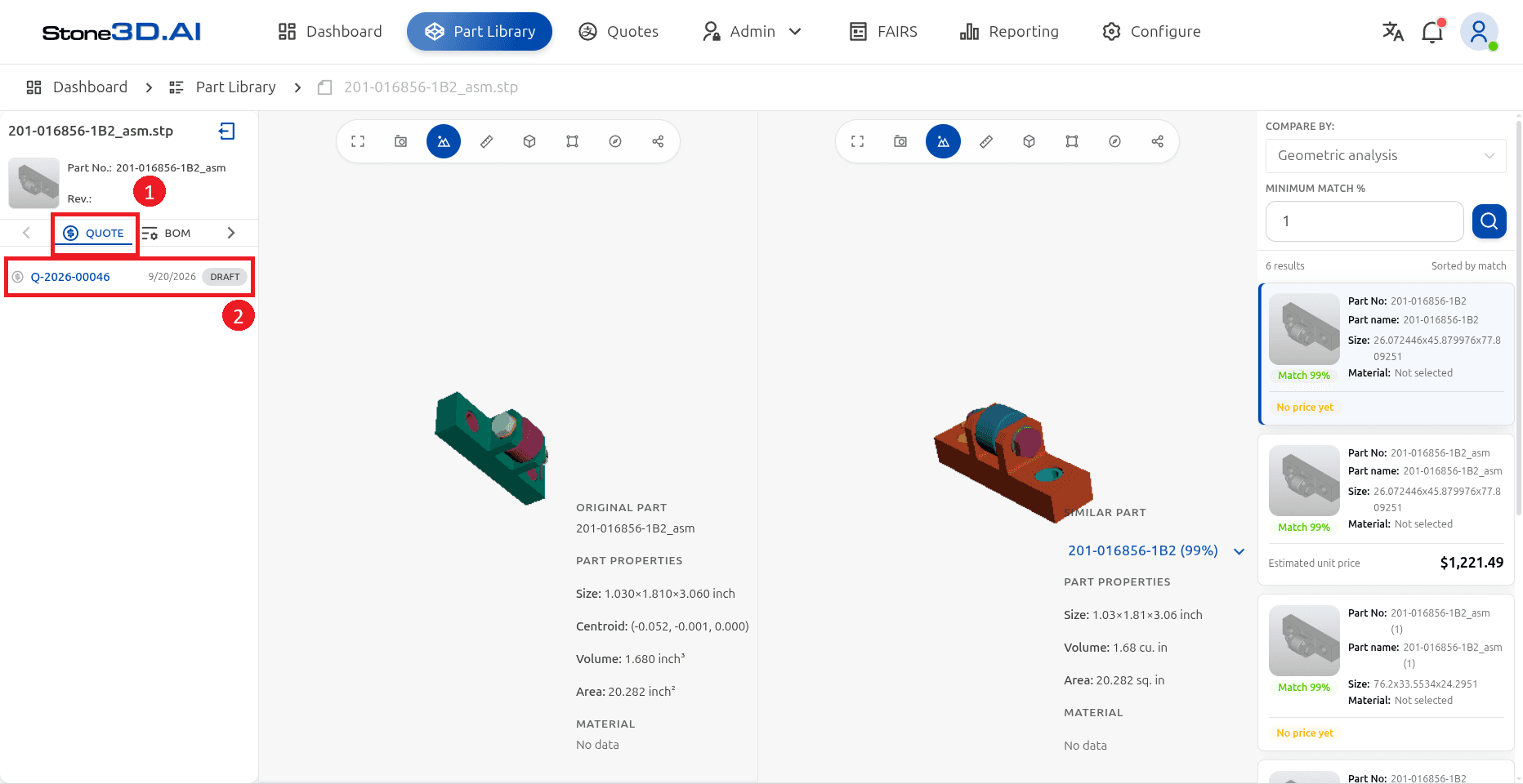
Select a quote to open the corresponding quote information.
The quote list displays the quote number, date, and current status.
View Bill of Materials
For an assembly, the BOM tab displays the components that make up the selected assembly.
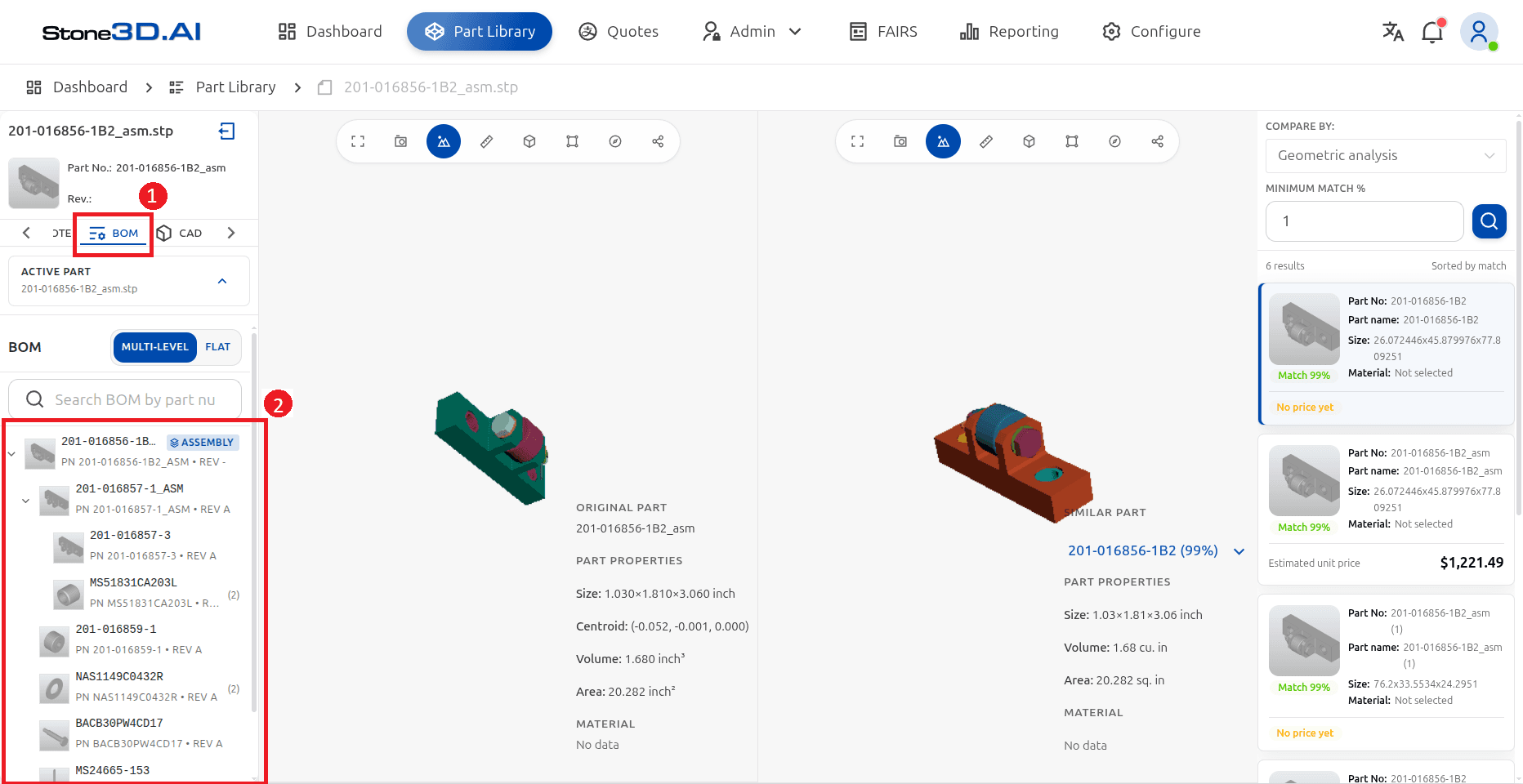
The BOM supports:
- Multi-Level view – displays the assembly hierarchy.
- Flat view – displays the components in a flattened list.
- BOM search – allows users to search for a component by part information.
The multi-level view shows the relationship between the top-level assembly and its components.
To review potentially reusable or related parts, see Compare Similar Parts.