Pricing — How the Quote’s Final Price Is Formed
Why: This is the most important step in the quoting process — determining the actual amount that will be quoted to the customer, based on estimated cost plus markup and minus discount (if any).
In business terms, the general formula is:
Sell Price (Total Price) = Estimated Cost
                          + Markup (added profit margin)
                          − Discount (if any)
Step 1 — Review Estimated Cost (Costing tab)
The Line Item’s Costing tab rolls up cost by category:
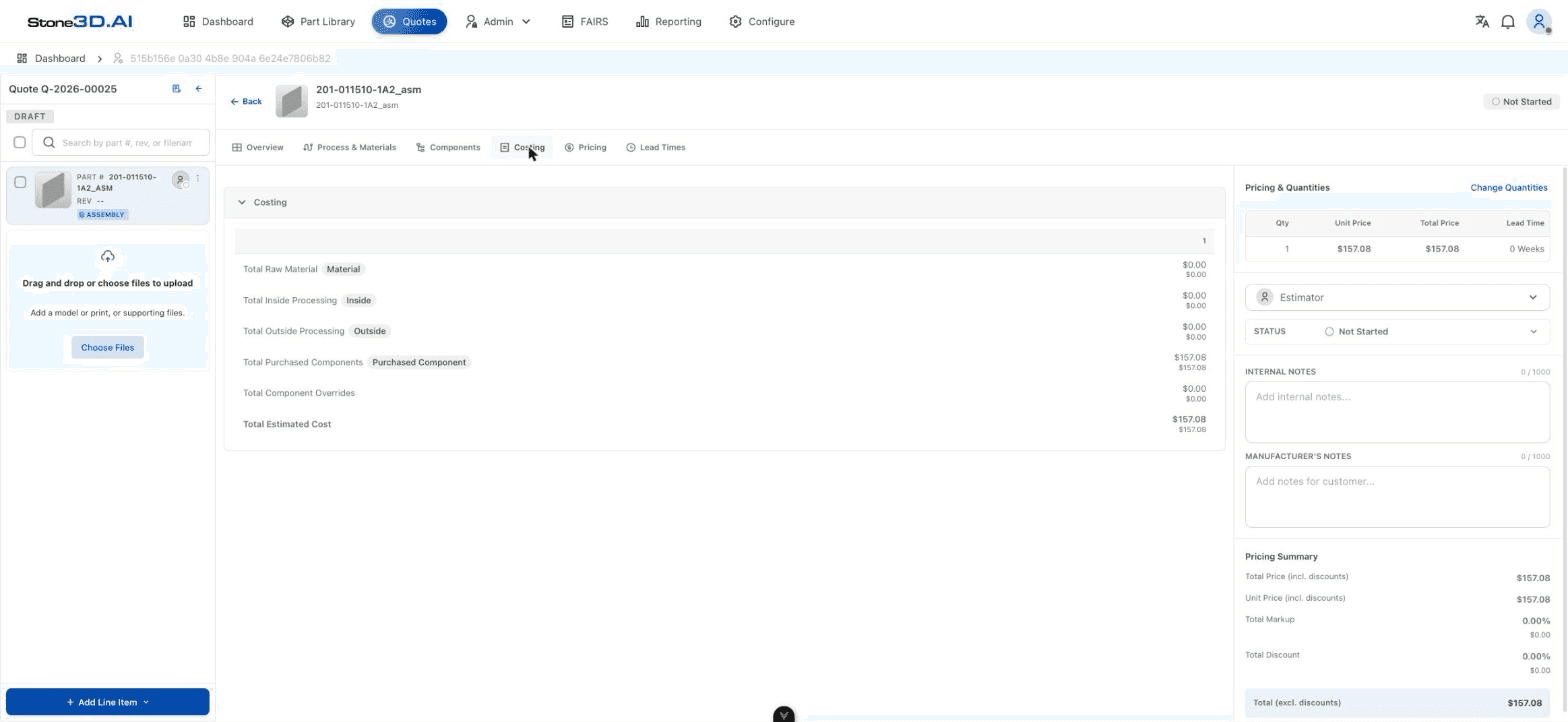
| Category | Meaning |
|---|---|
| Total Raw Material (labeled Material) | Raw material cost |
| Total Inside Processing (labeled Inside) | In-house machining cost (setup + machine + labor, rolled up from the Process & Materials tab) |
| Total Outside Processing (labeled Outside) | Outsourced machining/processing cost |
| Total Purchased Components (labeled Purchased Component) | Cost of outsourced/bought-out components (from the BOM on the Components tab) |
| Total Component Overrides | The portion of cost that has been manually overridden by the user (if any) |
| Total Estimated Cost | Total estimated cost — the baseline figure used to compute the sell price |
These cost categories are automatically rolled up by the system from what has been configured on the Process & Materials tab (materials, machining operations) and the Components tab (purchased-component BOM) — the user does not manually enter Total Estimated Cost.
Step 2 — Set the Sell Price (Pricing tab)
The Line Item’s Pricing tab is where “cost” turns into “sell price”:
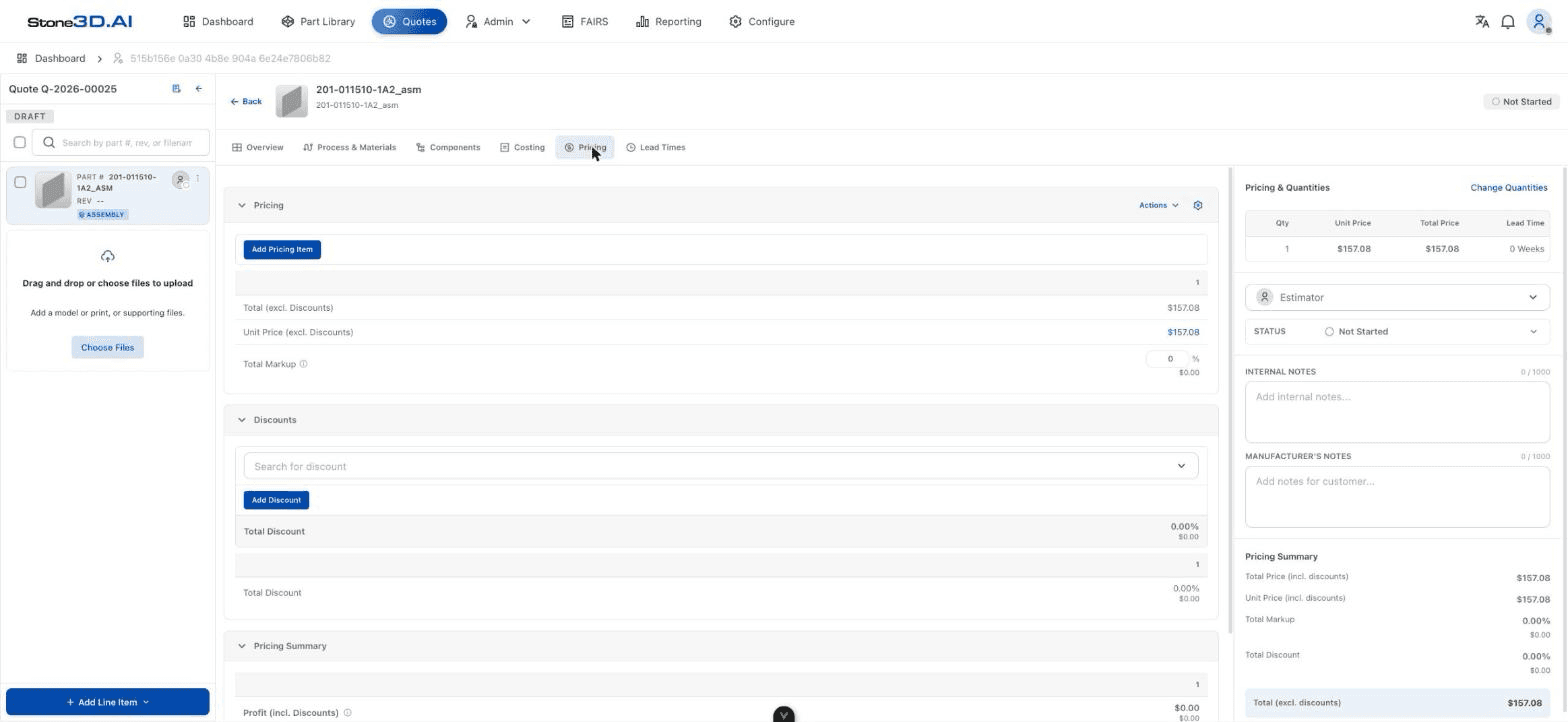
Check the base price
Total (excl. Discounts) and Unit Price (excl. Discounts) reflect cost + markup, before discounts are subtracted. The Add Pricing Item button lets you add extra price line items (custom pricing).
Set the Markup
Enter the Total Markup (%) rate — the system automatically computes the corresponding markup amount in dollars ($) right below it.
Set a Discount (if any)
In the Discounts block, use the Search for discount box to select the discount type to apply, then click Add Discount. Total Discount is shown both as a % and as a dollar value.
Review the Pricing Summary
Scroll down to the Pricing Summary block to see Profit (incl. Discounts) — the actual profit after discounts — along with other rolled-up figures.
Result: The Line Item now has a complete price (Unit Price and Total Price, including markup and discount), correctly reflected in the Pricing Summary panel on the right side of the screen (Total Price incl. discounts, Unit Price incl. discounts, Total Markup, Total Discount, Total excl. discounts).
Which Values Are Auto-Computed, Which Can the User Adjust
| Value | Auto-computed | User-adjustable |
|---|---|---|
| Total Estimated Cost (Costing) | ✅ (rolled up from Process & Materials + Components) | Can be overridden per line (Component Overrides) |
| Unit Price / Total Price (excl. Discounts) | ✅ | Can add a manual Pricing Item |
| Total Markup (%) | — | ✅ Entered directly by the user |
| Total Discount | — | ✅ Selected/added by the user |
| Profit (incl. Discounts) | ✅ (computed from the values above) | Not entered directly — changes based on Cost/Markup/Discount |
During testing, a Line Item imported via Import Historical Work already had a Total Estimated Cost and Total Price (inherited from historical data) even though no machining Process had been selected yet on the Process & Materials tab — the exact cause (e.g. because the entire cost came from Purchased Components) has not been fully verified against other Part cases that have no Purchased Component.
Result: After this step, every Quantity Tier of the Line Item has a complete price, ready to move on to Lead Time.