Create Quote
Why: Once there is enough RFQ information (see the previous chapter), the person responsible creates a new Quote to officially start the quoting process. The Quote is where all information is centralized: customer, Parts, quantities, price, and delivery time.
When to Create a Quote
As soon as the customer, the RFQ Number, and at least an initial idea of which Parts need to be quoted have been confirmed.
Create Quote Screen Layout
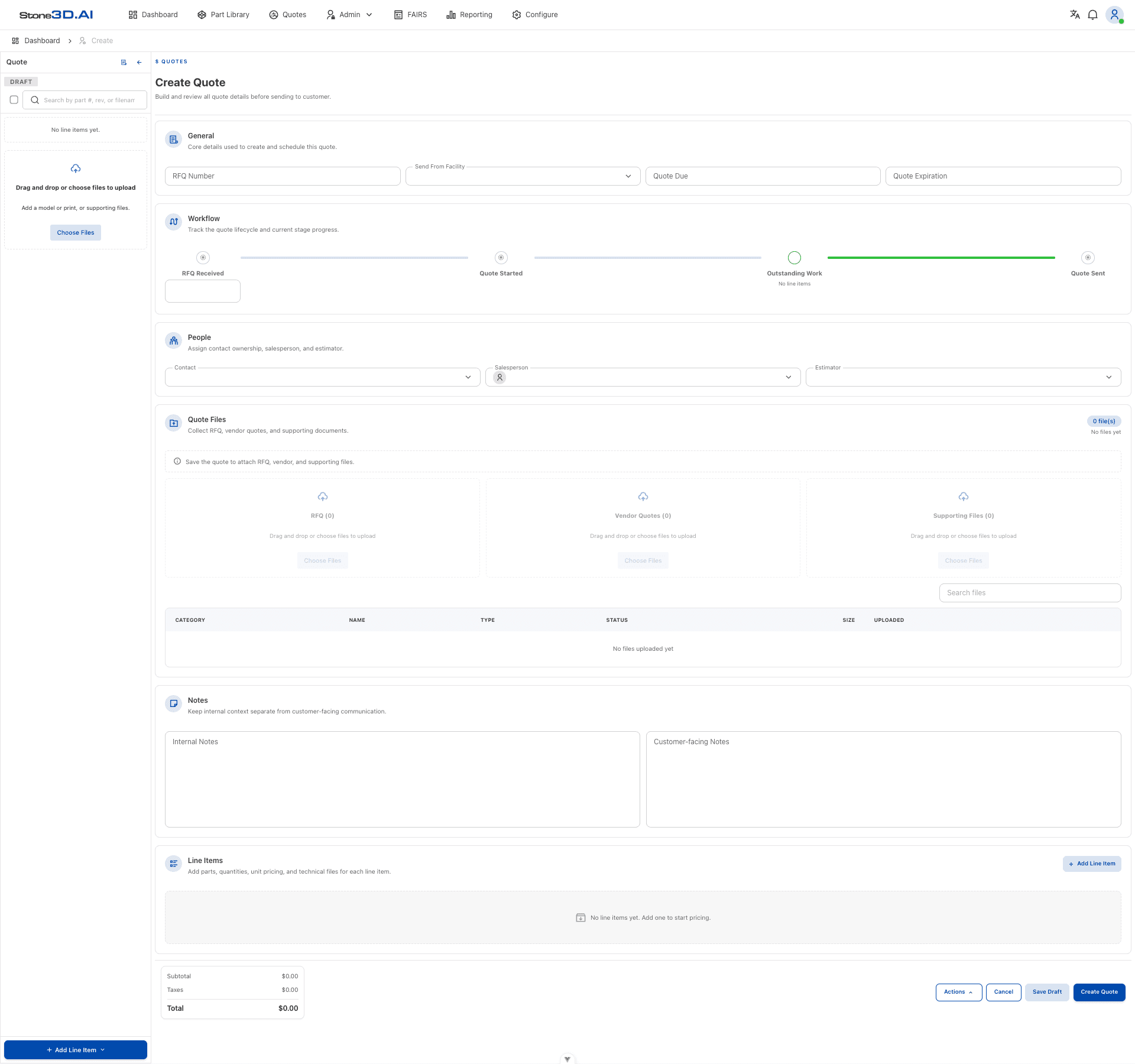
The Create Quote screen (/quotes/create) consists of 6 blocks, top to bottom:
| Block | Purpose |
|---|---|
| General | Core information to create and schedule the quote: RFQ Number, Send From Facility, Quote Due, Quote Expiration. |
| Workflow | A progress bar for the quote lifecycle: RFQ Received → Quote Started → Outstanding Work → Quote Sent. |
| People | Assign the responsible people: Contact, Salesperson, Estimator. |
| Quote Files | Attach documents, split into 3 groups: RFQ, Vendor Quotes, Supporting Files. |
| Notes | Notes, split into Internal Notes (internal only) and Customer-facing Notes (visible to the customer). |
| Line Items | The list of Parts to be quoted — added via the Add Line Item button (details in the next chapter). |
The footer bar always shows Subtotal / Taxes / Total, along with the Actions, Cancel, Save Draft, and Create Quote buttons.
How to Create a Quote
Open the Create Quote screen
From the top menu, select Quotes, then click the Create Quote button in the top-right corner of the Quotes list.
Enter general information (General)
Fill in the fields in the General block:
- RFQ Number — the customer’s RFQ number.
- Send From Facility — the plant/site that will fulfill the quote.
- Quote Due — the internal deadline for completing the quote.
- Quote Expiration — the date the quote expires for the customer.
Assign responsible people (People)
Select:
- Contact — the customer-side contact.
- Salesperson — the account rep responsible.
- Estimator — the person building the quote.
(Optional) Record the RFQ Received milestone
In the Workflow block, you can click the RFQ Received field to select the actual date the RFQ was received from the customer.
(Optional) Attach documents and notes
Drag-and-drop or click Choose Files in the Quote Files block to attach documents to the correct group (RFQ / Vendor Quotes / Supporting Files); enter notes in the Notes block if needed — Internal Notes are only readable internally, while Customer-facing Notes are shown to the customer.
On the new-quote creation screen, the Quote Files area shows a prompt: “Save the quote to attach RFQ, vendor, and supporting files.”, and the Choose Files buttons are disabled — meaning you must save the Quote first (Save Draft or Create Quote) before you can attach files.
Click Create Quote
Click the Create Quote button in the bottom-right corner to officially create it. If any required field is missing, the system will show an error directly on that field (see the Validation section below) and the Quote will not be created.
If you’re not ready to create it officially, you can use Save Draft to save it temporarily, or Cancel to exit without saving.
The Line Items block sits at the bottom of the screen — when first created, this block is empty with the message “No line items yet. Add one to start pricing.”
Required Fields (Validation)
When Create Quote is clicked without enough information filled in, the system shows errors directly below each field:
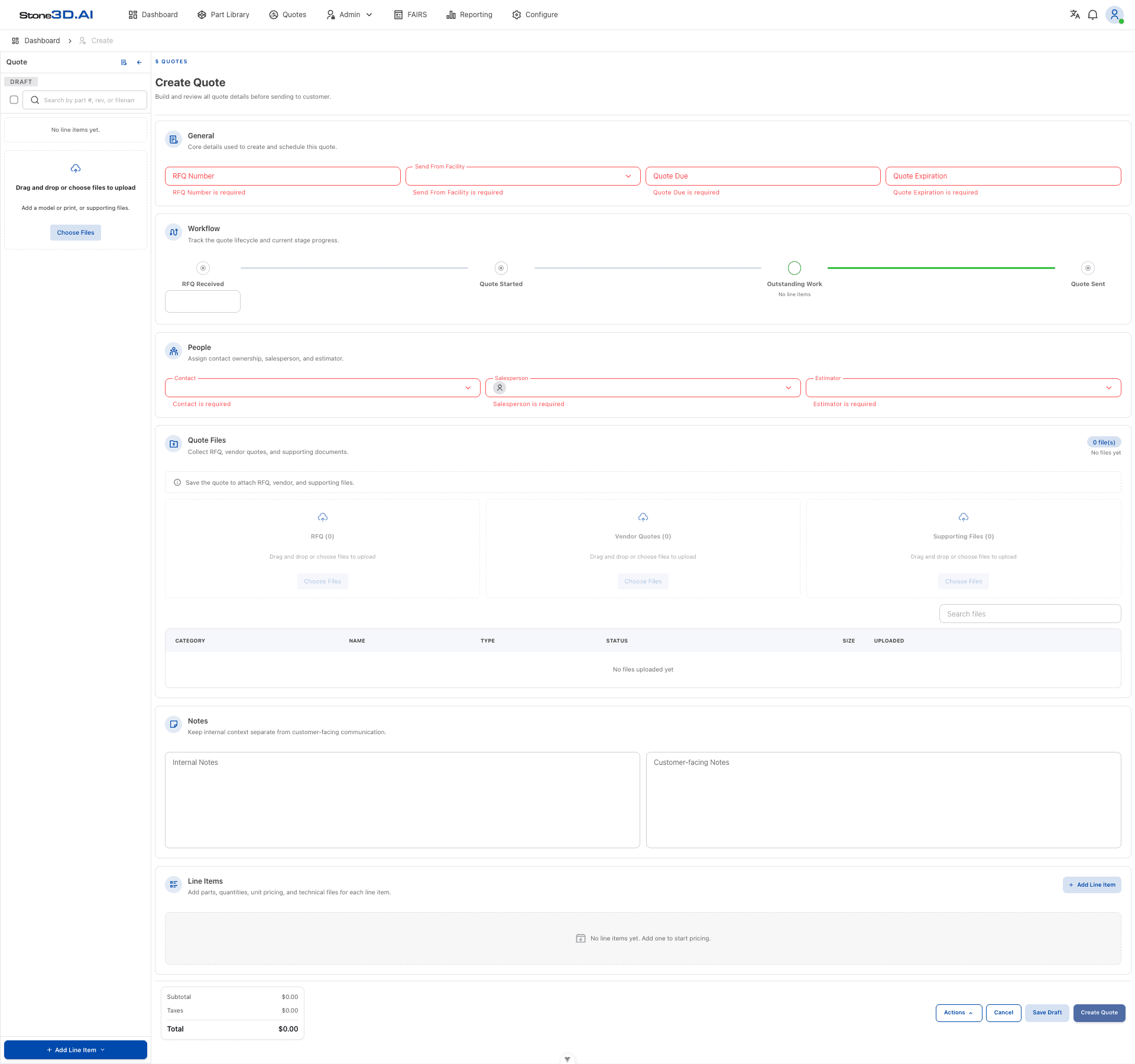
Clicking Create Quote on a completely empty form shows that all 7 fields are required:
| Field | Block | Error message |
|---|---|---|
| RFQ Number | General | ”RFQ Number is required” |
| Send From Facility | General | ”Send From Facility is required” |
| Quote Due | General | ”Quote Due is required” |
| Quote Expiration | General | ”Quote Expiration is required” |
| Contact | People | ”Contact is required” |
| Salesperson | People | ”Salesperson is required” |
| Estimator | People | ”Estimator is required” |
The list of required fields above was confirmed through direct UI testing at the time this document was written. Validation configuration may change between system versions — if you notice a discrepancy, please update this table.
Initial Status After Creating a Quote
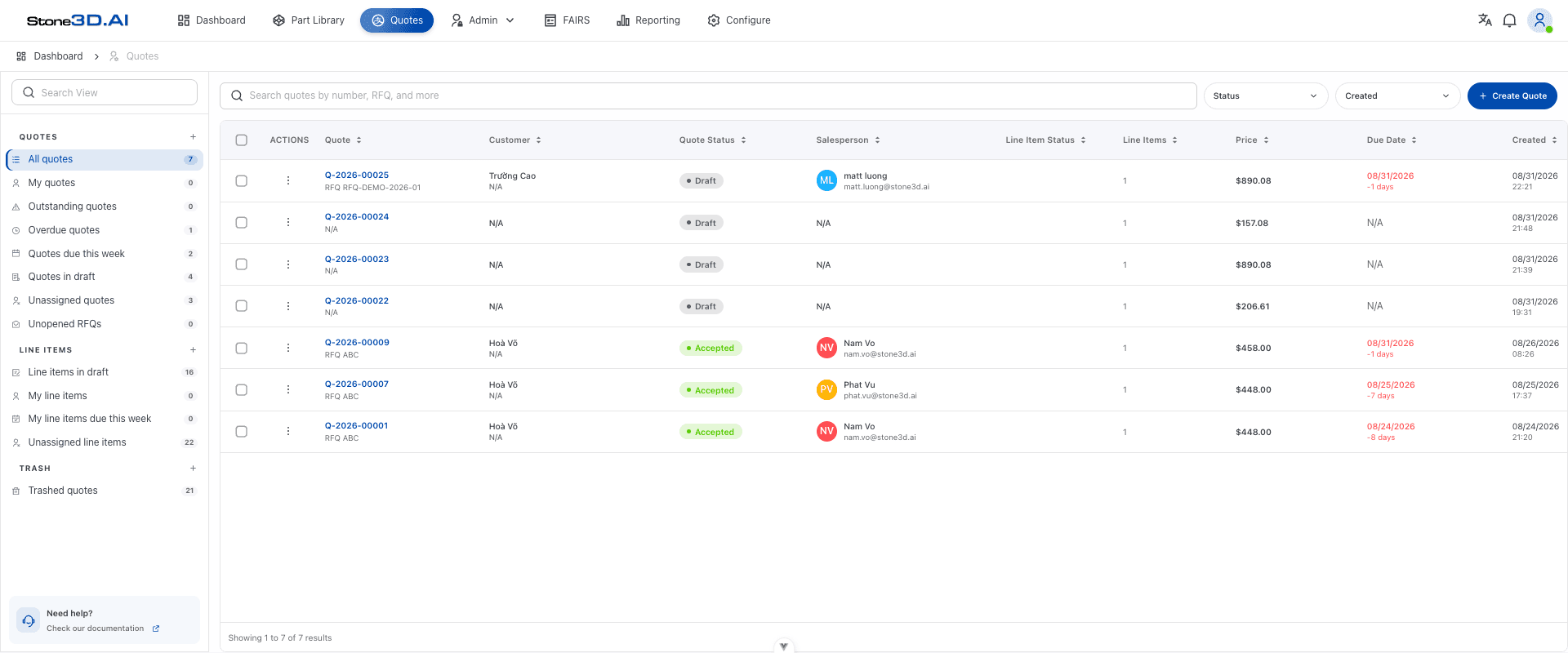
After successful creation, the system briefly displays the message “Quote [code] created successfully” and then returns to the Quotes list. The new Quote sits at the top of the list with Draft status:
- The Quote is assigned an automatic code in the format
Q-YYYY-NNNNN(e.g.Q-2026-00025). - Quote Status is always initially Draft.
- Line Items = 0 (no Part added yet).
- The Quote appears in the Unopened RFQs view in the sidebar until a Line Item has been processed.
- In the Workflow block, the Quote Started milestone is automatically marked complete as soon as the Quote is created (with the creation timestamp) — unlike RFQ Received, which is a milestone the user must select a date for manually.
Result: The Quote now officially exists in the system with Draft status, ready to have Parts added.