Quotes List and Editor
The Quotes module manages the entire lifecycle of a quote: from receiving the RFQ, creating line items, and pricing by process/material, through sending the quote, customer acceptance, and order tracking. This section describes in detail the quotes list interface and the Quote Editor currently used in Stone3D.AI.
Note: The interface may vary slightly by software version and by the logged-in account’s permissions. Some fields (Contact, Salesperson, Estimator, Send From Facility…) depend on data already configured in Admin and Configure.
1. Quotes List Interface
Go to the Quotes menu on the navigation bar to open the quotes list.
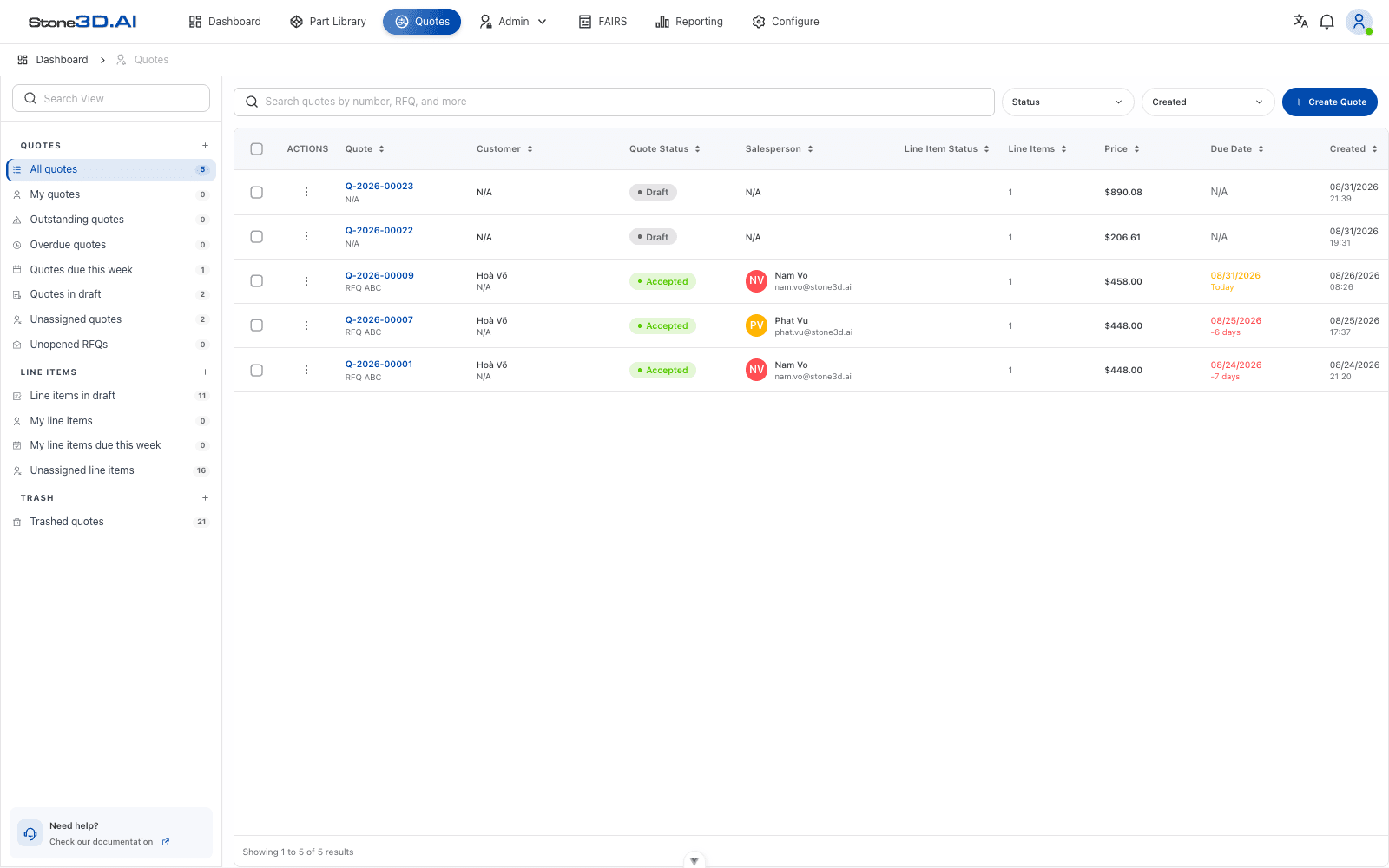
The interface consists of 3 main areas:
- Left sidebar (Search View): a list of preset filter views, each showing the corresponding record count:
- QUOTES group: All quotes, My quotes, Outstanding quotes, Overdue quotes, Quotes due this week, Quotes in draft, Unassigned quotes, Unopened RFQs.
- LINE ITEMS group: Line items in draft, My line items, My line items due this week, Unassigned line items.
- TRASH group: Trashed quotes.
- Toolbar above the table: a search box by quote number/RFQ, a Status filter, a Created sort control, and a Create Quote button to create a new quote.
- List table: columns include Quote (quote number + RFQ name), Customer, Quote Status, Salesperson, Line Item Status, Line Items, Price, Due Date, Created. Click a column header to sort, or use the row checkbox to select multiple quotes at once.
Each quote row has an Actions button (three-dot icon) in the ACTIONS column:
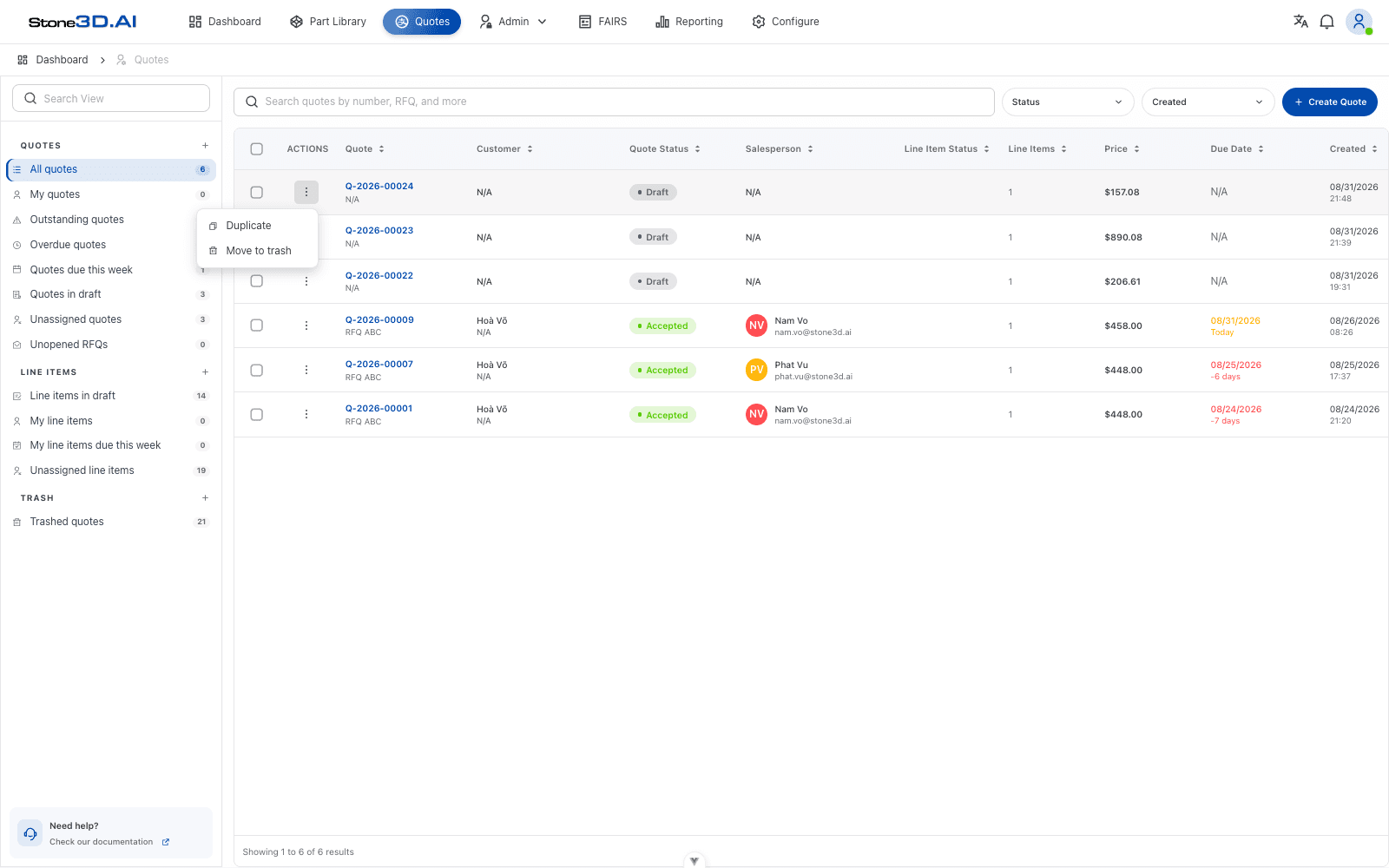
- Duplicate: creates a copy of the quote.
- Move to trash: moves the quote to the trash (soft delete), without deleting it permanently right away.
2. Creating a New Quote
Click the Create Quote button
From the quotes list, click + Create Quote to open the quote creation page.
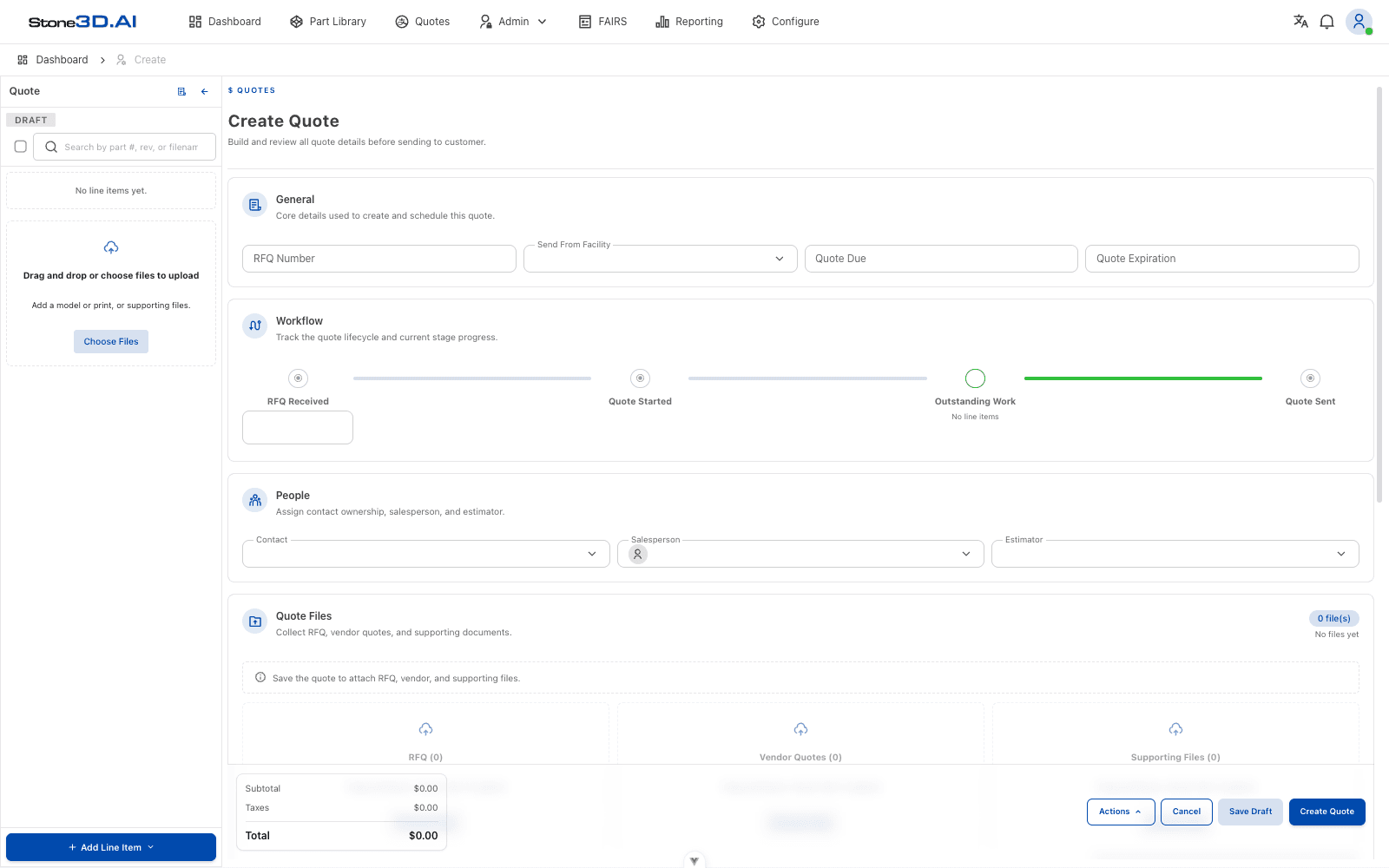
The quote creation page consists of the following blocks:
- General: RFQ Number, Send From Facility, Quote Due, Quote Expiration.
- Workflow: a progress bar for the quote lifecycle with 4 milestones — RFQ Received, Quote Started, Outstanding Work, Quote Sent.
- People: Contact, Salesperson, Estimator.
- Quote Files: an area for attaching RFQ, Vendor Quotes, Supporting Files (only usable after the quote has been saved).
- The total block in the bottom-left corner: Subtotal, Taxes, Total.
Add a line item
Click + Add Line Item at the bottom of the sidebar to open a menu with 4 options:
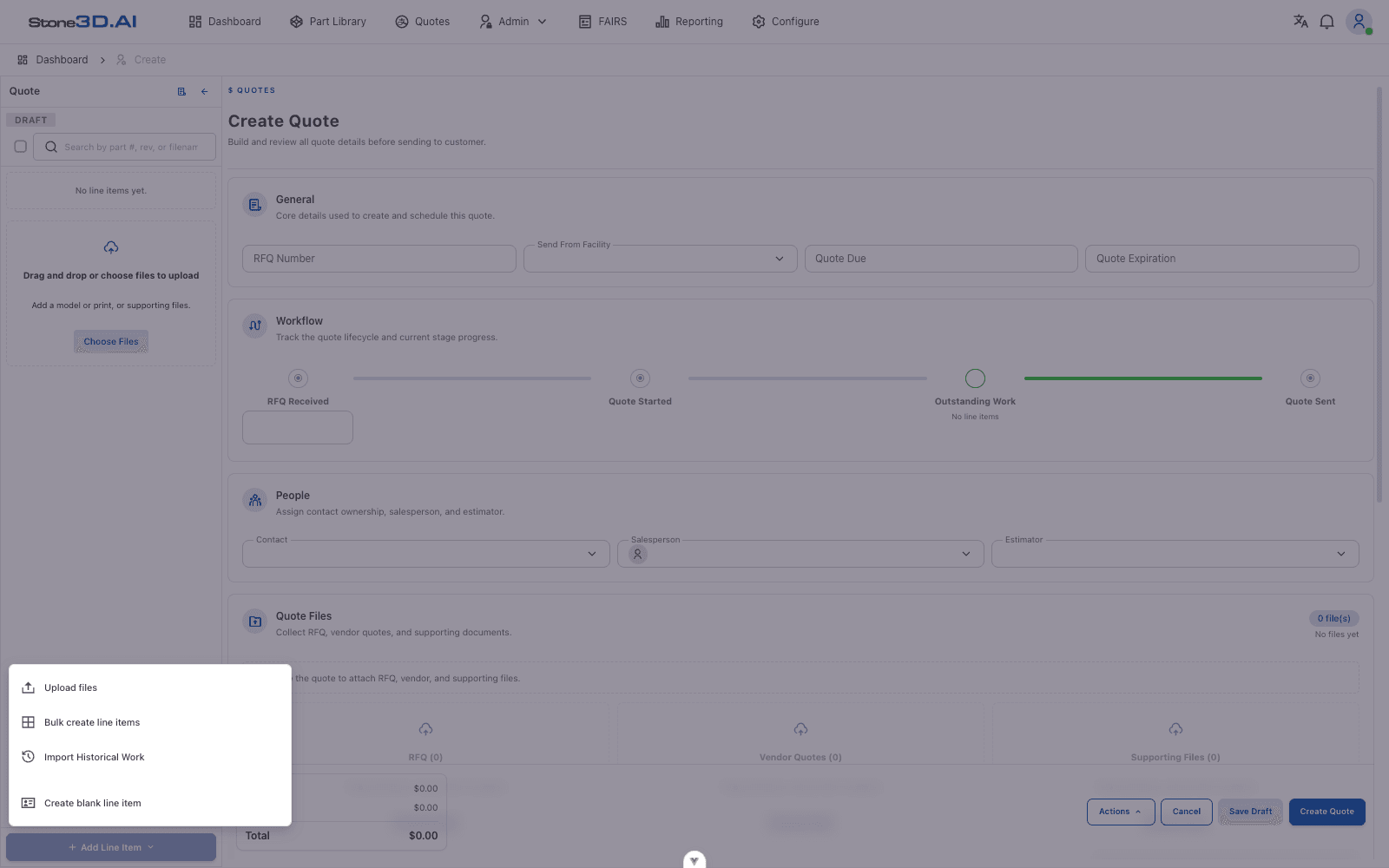
- Upload files: upload a model/drawing file to create a new part.
- Bulk create line items: create multiple line items at once.
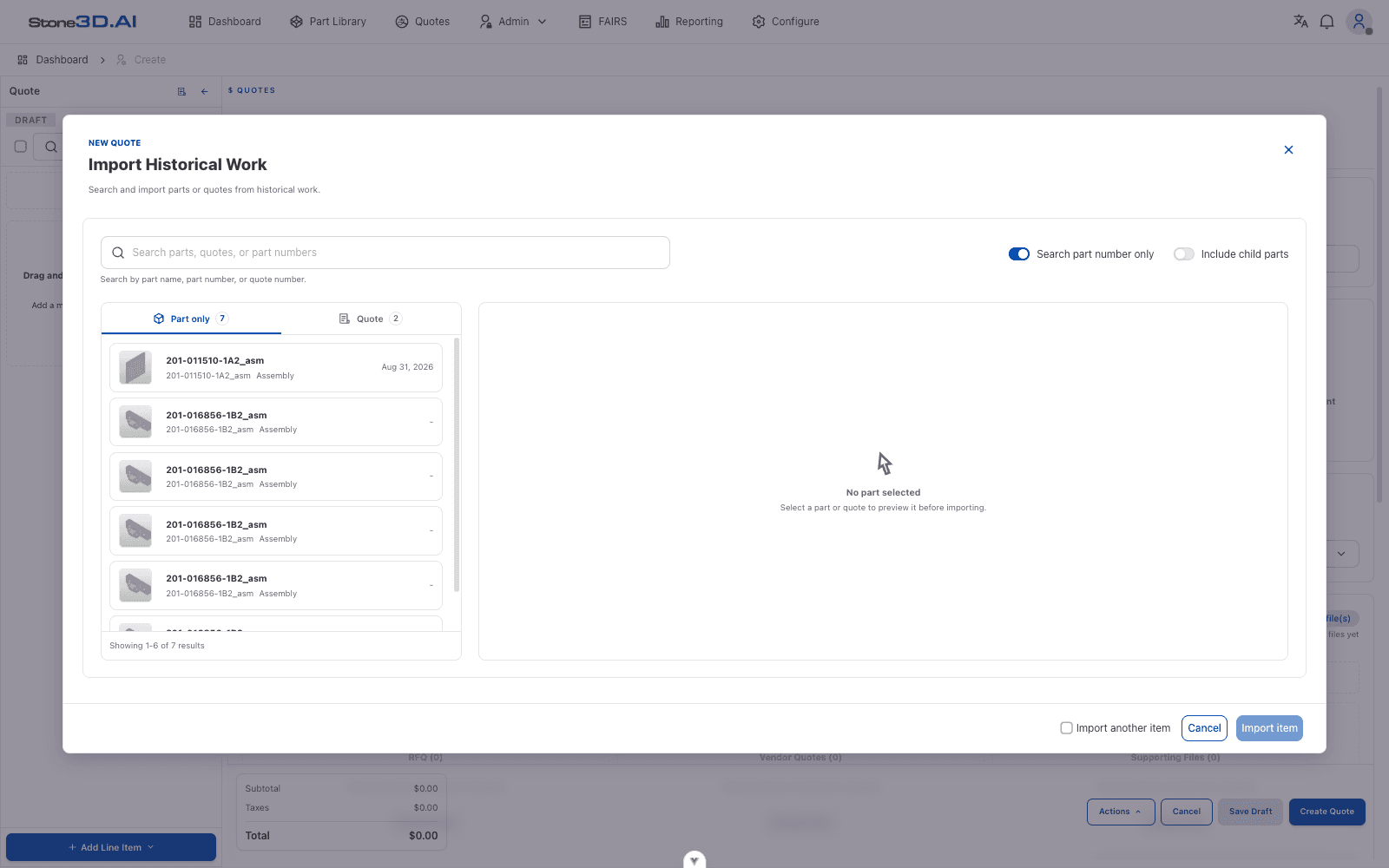
- Import Historical Work: find and import a part or quote that already exists in the system.
- Create blank line item: create an empty line item for manual entry.
Import from historical data (optional)
When Import Historical Work is selected, a search dialog for historical parts/quotes appears with 2 tabs, Part only and Quote:
Select a part in the list on the left to preview the part’s information (Revision, Source, Last Modified, Included Parts) in the panel on the right:
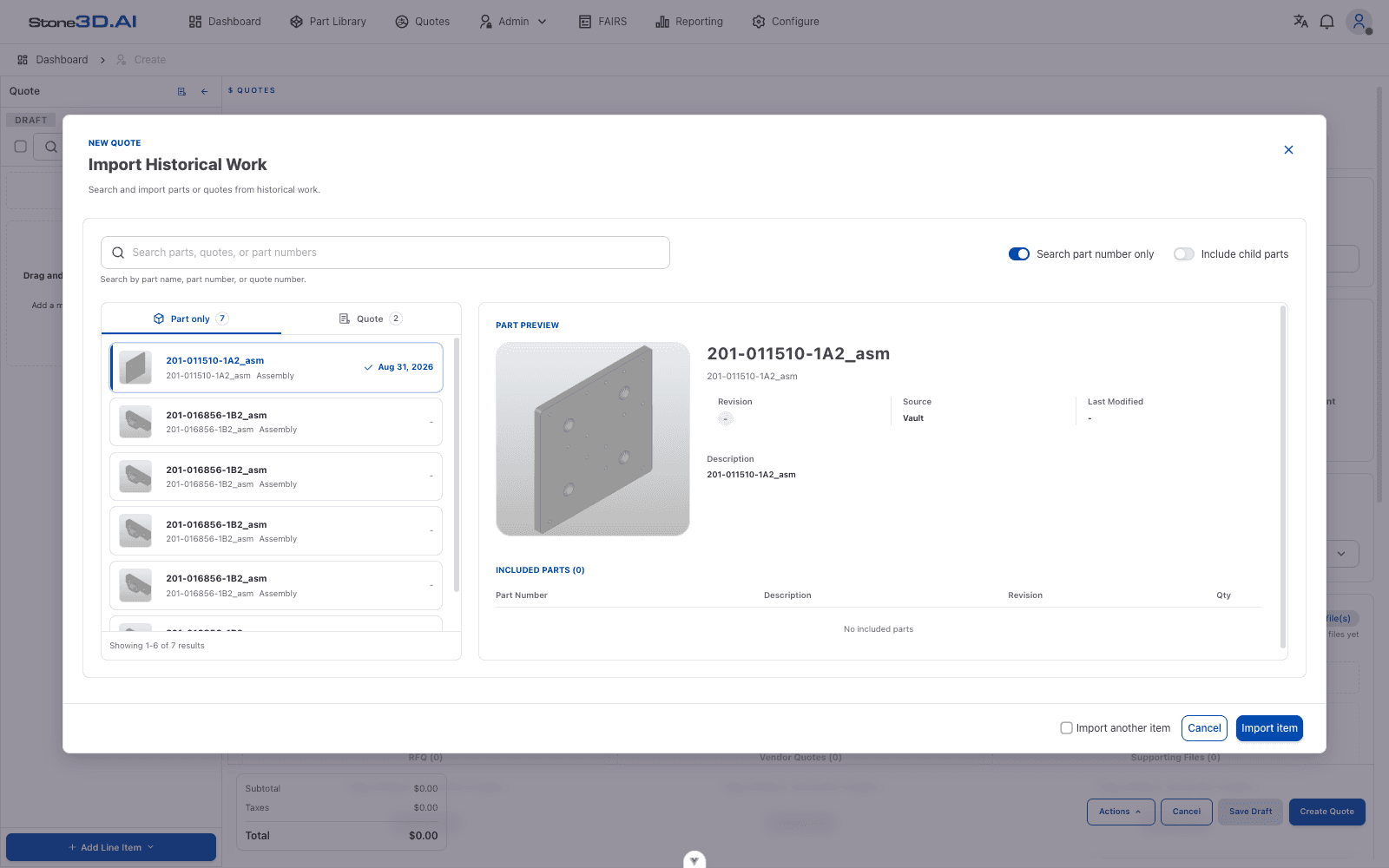
Turn on Include child parts to also import an assembly’s child parts. Turn on Import another item to keep selecting more parts/quotes without having to reopen the dialog. Then click Import item to add it to the quote.
Checking the quote after adding a line item
After importing or creating a line item, the quote is automatically saved (a quote number is generated, e.g. Q-2026-00024), the line item appears in the left sidebar, and the Subtotal/Total are updated:
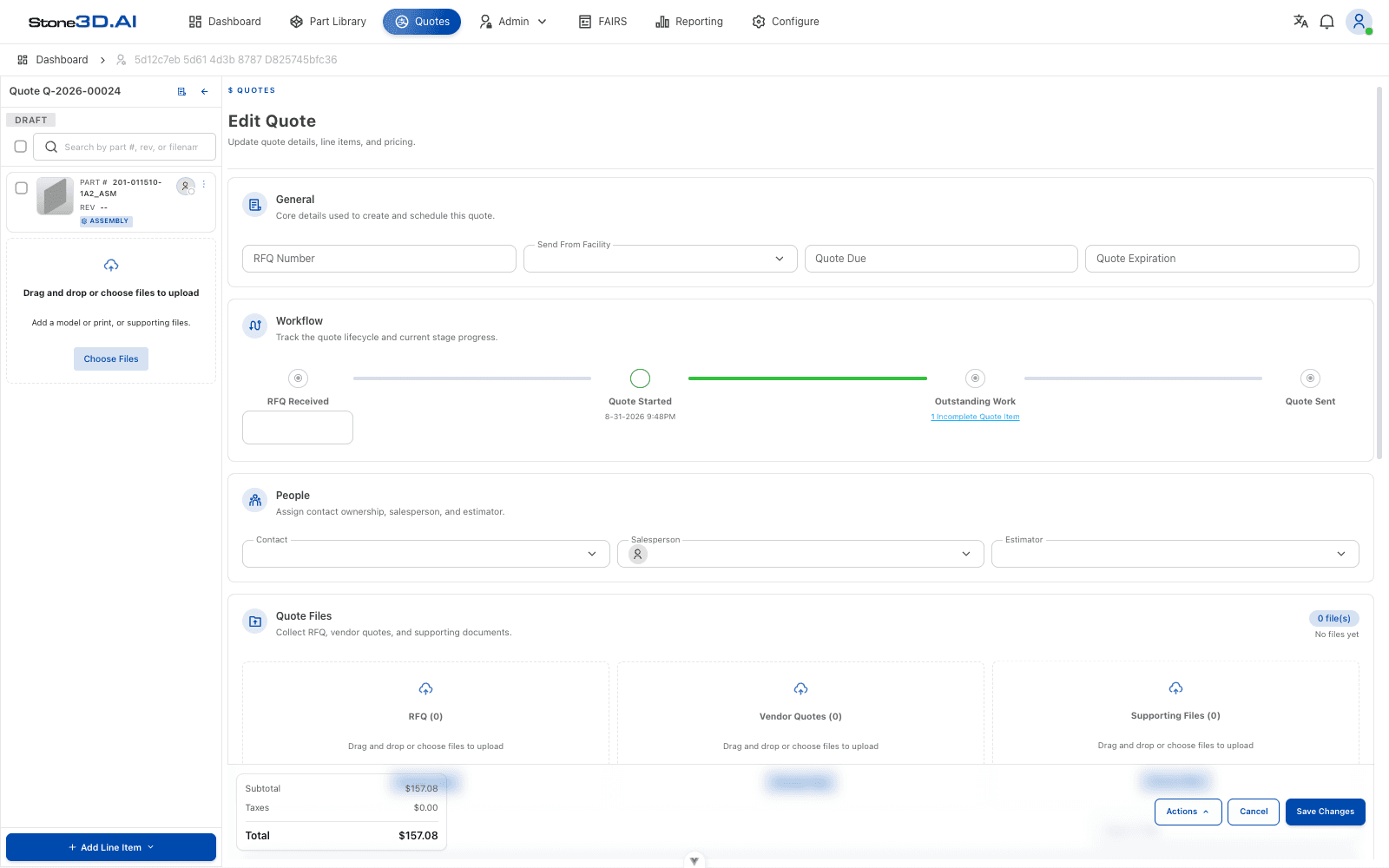
The Import Historical Work action immediately creates a draft quote if you are on the new-quote creation screen. If the wrong part was selected, you can remove the line item via the Remove from quote menu (see section 5) or move the entire quote to the trash.
3. Line Item Details
Click a line item’s name/image in the sidebar to open its detail page. The detail page is split into 6 tabs: Overview, Process & Materials, Components, Costing, Pricing, Lead Times. The right-hand column (Pricing & Quantities, Estimator, Status, Internal Notes, Manufacturer’s Notes, Pricing Summary) is always fixed and visible in every tab.
Overview tab
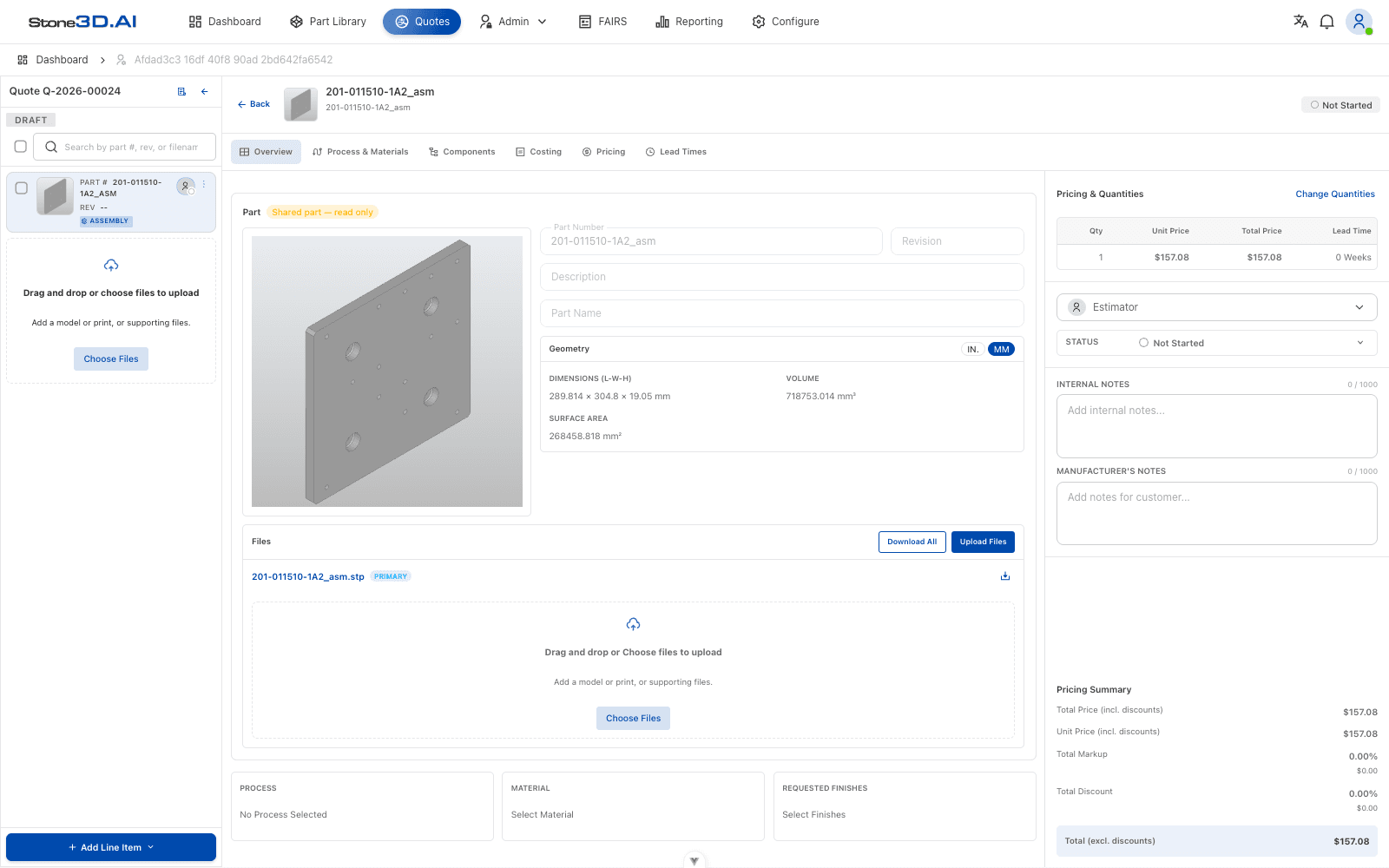
Shows the part’s 3D/2D image, Part Number/Revision/Description/Part Name information, geometry data (Dimensions, Volume, Surface Area), the list of attached files (with Download All or additional Upload Files), and a quick summary of Process/Material/Requested Finishes.
Process & Materials tab
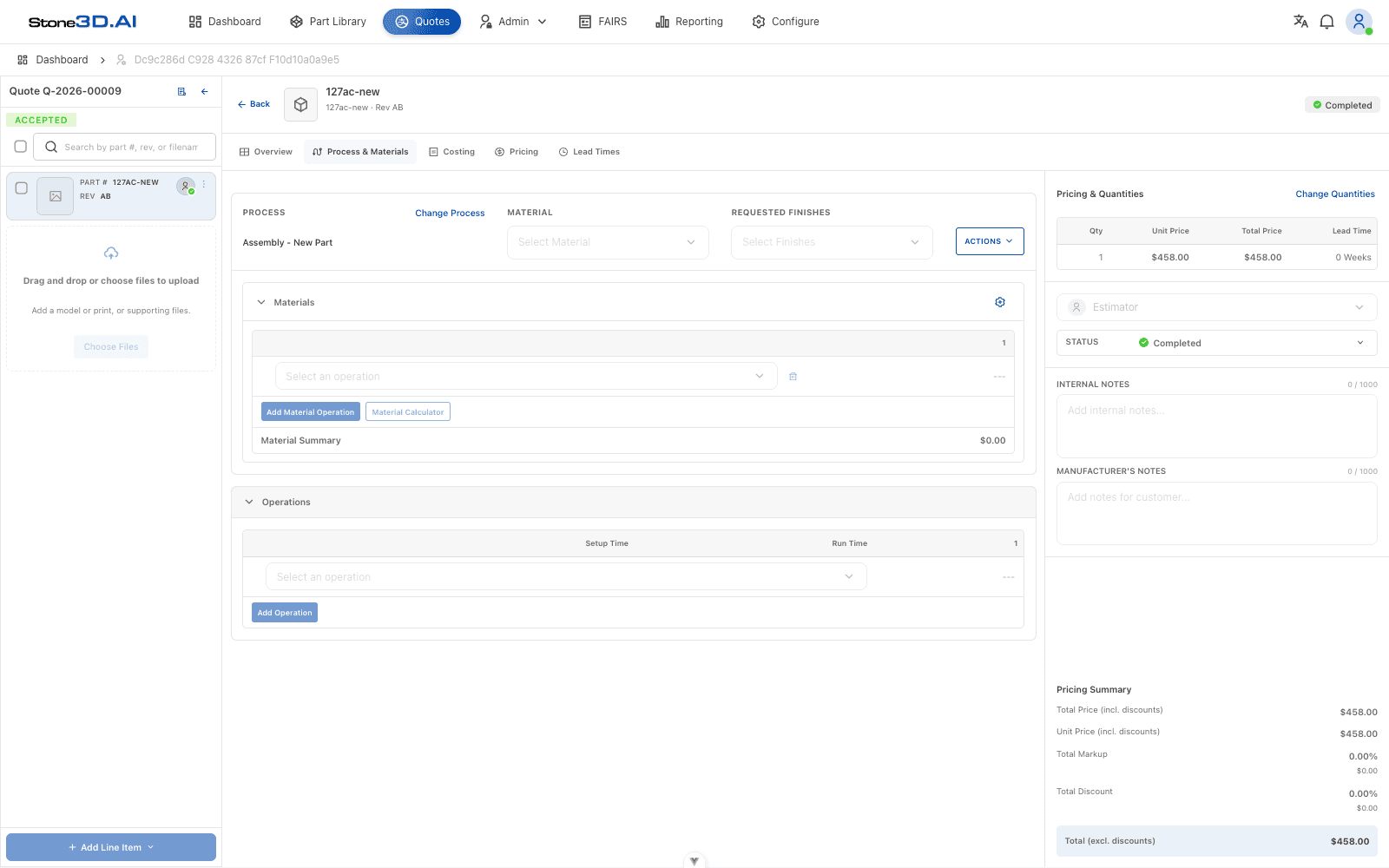
Select the Process (machining process), Material, and Requested Finishes for the line item. Below are two expandable/collapsible blocks: Materials and Operations. This is where all of the line item’s raw cost data is entered — every number here rolls up into the Costing tab (internal cost), and from there into the Pricing tab (sell price).
Materials
Each row in the Materials table is a type of material (e.g. raw stock, or — as in the real example below — a “Shipping (Material)” line). Add a new row with Add Material Operation, or use the Material Calculator (currently disabled in some cases, depending on the Process/Material selected) to quickly compute weight/cost from the part’s geometry. Click the expand icon (diagonal arrow) at the start of a row to open the material detail panel — this panel shares the same mechanism as the Operation panel described below (Basic Info, cost blocks by service tier, a Hidden Overrides/Quantity Breaks block for each quantity tier). The Material Summary row at the bottom of the table is the total material cost, which is exactly the figure that feeds into Total Raw Material on the Costing tab.
Operations
This is the list of machining/processing steps that will be counted toward the line item’s cost and schedule. Click Add Operation to open a search filter (Search operation…) into the system-wide shared operation catalog — a large catalog that includes machining operations (2-Axis Turning, 3-Axis/4-Axis/5-Axis Milling…), surface treatments (ABRASIVE CLEAN + Primer + Topcoat Gloss Enamel, AC Etching…), as well as non-machining steps such as Engineering/Planning, Quality Inspection, FAI Inspection, Data Package, Shipping (To Customer), Lead Time Cushion, Assembly, Detail Lead Time, Part Attributes…
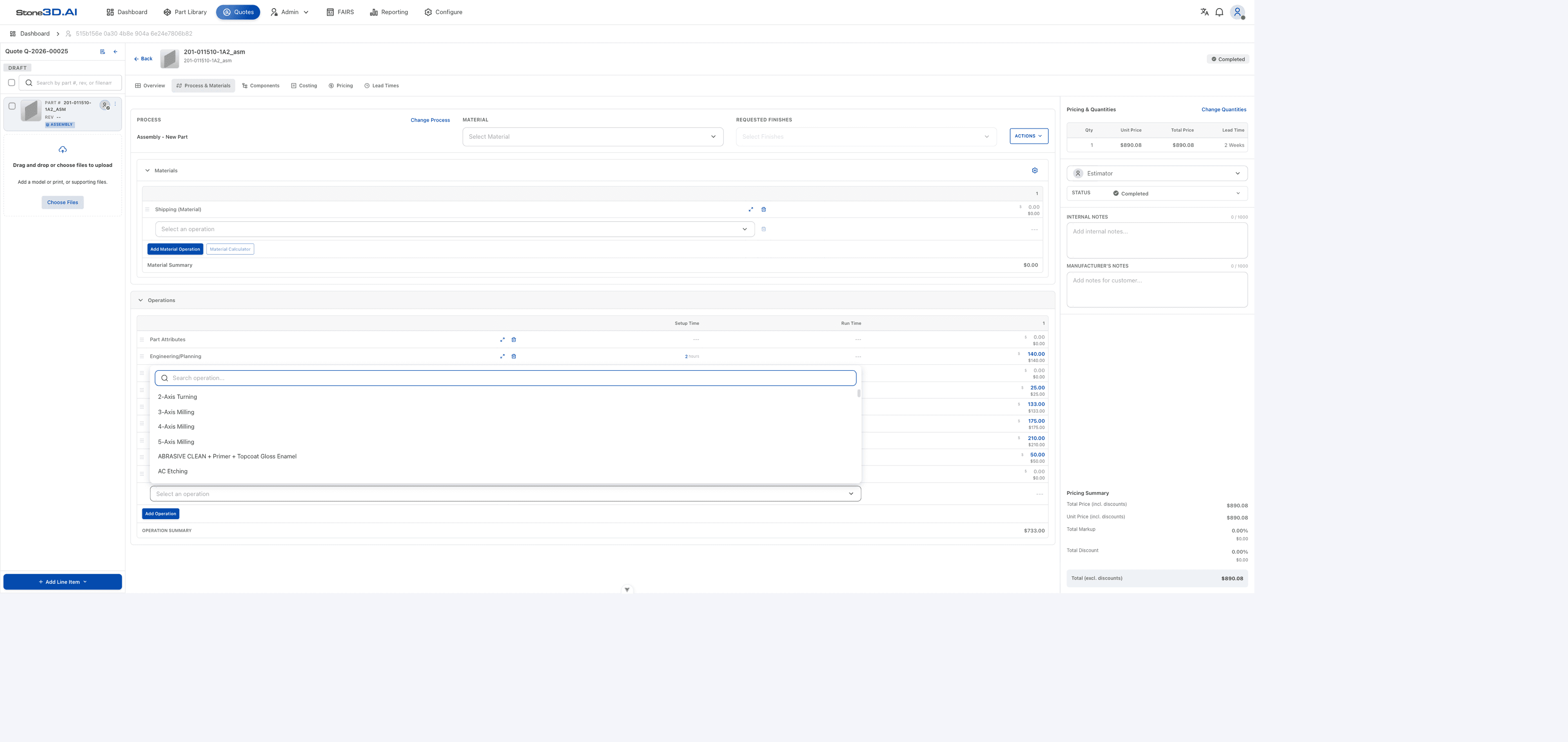
Each operation row in the table shows 2 time columns and 1 cost column:
- Setup Time: the time to prepare the machine/fixture, counted once for the whole lot (not multiplied by quantity).
- Run Time: the machining time per unit produced, multiplied by Qty when computing cost.
- Operation cost (per lot): the cost for the whole lot for this specific operation (a manual-entry field), with Unit cost (cost per unit) shown below, automatically computed from the current Qty.
Not every operation has both a Setup Time and a Run Time — many operations are administrative/logistical in nature (Part Attributes, Detail Lead Time, Shipping (To Customer), Lead Time Cushion…) and have no time field at all (disabled), because their cost is computed a different way (see the Shipping example below) rather than by labor hours.
Click the pencil icon (Edit operation) on a row to open the operation detail panel — a multi-section workspace (numbered 1, 2, 3… in the left-hand menu), where the content of each section varies by operation type, since every operation in the catalog has its own set of variables/formulas (for example, Engineering/Planning is priced by engineering labor hours, while Shipping is priced by shipping service tier). Even so, most “Labor”-type operations (priced by labor hours) share a few common sections:
Operation settings
Choose the Type (e.g. Labor), the display unit Setup Time Display/Runtime Display (Hours/Minutes), and toggle Include NRE (setup) — NRE (Non-Recurring Engineering) determines whether setup time is treated as a one-time cost for the whole lot.
Labor Rate
Rate Type and Rate ($/hr) — the labor rate applied to this operation, defaulting from the rate/facility configuration (labeled Config) but overridable in the Override column.
Basic Info
Baseline settings such as Facility (the plant performing the work), Include Lead Time, Display Price/LT Type — by default calculated (labeled ƒ Calculated) from the selected process/facility, but still overridable for this specific operation.
The operation-specific variable block (named after the operation itself)
For example, with Engineering/Planning this is the “Engineering/Planning Labor (Hours)” section, listing individual labor-hour line items: WO Planning/Approval, CAD Modeling, Addendum Drawings, DFM Analysis, Research, MFG Eng/Support… — summing up to Total Engineering Hours. This is where the numbers that actually drive the operation’s cost are entered/reviewed.
Cushion/Reductions
Additional adjustment factors, such as Cushion Markup (%) (adds a safety margin to labor hours), or a reduction if the part is similar to a part made before (Similar Parts Package?, Similarity Percentage (%)) — allowing engineering hours to be reduced when reusing an existing design.
PRIMARY
The operation’s main “output” variable (e.g. setup_time) — this value is what other parts of the system (scheduling, costing) use as their reference.
Standard Expedite — Lead Time Variables / Pricing Variables
A separate set of variables that applies when the customer chooses expedited delivery instead of the standard schedule — includes Queue Time, Uptime, Total Lead Time… computed separately for the expedite scenario, without affecting the standard price/schedule.
Notes
Notes specific to this operation (inspection requirements, internal remarks…).
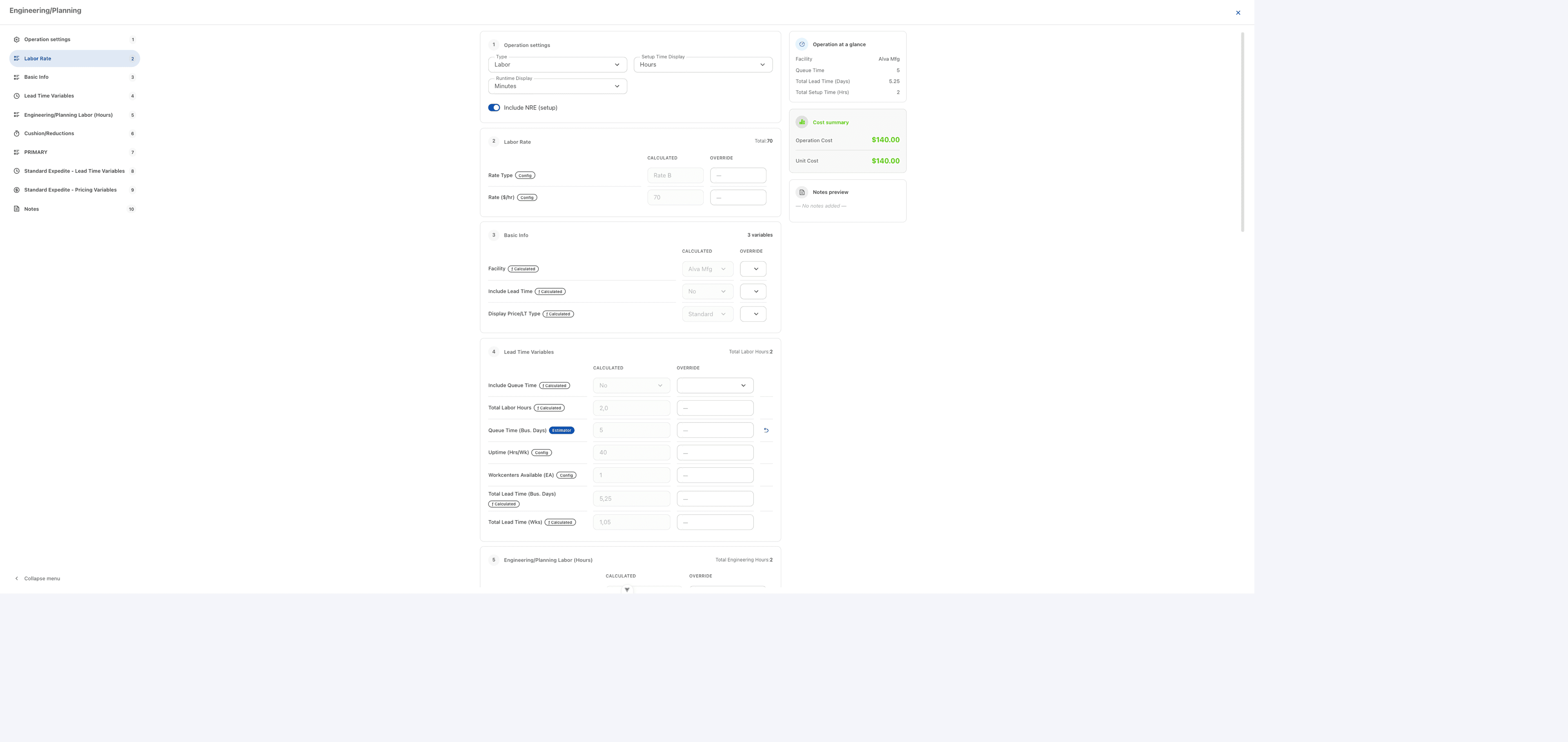
In the detail panel, each variable is accompanied by a small label indicating the source of the value:
| Label | Meaning |
|---|---|
| ƒ Calculated | The value is automatically computed by the system using a formula from other variables. It can still be overridden in the Override column if needed. |
| Config | The default value comes from another configuration/setting (rate table, facility…) — it can be overridden here for this specific operation. |
| Estimator | The value is entered directly by the person building the quote (e.g. Queue Time, Shipping Cost) — a Reset to default button is available to revert to the system-suggested value. |
| Per-Qty | This variable is priced separately for each quantity tier of the quote — it isn’t edited directly here; click Expand to open the per-quantity matrix. |
The right column of the panel always has 2 fixed blocks: “Operation at a glance” (a quick summary of Facility/Queue Time/Total Lead Time/Total Setup Time) and “Cost summary” (Operation Cost — the total cost for the whole lot, and Unit Cost — the cost per unit).
Not every operation follows the “Labor” pattern above. For example, the Shipping (To Customer) operation has no Labor Rate or labor hours — instead it has 3 cost items by shipping service tier: Shipping Cost/LT [Standard], [Standard Expedite], [Aggressive Expedite], each with a manually-entered cost (Estimator input, e.g. $50) and a corresponding lead time (in days), which shows that the operation catalog allows each type to have completely different pricing logic, not necessarily based on labor hours:
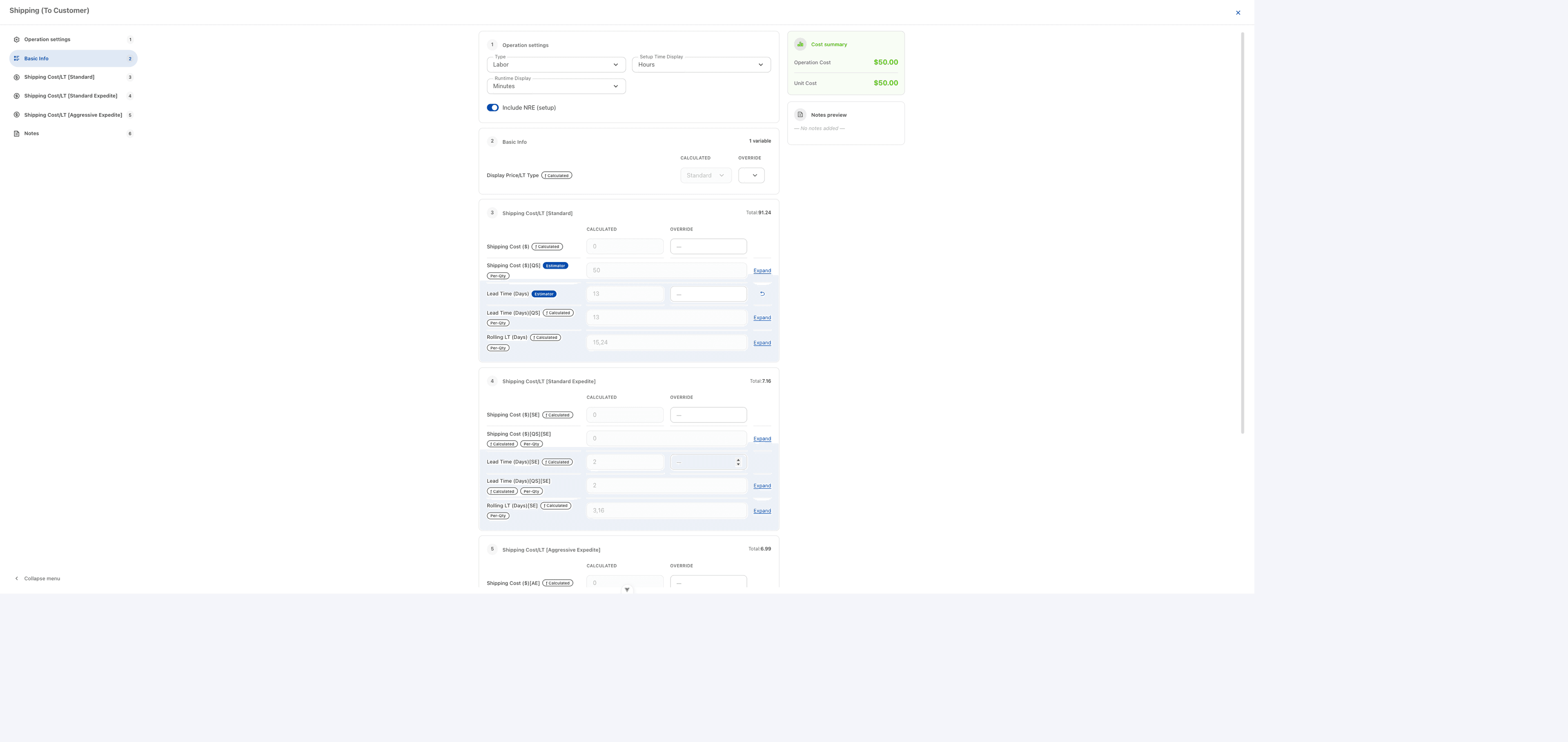
The Operation Summary row at the bottom of the Operations table is the total cost of all operations in the line item — this figure rolls up into Total Inside Processing / Total Outside Processing on the Costing tab (depending on whether the operation is flagged as in-house or outsourced).
Because each operation in the catalog has its own set of variables, this document only describes the concepts that are common across operations (Setup/Run Time, Labor Rate, Calculated/Config/Estimator/Per-Qty, Cost summary…). For a specific operation you haven’t seen before, open Edit operation to see its actual set of variables — don’t assume it matches another operation.
Components tab (only applies to Assembly-type parts)
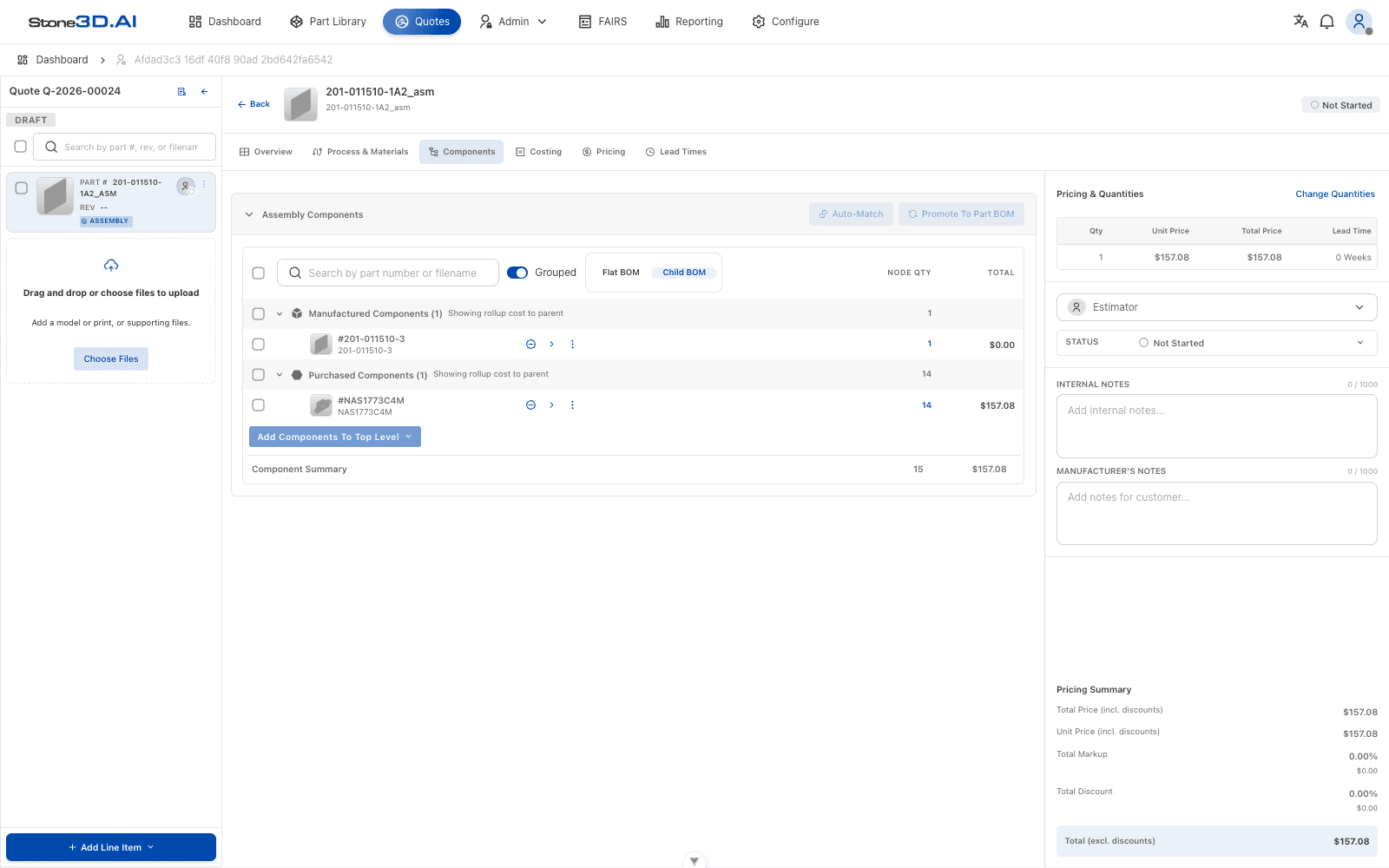
For an Assembly-type part, this tab shows the line item’s BOM (Bill of Materials) tree, split into Manufactured Components (in-house manufactured parts) and Purchased Components (outsourced/bought-out parts). You can:
- Switch between Flat BOM (a flat list) and Child BOM (a hierarchical tree by sub-level).
- Use Auto-Match to automatically match components against parts/purchased components already in the system.
- Use Promote To Part BOM to push this BOM structure to become the Part’s official BOM in the Part Library.
- Add a new top-level component with Add Components To Top Level.
- Each component row has its own three-dot menu and a row-level Auto-Match button for manual matching.
The Component Summary block at the bottom of the table rolls up the quantity and cost of the entire BOM tree.
Costing tab
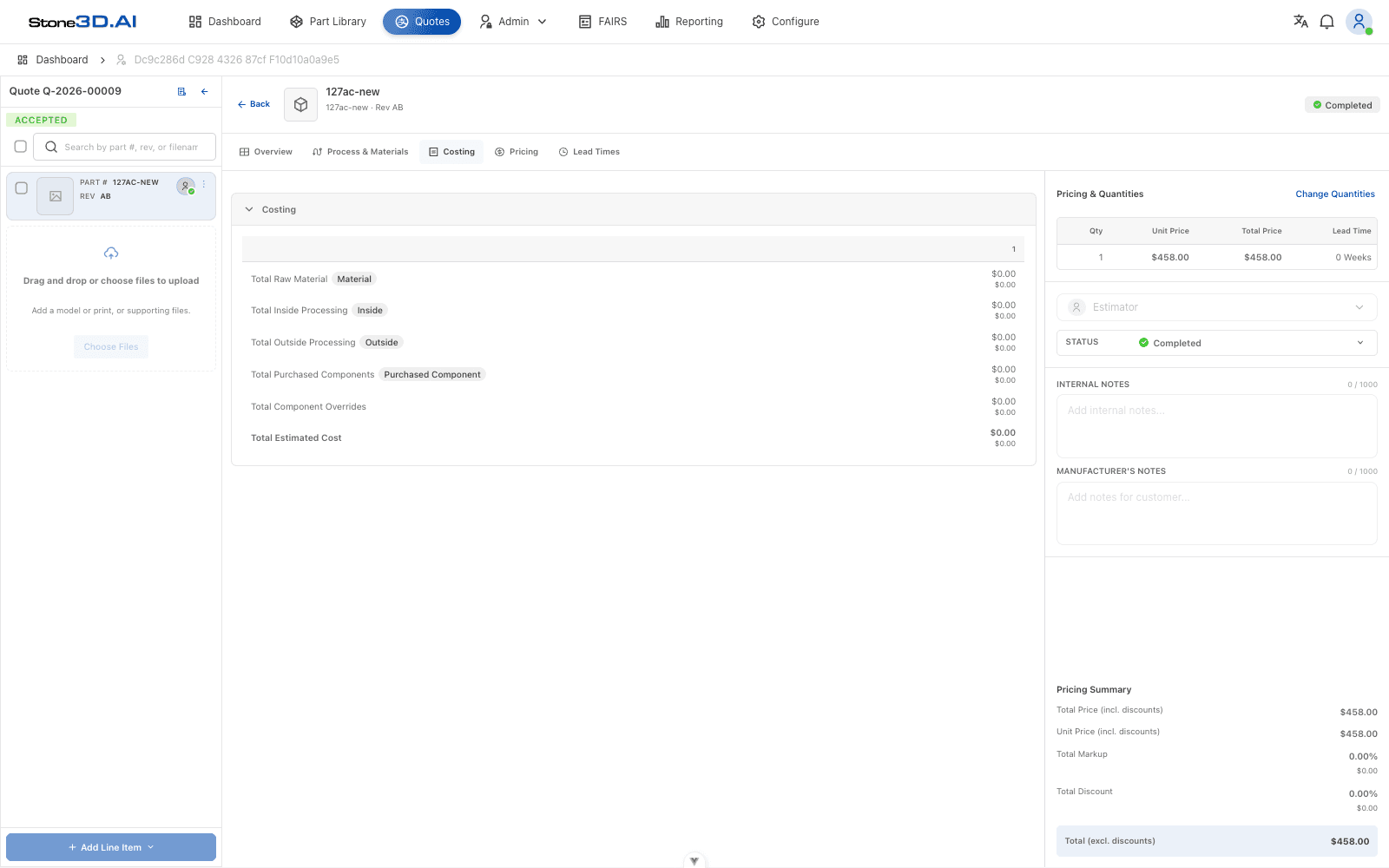
Rolls up the estimated cost by category: Total Raw Material, Total Inside Processing, Total Outside Processing, Total Purchased Components, Total Component Overrides, and the Total Estimated Cost grand total row. This is internal cost data, not the sell price shown to the customer.
Pricing tab
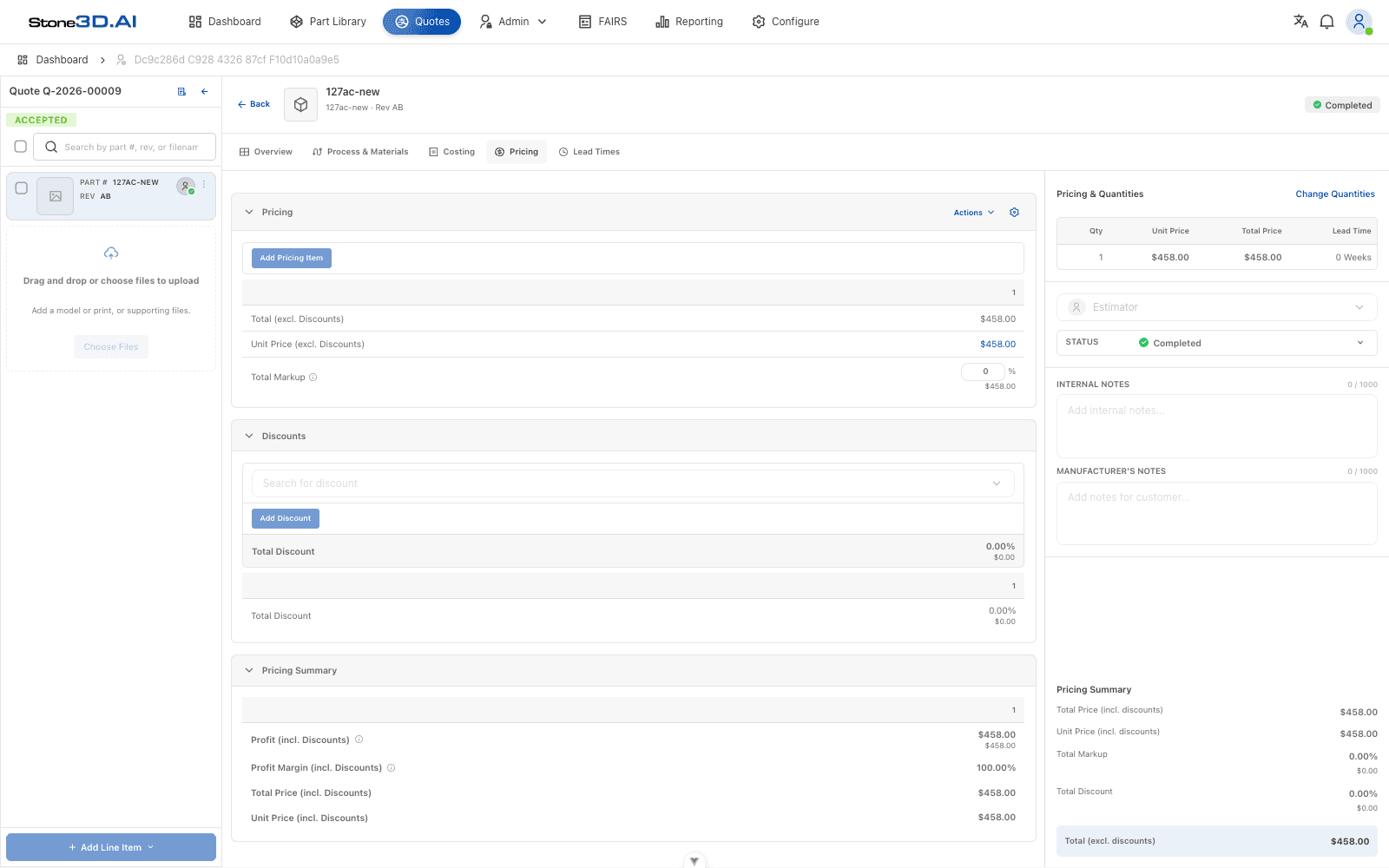
Manages the line item’s sell price:
- Pricing: add a price line with Add Pricing Item; view Total/Unit Price (excl. Discounts) and enter Total Markup (%).
- Discounts: add a discount with Add Discount, choosing from a list of preconfigured discounts.
- Pricing Summary: shows Profit, Profit Margin, Total Price, and Unit Price after discounts are applied.
Lead Times tab
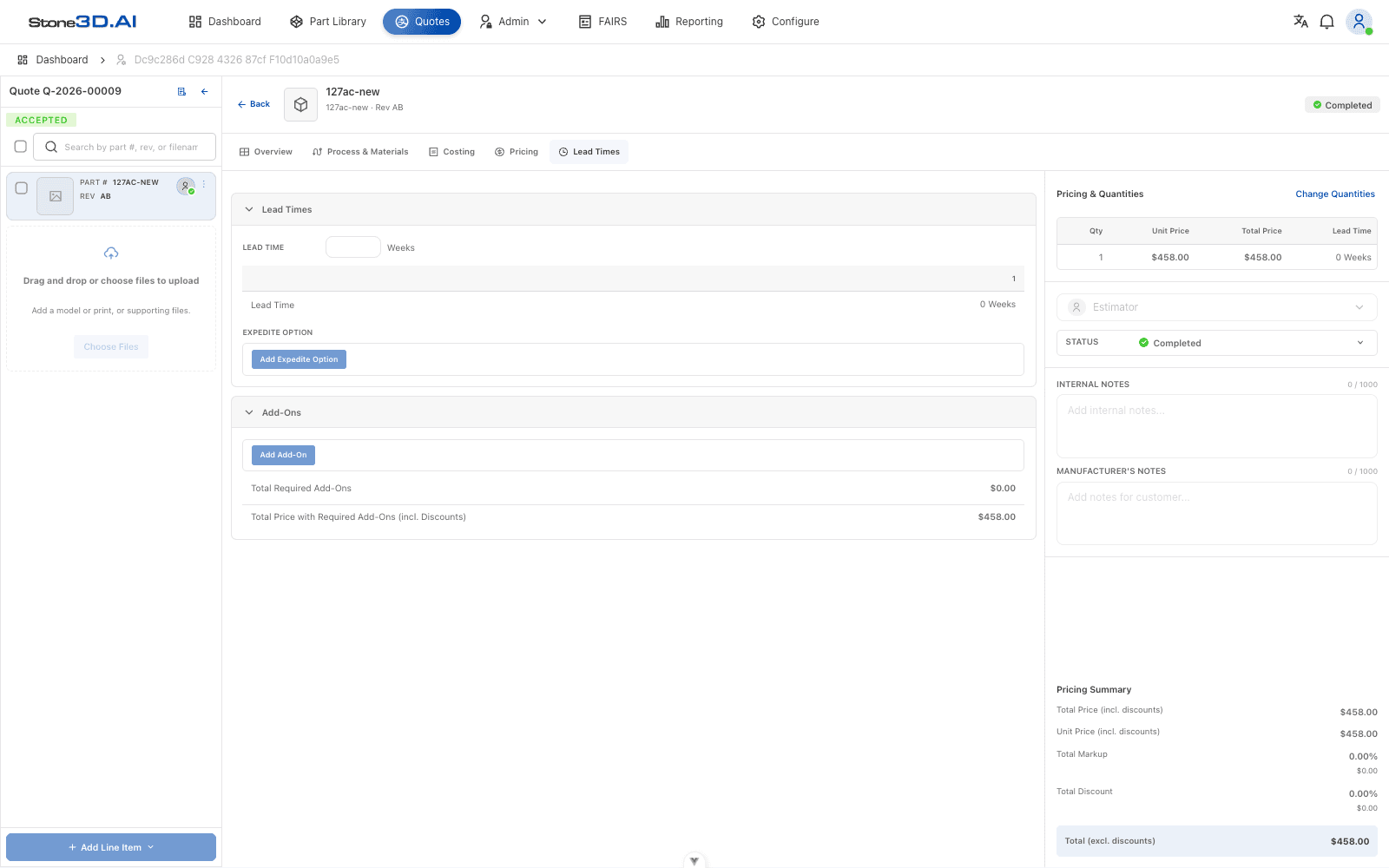
- Lead Time: enter the expected number of weeks for delivery.
- Expedite Option: add an expedited-delivery option (with a surcharge) using Add Expedite Option.
- Add-Ons: add a fixed surcharge (Add-On) using Add Add-On; the system automatically adds it into Total Price with Required Add-Ons.
The values in the Pricing & Quantities and Pricing Summary columns on the right update automatically based on data entered in the Process & Materials, Components, Costing, Pricing, and Lead Times tabs. Always double-check Total (excl. discounts) before saving.
4. Per-Line-Item Actions Menu
Click the three-dot icon on a line item card in the sidebar to open the quick actions menu:
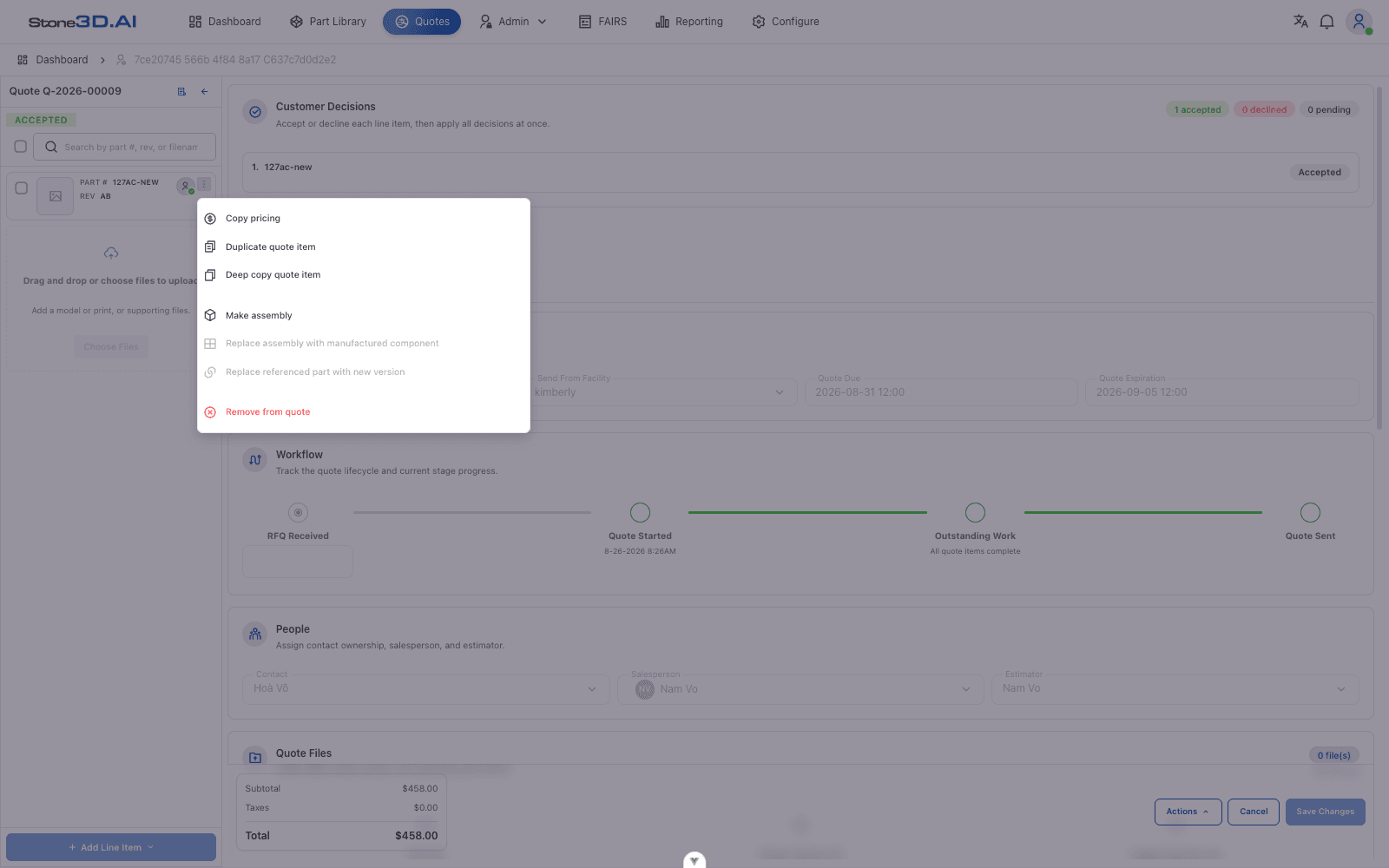
| Action | Description |
|---|---|
| Copy pricing | Copies the pricing configuration to another line item |
| Duplicate quote item | Duplicates the line item within the same quote |
| Deep copy quote item | Duplicates the line item along with its entire child BOM structure (if it’s an assembly) |
| Make assembly | Converts a single part into an Assembly-type part so child components can be added |
| Replace assembly with manufactured component | Replaces the assembly with an in-house manufactured component (only available in certain states) |
| Replace referenced part with new version | Replaces the currently-referenced part with a newer part version |
| Remove from quote | Removes the line item from the quote |
5. Editing an Existing Quote and Customer Decisions
When opening a quote that has been sent/already has a response, the top of the page shows a Customer Decisions block, allowing each line item to be Accepted/Declined and bulk decisions to be applied:
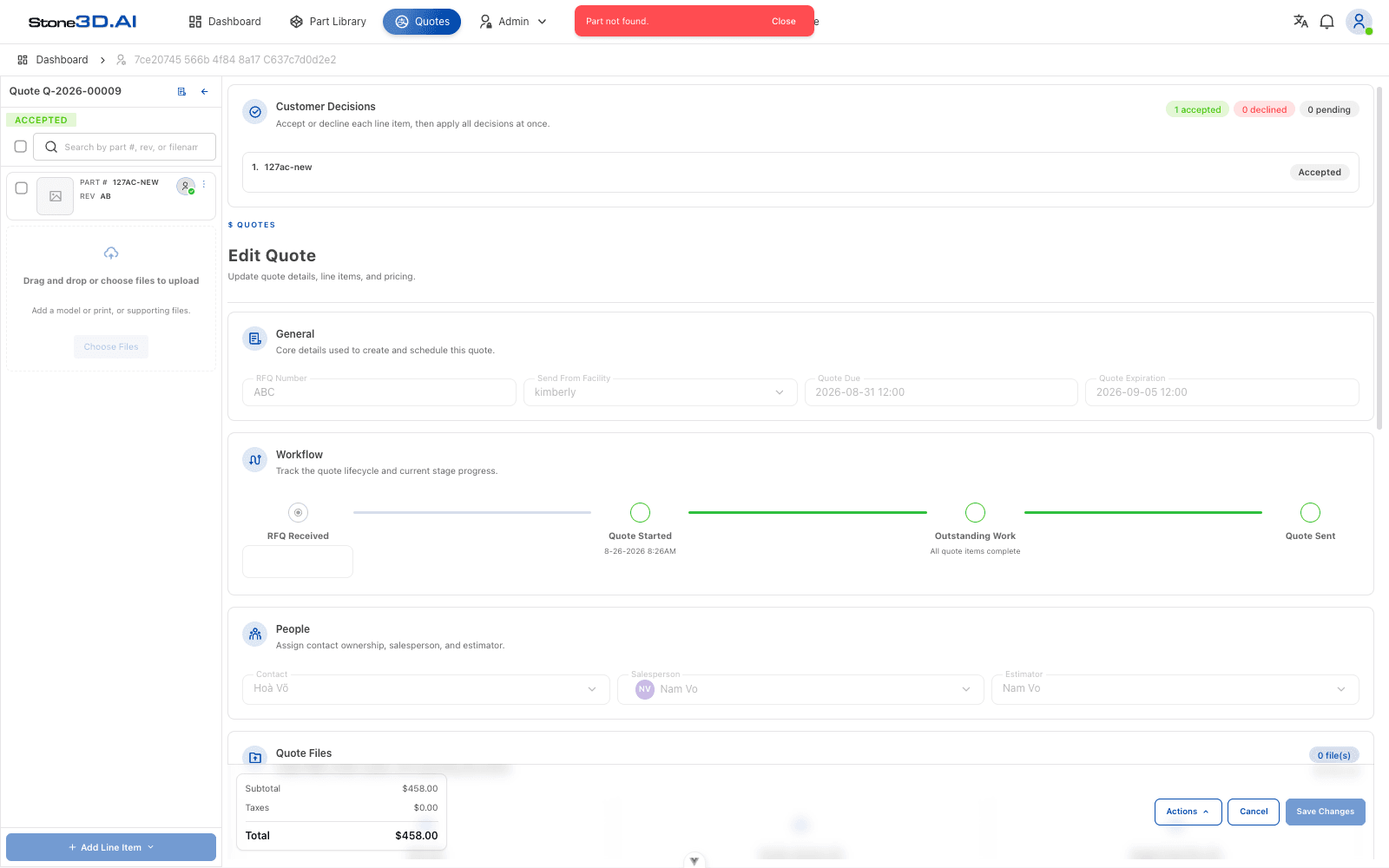
The Workflow section shows the actual milestones already reached (e.g. Quote Started, Outstanding Work) instead of just empty steps as on the creation screen.
6. Whole-Quote Actions Menu
At the bottom-right of the quote editing page, click the Actions button to open the menu for managing the entire quote:
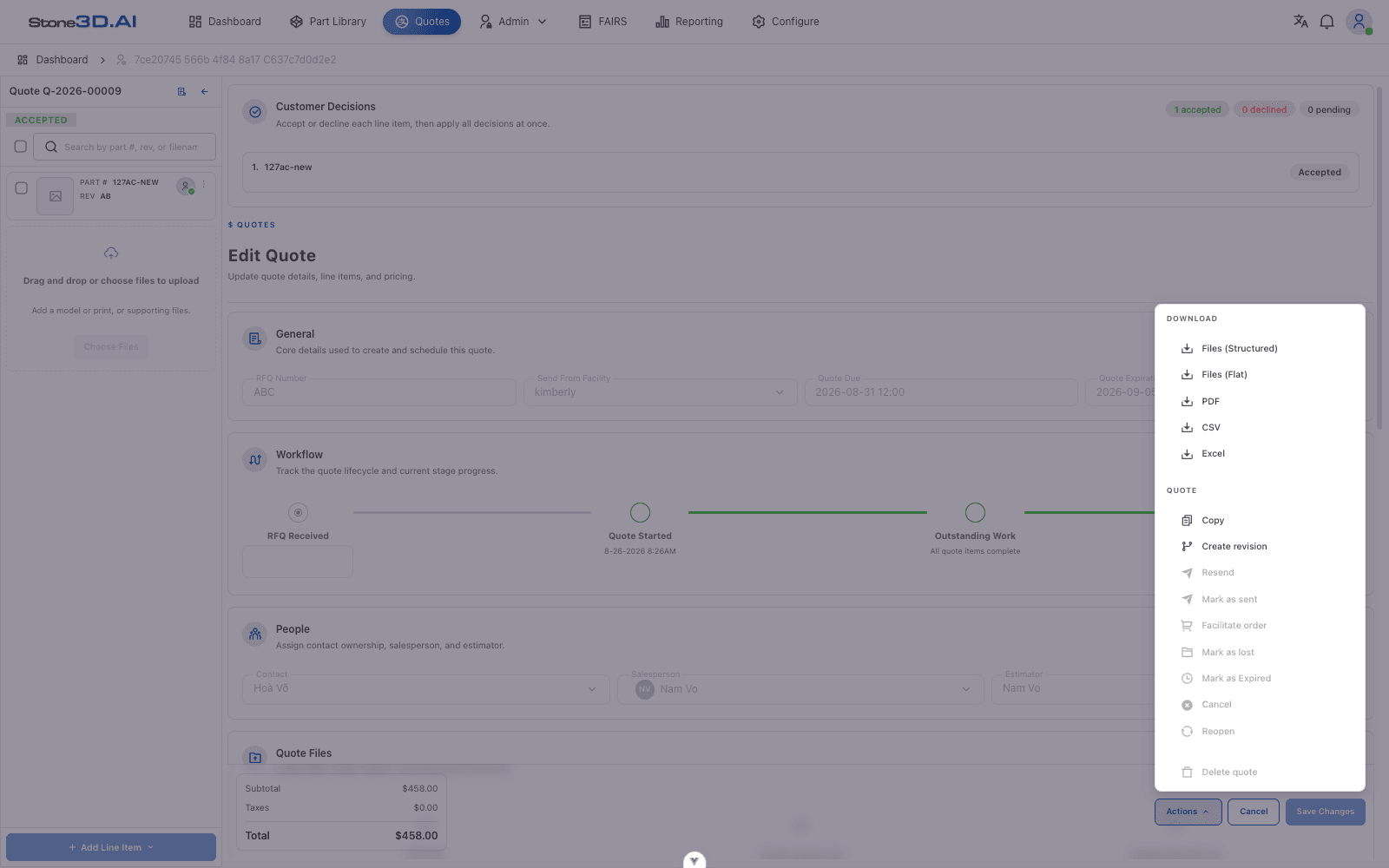
DOWNLOAD group:
- Files (Structured) / Files (Flat): download all attached files, either following the folder structure or as a flat list.
- PDF: export the quote as a PDF to send to the customer.
- CSV / Excel: export the quote data as a spreadsheet.
QUOTE group:
- Copy: duplicates the quote.
- Create revision: creates a new revised version of the quote.
- Resend / Mark as sent: marks or re-sends the quote to the customer.
- Facilitate order: converts an accepted quote into an order.
- Mark as lost / Mark as Expired: marks the quote as unsuccessful or expired.
- Cancel / Reopen: cancels or reopens the quote.
- Delete quote: deletes the quote (moves it to the trash).
Some items in the Actions menu (Resend, Mark as sent, Facilitate order, Mark as lost, Mark as Expired, Cancel, Reopen, Delete quote) are only available depending on the quote’s current status (Draft, Sent, Accepted, Declined, Expired…). A grayed-out item means it doesn’t apply to the current status.
7. Trashed Quotes
Select the Trashed quotes view in the TRASH group in the sidebar to view soft-deleted quotes:
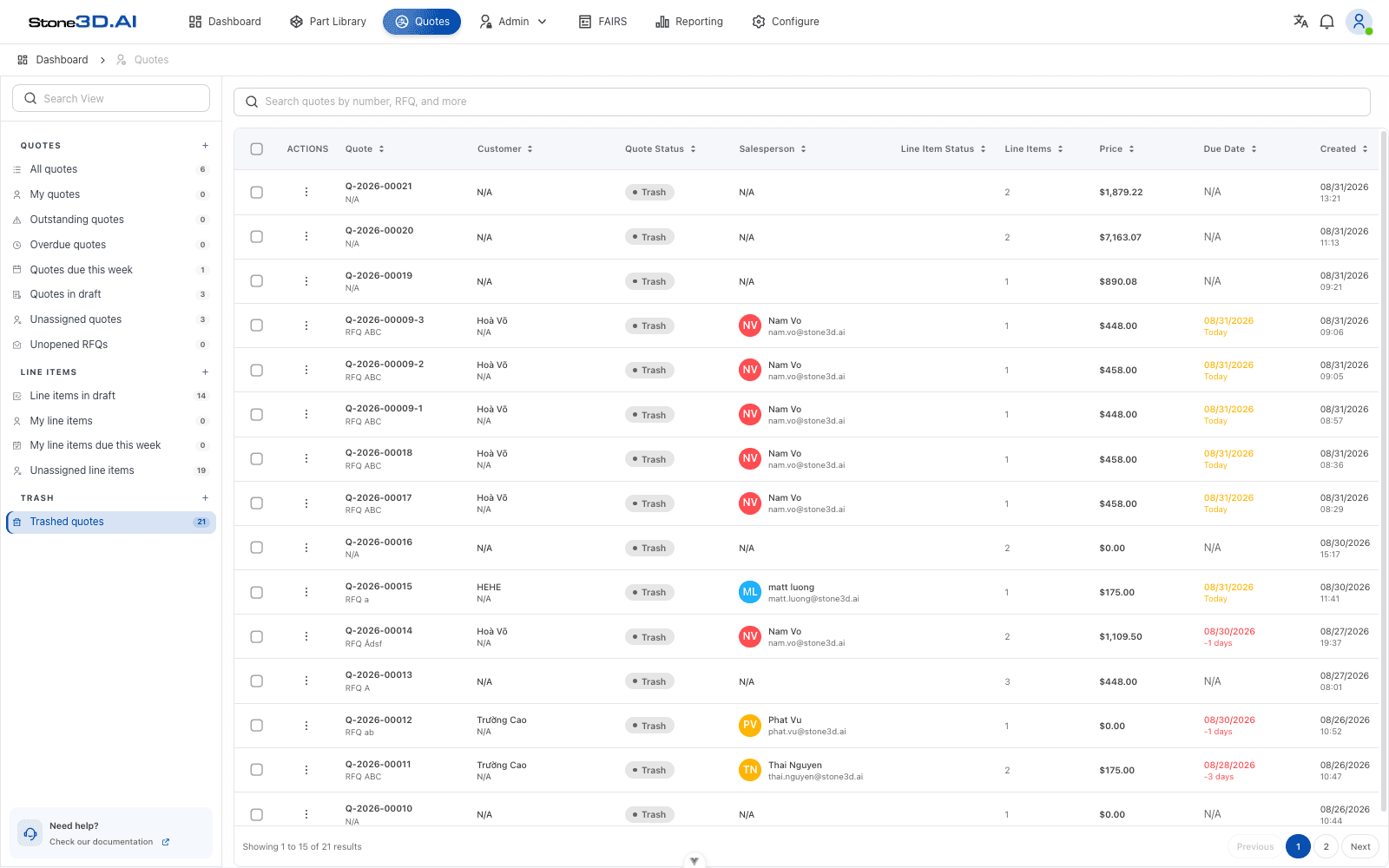
Each row still has its own Actions menu with 2 options:
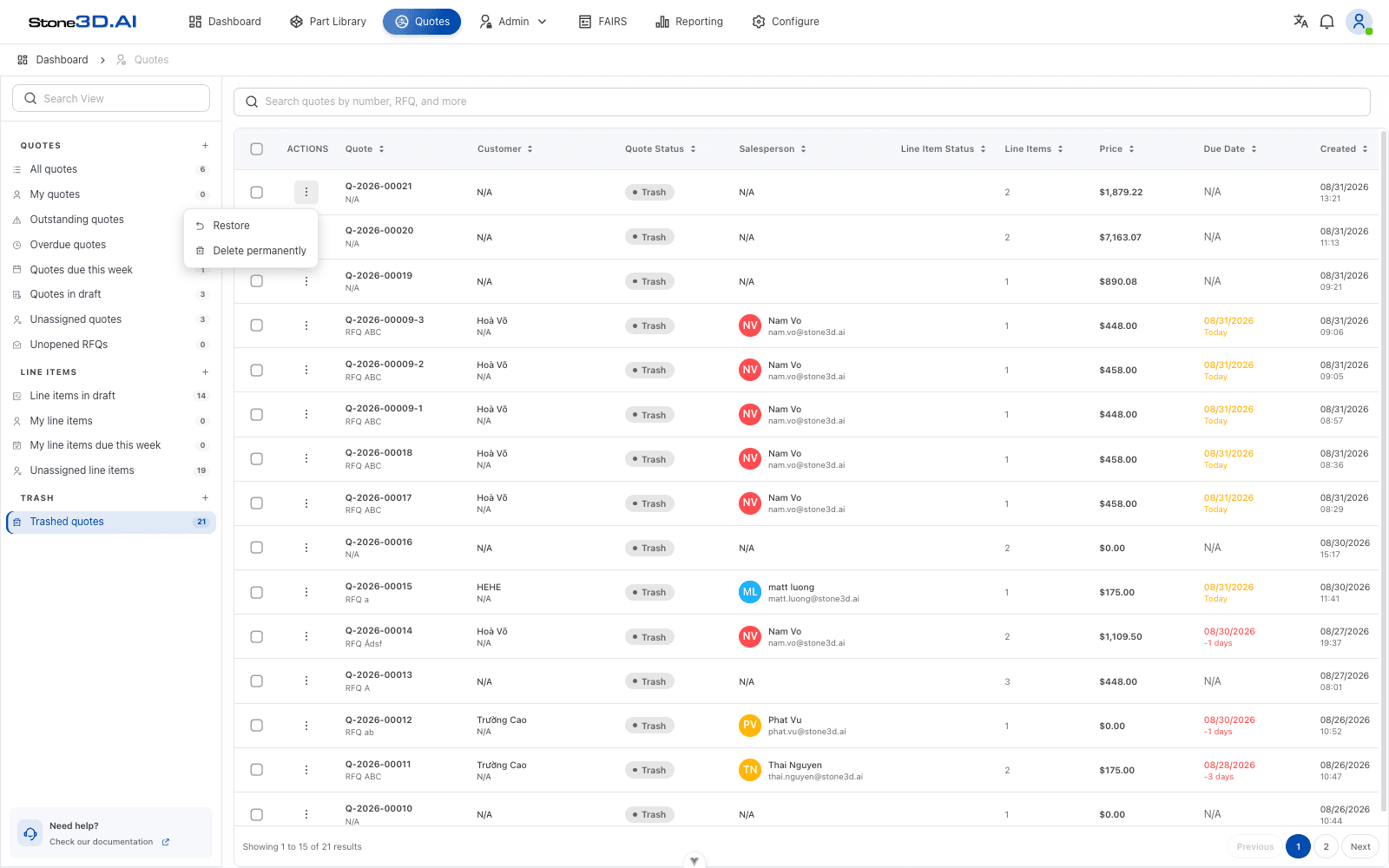
- Restore: restores the quote back to the main list (All quotes).
- Delete permanently: permanently deletes the quote; this cannot be undone.
The Delete permanently action cannot be undone. Only use it when you’re certain the quote’s data is no longer needed (including for historical price lookup purposes).
The Quotes section is the main hub of the quoting process: creating/importing line items, configuring process - material - BOM, computing cost and sell price, tracking the lifecycle, and exporting the quote for the customer. To look up historical pricing data to support decisions when building a new quote, see also Quote and Pricing History.