Generate / Export Quote
Why: Before sending it to the customer, the Quote needs to be exported to a specific file format (PDF, Excel…) — this is the official document the customer will receive.
Available Export Formats
From the Actions menu on the Quote screen, the DOWNLOAD group provides:
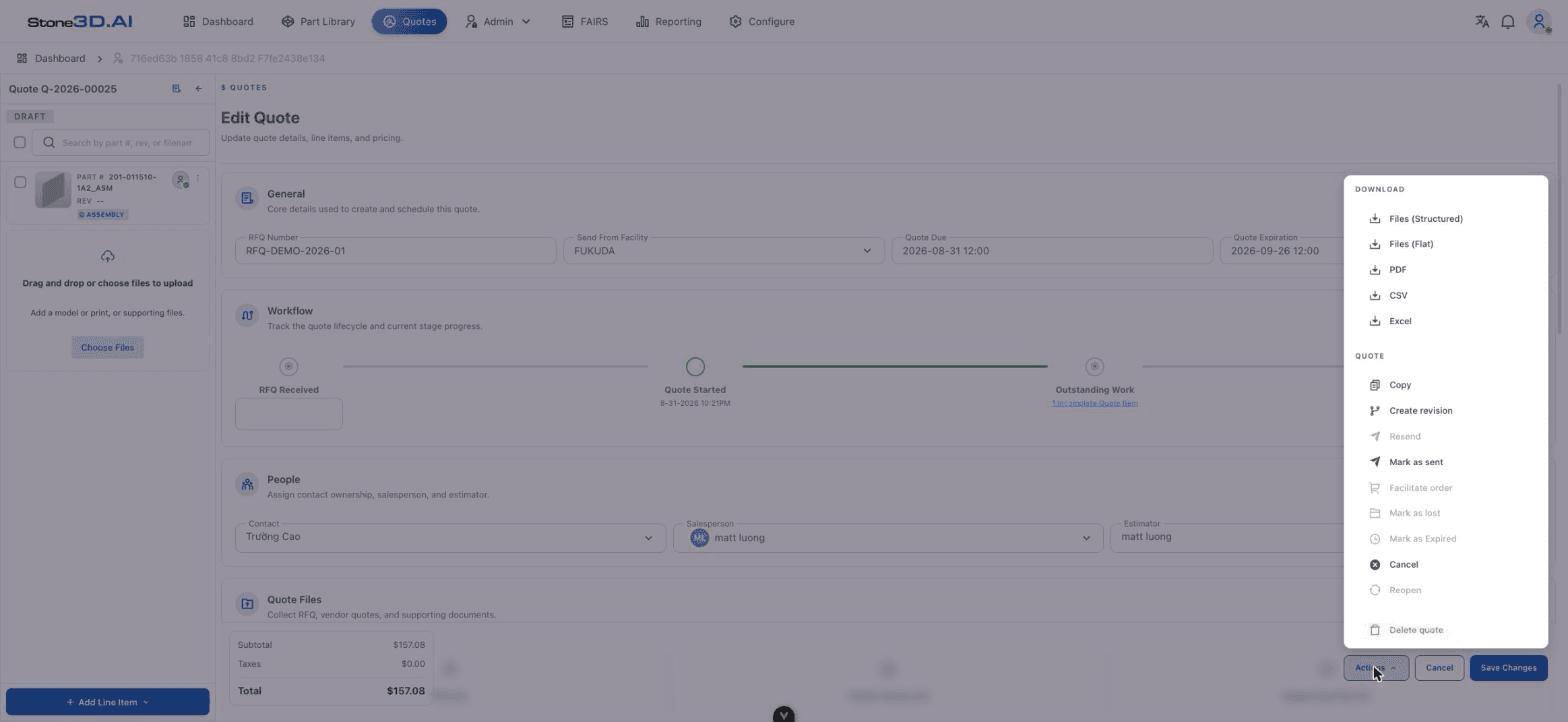
| Format | Description |
|---|---|
| Files (Structured) | Downloads all of the Quote’s attached files (drawings, 3D models…), keeping the folder structure by Line Item |
| Files (Flat) | Downloads all attached files as a flat list, with no folder hierarchy |
| Exports the quote as a PDF — the most suitable format to send directly to the customer | |
| CSV | Exports Quote data as a CSV table (suitable for internal reconciliation or importing into another system) |
| Excel | Exports Quote data as an Excel spreadsheet |
How to Export
Open the Actions menu
On the Edit Quote screen, click the Actions button.
Choose the format to export
Select one of the items in the DOWNLOAD group (e.g. PDF to get a document to send to the customer).
Confirm the file has downloaded
The browser will automatically download the file to the default Downloads folder — there is no in-app preview screen before downloading.
During testing, downloading a PDF showed no confirmation dialog or in-app preview — the file was downloaded straight to the browser. The detailed content inside the exported PDF file (how Pricing, Lead Time, Parts, and attached files are presented) was not directly checked during this round of testing and needs to be verified separately by opening the downloaded file.
How to Check the File Before Sending
Since there’s no in-app preview, the person responsible should:
- Download the PDF file.
- Open the file with any PDF reader.
- Cross-check it against the Quote in the system: correct Part, correct Quantity Tier, correct price, correct Lead Time.
- Check the attached drawing/model files (if the customer needs to receive them as well) by downloading them separately via Files (Structured) or Files (Flat).
Result: A complete quote file is now ready, ready to be sent to the customer.