Browse and Manage Parts
The Part Library provides tools for finding and managing existing parts.
Users can search for parts, filter the results, switch between Grid View and List View, and select one or more parts for additional actions.
Grid View
Grid View displays each part as a visual card.
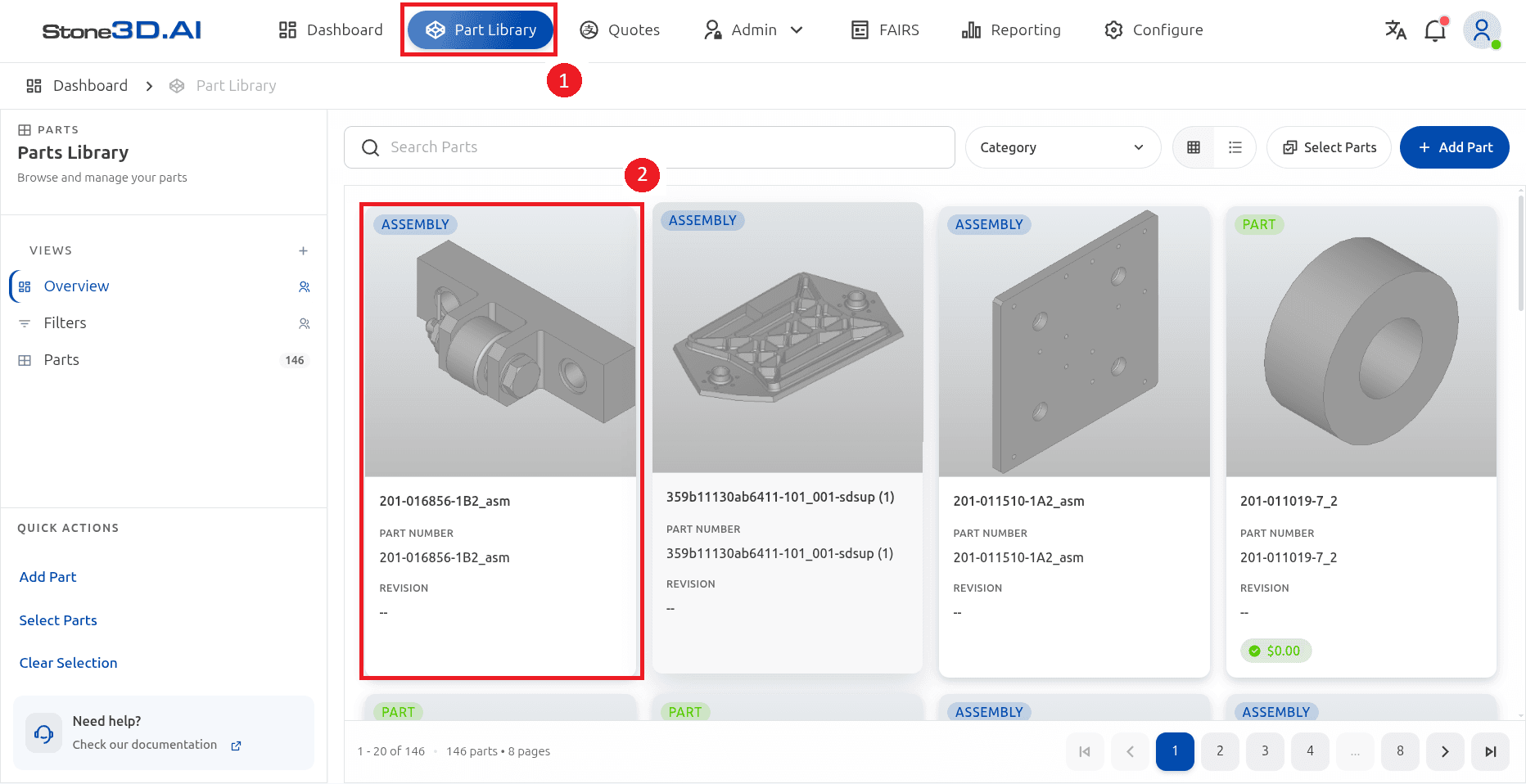
Each card can display:
- Part type
- Part name
- Part number
- Revision
- Part preview
- Price information, when available
List View
List View displays parts in a table and provides additional information for each part.
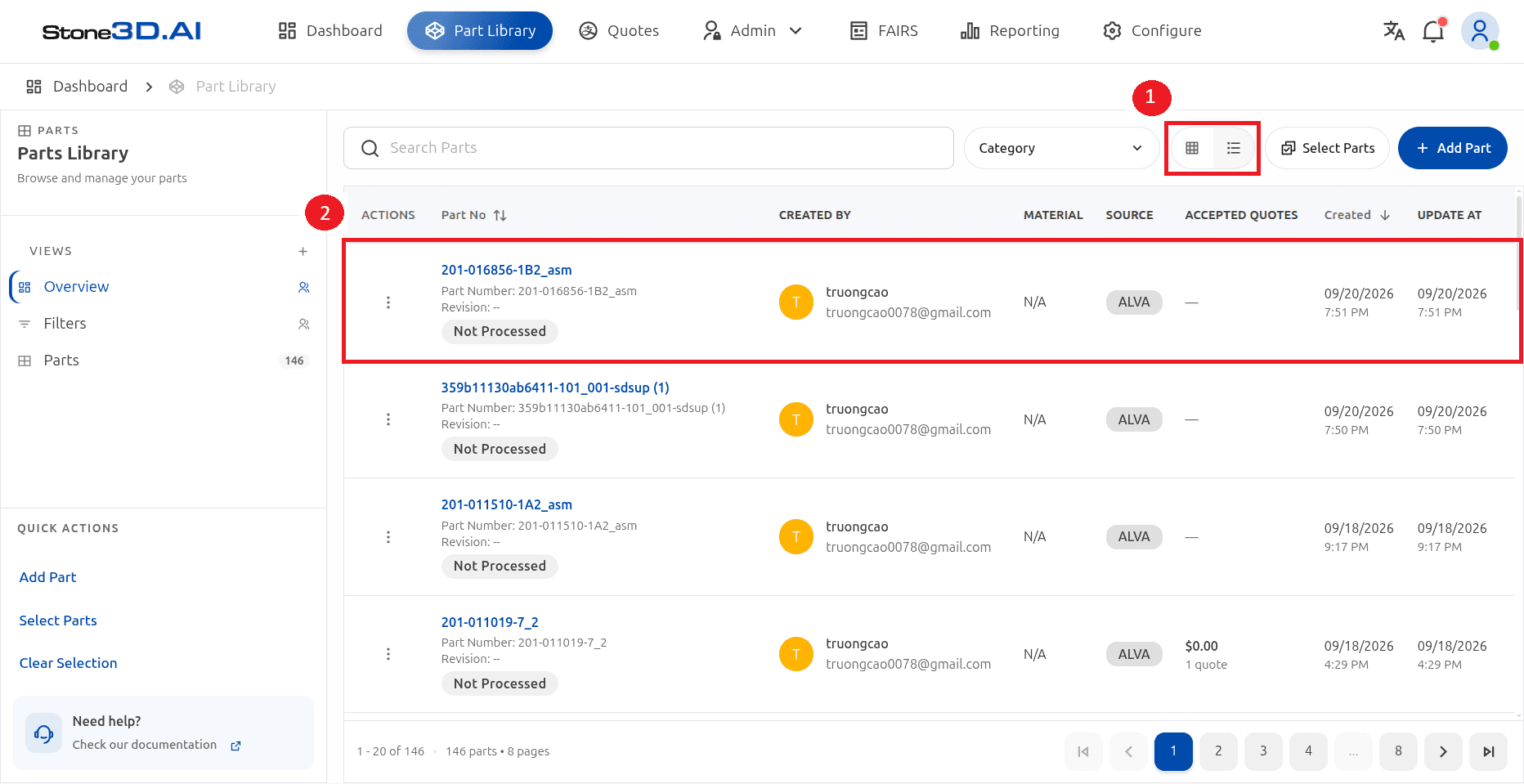
The list can include:
- Part Number
- Created By
- Material
- Source
- Accepted Quotes
- Created
- Updated
Search and Filter Parts
Use the Search Parts field to find parts by the available part information.
Use the Category filter to narrow the displayed results by part category.
The search and filter controls can be used together to find a specific part more quickly.
Select Parts
To perform actions on multiple parts, select Select Parts in the Part Library.
Select the checkbox on each part that you want to manage.
After selecting parts, the selection toolbar provides additional actions.
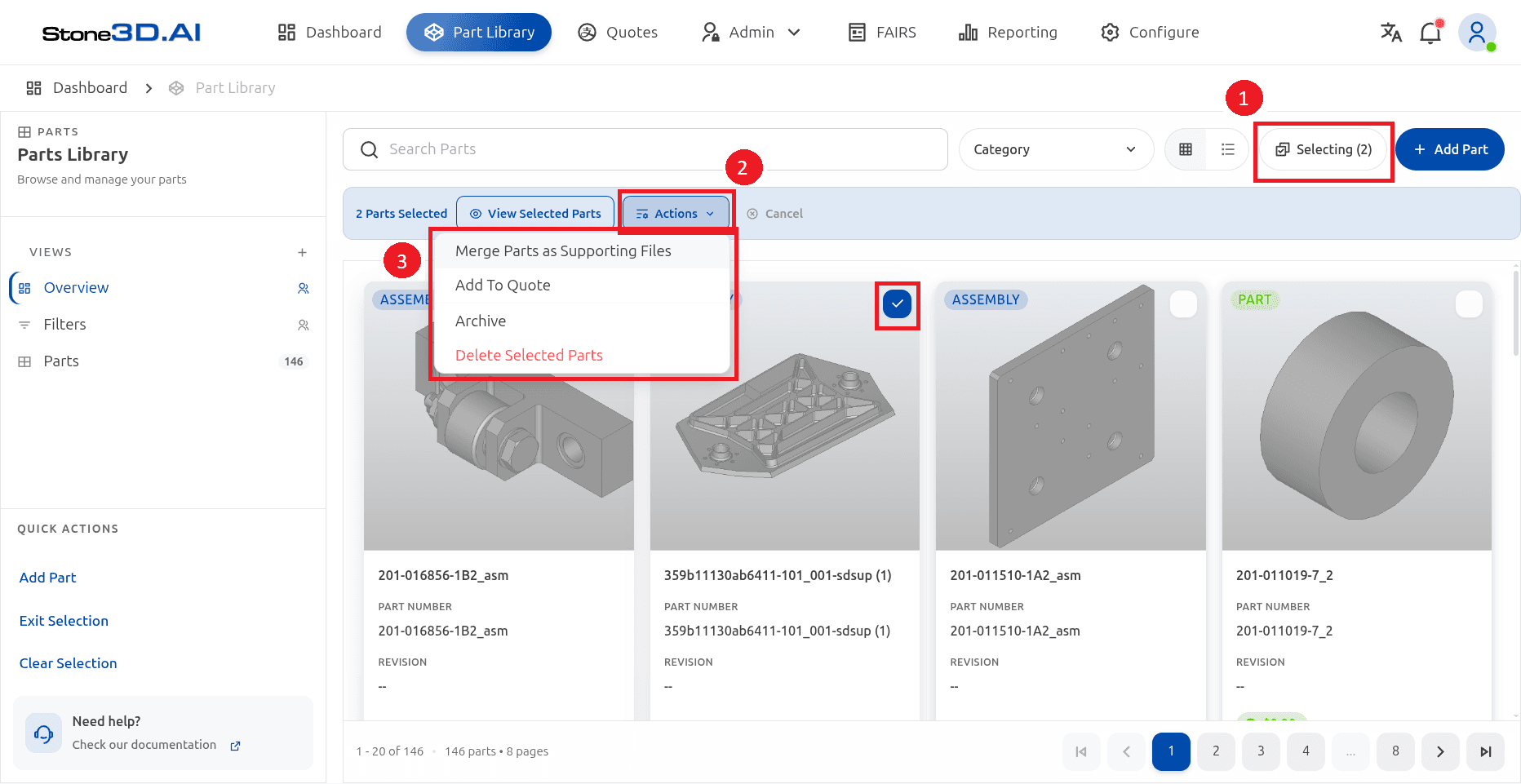
The available actions include:
- Merge Parts as Supporting Files
- Add To Quote
- Archive
- Delete Selected Parts
Select a part to open its Part Details.