Adding and Configuring Parts
Why: A Quote only has value once it’s tied to the specific Part(s) that need to be quoted. Each Part added to a Quote becomes a Line Item — where all Quantity, Pricing, and Lead Time are configured.
How to Add a Line Item
On the Quote screen (Create or Edit), click the Add Line Item button at the bottom-left of the Quote panel. A menu with 4 options appears:
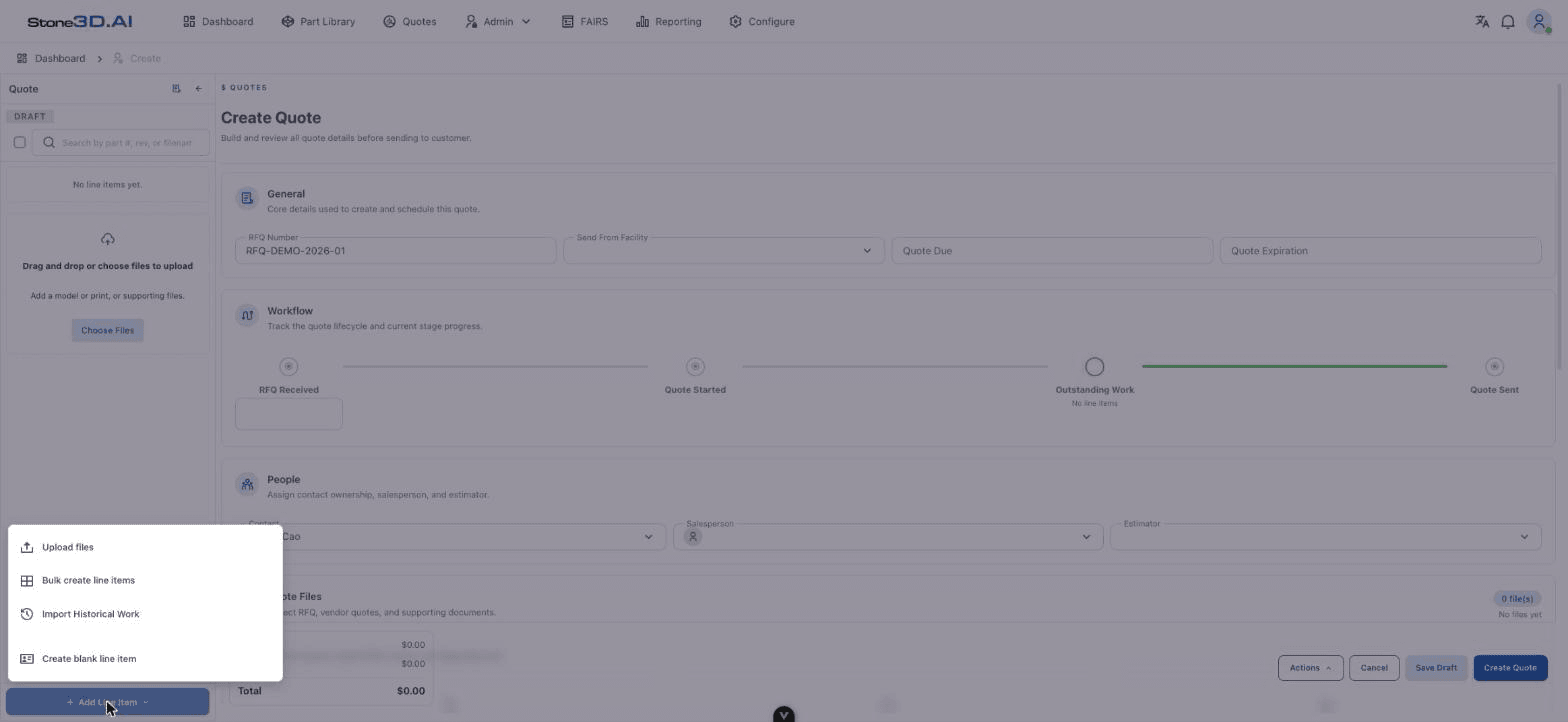
| Option | When to use |
|---|---|
| Upload files | Directly upload a new CAD/drawing file (a part that has never existed in the system) to create the Part and Line Item at the same time. |
| Bulk create line items | Create multiple Line Items at once (e.g. importing from a list of many Parts). |
| Import Historical Work | Find and import a Part or an entire previously created Quote — the best fit when the Part the customer is requesting has been quoted before. |
| Create blank line item | Create an empty Line Item row for manual entry. |
Import Historical Work is the most practical option when the Part already exists in the Part Library or has appeared on another Quote before — it lets you inherit the Part’s data, BOM, and even historical Pricing.
Import Historical Work Process
Open the Import dialog
Select Import Historical Work from the Add Line Item menu.
Find the Part to import
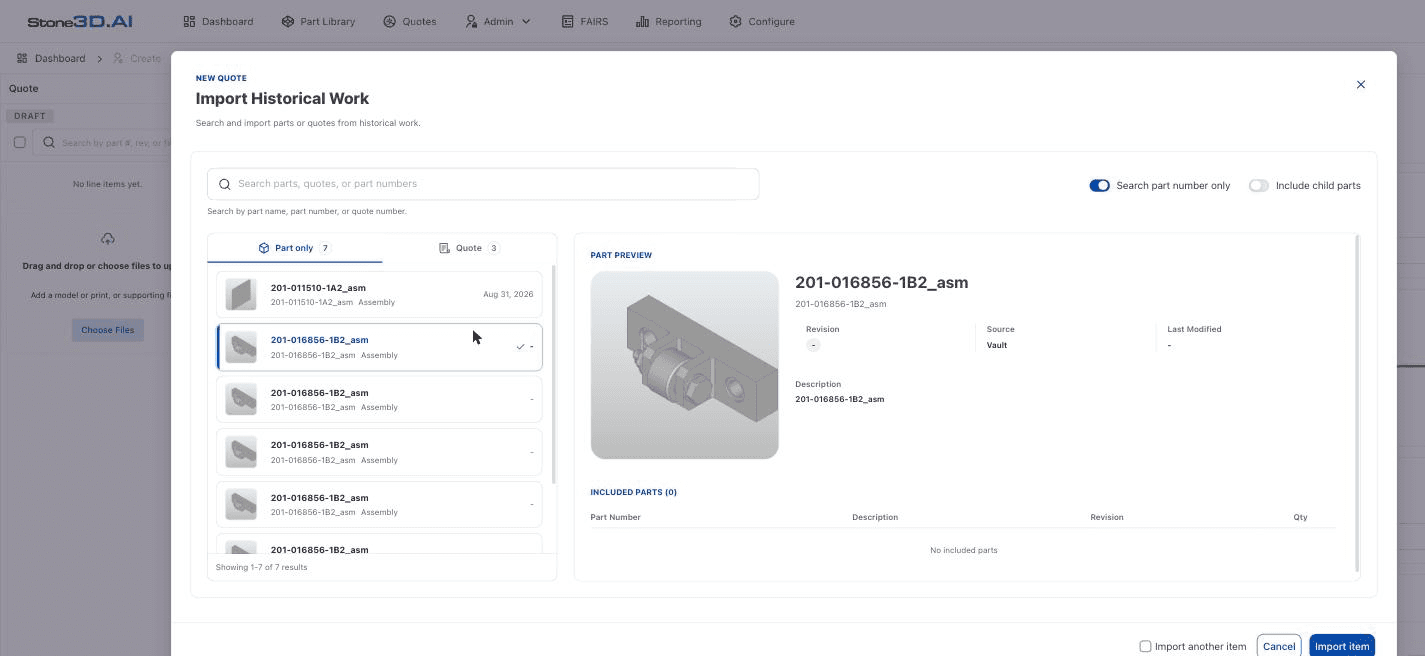
Use the search box “Search parts, quotes, or part numbers”, or select the Part only / Quote tab to filter by type. Two toggles on the right:
- Search part number only — only matches by Part Number.
- Include child parts — also includes an assembly’s child Parts.
Preview the Part
Click a Part in the list to see the Part Preview: 3D model, Revision, Source, Last Modified, Description, and the list of Included Parts (if it’s an assembly with child Parts).
Import the Part into the Quote
Click Import item. If you need to add several Parts in a row, check Import another item before clicking so the dialog stays open after each import.
Result: The Part appears in the left panel as a new Line Item (showing Part Number, Revision, and Part type — e.g. ASSEMBLY), and the Quote’s Subtotal/Total is updated right away based on the Pricing inherited from history (if any).
Line Item Information
After importing, click the Line Item in the left panel to open its detail screen, made up of 6 tabs:
| Tab | Content |
|---|---|
| Overview | Part information (Part Number, Revision, Description), geometry (dimensions, volume, surface area), list of attached files (drawings, 3D models). |
| Process & Materials | Select the machining Process, Material, Requested Finishes; configure Material Operation and Operation (Setup Time / Run Time). |
| Components | The BOM (Bill of Materials) tree if the Part is an assembly — see this chapter below. |
| Costing | A table of estimated cost by category — see Pricing. |
| Pricing | Sell price, markup, discount — see Pricing. |
| Lead Times | Delivery time — see Lead Time. |
The Process & Materials tab is where the machining process and material are selected, and where operations are declared (Material Operation, Operation with Setup Time/Run Time):
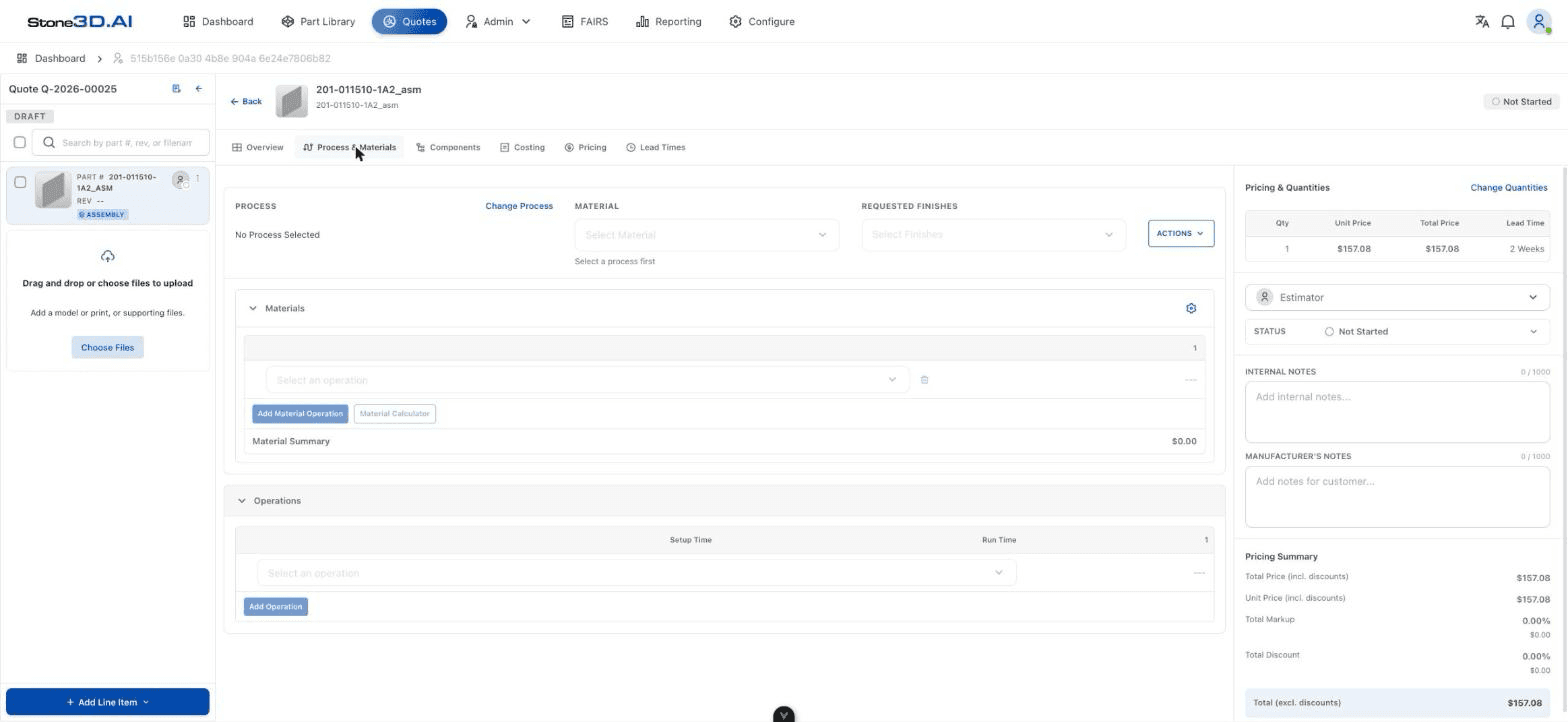
The right panel of the Line Item detail screen always shows:
- The Pricing & Quantities table (Qty / Unit Price / Total Price / Lead Time).
- A dedicated Estimator for the Line Item.
- The Line Item’s Status (see Quote Lifecycle).
- Internal Notes and Manufacturer’s Notes (notes sent to the customer).
- A rolled-up Pricing Summary.
BOM Structure (Components) When the Part Is an Assembly
If the just-imported Part is an assembly, the Components tab shows the full BOM tree:
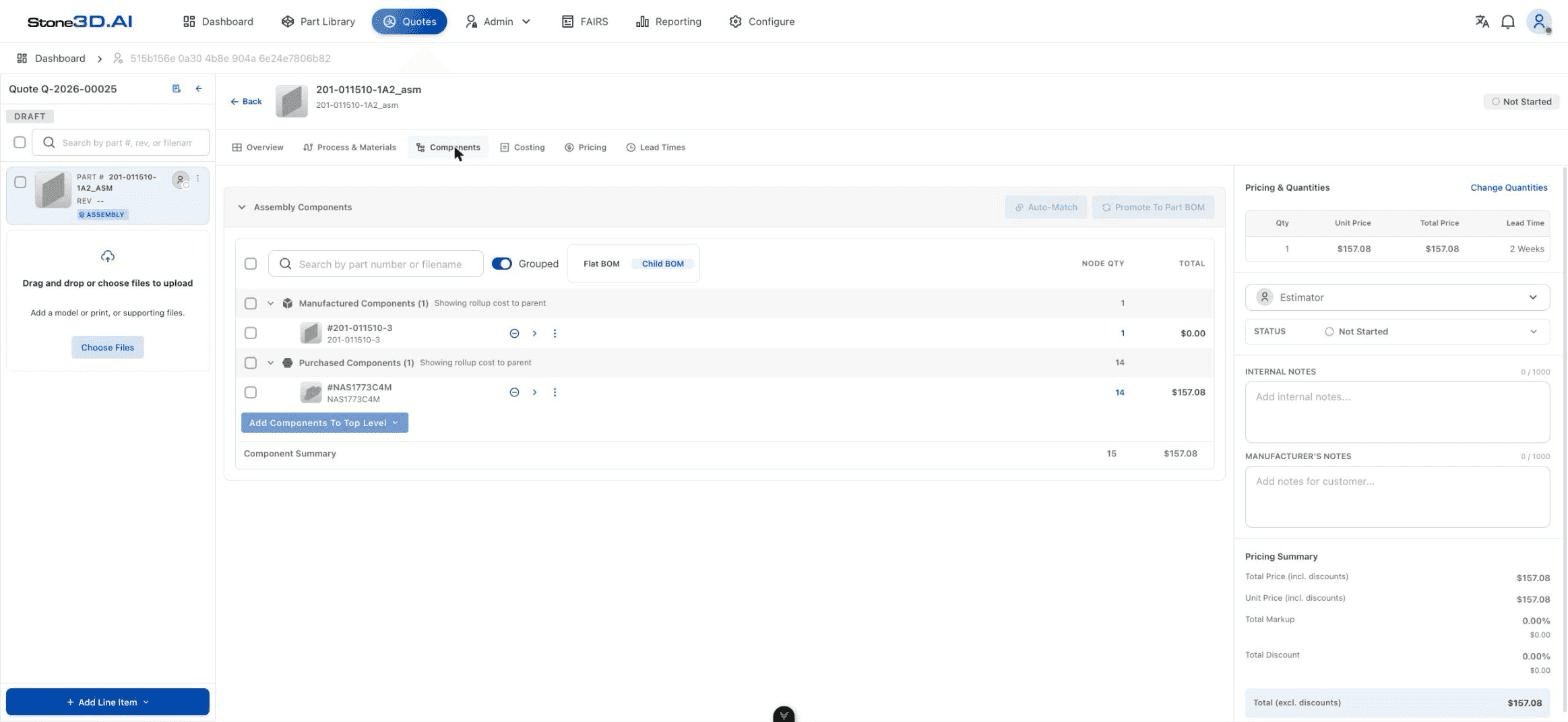
- Manufactured Components — parts manufactured in-house.
- Purchased Components — outsourced/bought-out parts (e.g. bolts, bearings…).
- Toggle Flat BOM / Child BOM to view the BOM as a flat list (all parts at one level) or as a tree by assembly level.
- Component Summary at the bottom of the table shows the total quantity and total cost of the entire BOM.
- The Auto-Match button helps automatically match BOM rows against Parts already in the system; Promote To Part BOM lets you push this BOM structure to become the Part’s official BOM in the Part Library.
Result: Which Part is being quoted, with which quantity and BOM structure, is now clear — ready to move on to configuring Quantity and Pricing.