Add a New Part
To add a new part, select Add Part from the Part Library.
The Add Part workflow consists of two steps:
- Upload the required files.
- Enter the part information and material.
Upload Part Files
In the Upload step, add the files associated with the part.
You can either:
- Drag and drop files into the upload area.
- Select Choose Files and select files from your computer.
Stone3D.AI supports CAD and supporting file formats, including STEP, STL, PDF, PNG, JPG, and other supported formats.
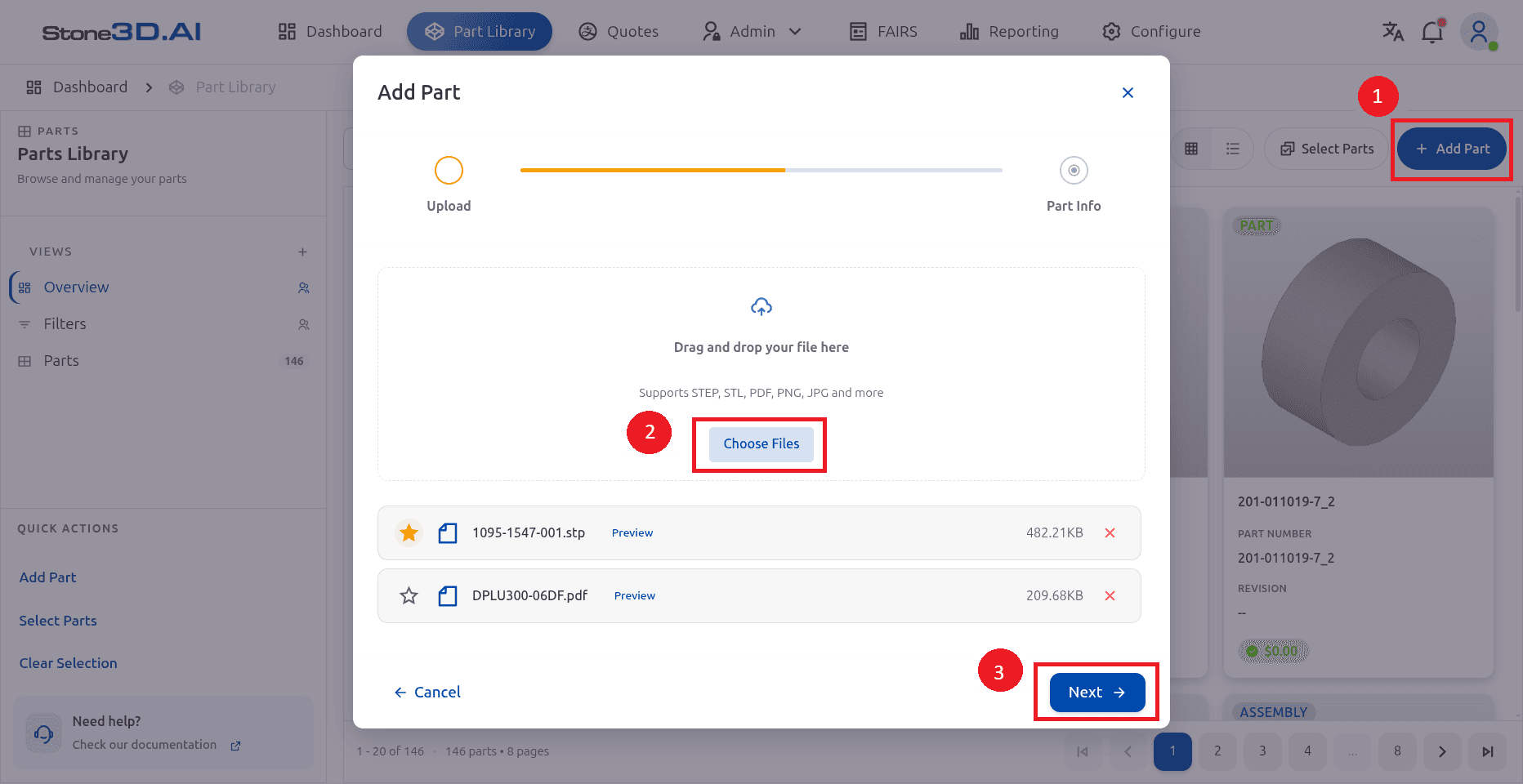
- Select Add Part to open the Add Part dialog.
- Select Choose Files or drag and drop files into the upload area.
- Select Next to continue to Part Information.
Enter Part Information
After uploading the files, enter the basic information for the part.
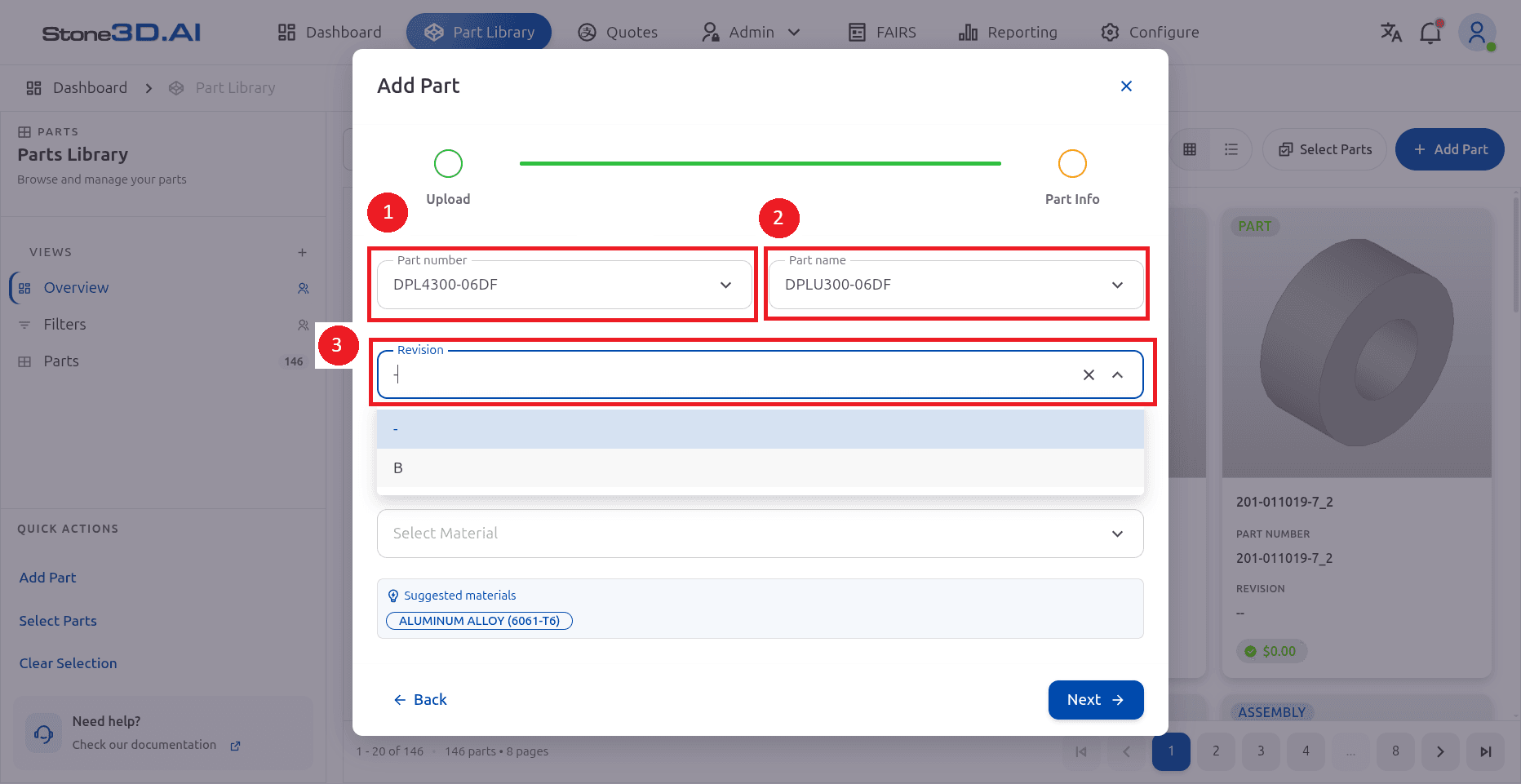
The available fields include:
- Part Number – identifies the part.
- Part Name – specifies the name of the part.
- Revision – identifies the part revision.
- Material – specifies the material associated with the part.
Select Next to continue.
Select Material
Select the material associated with the part.
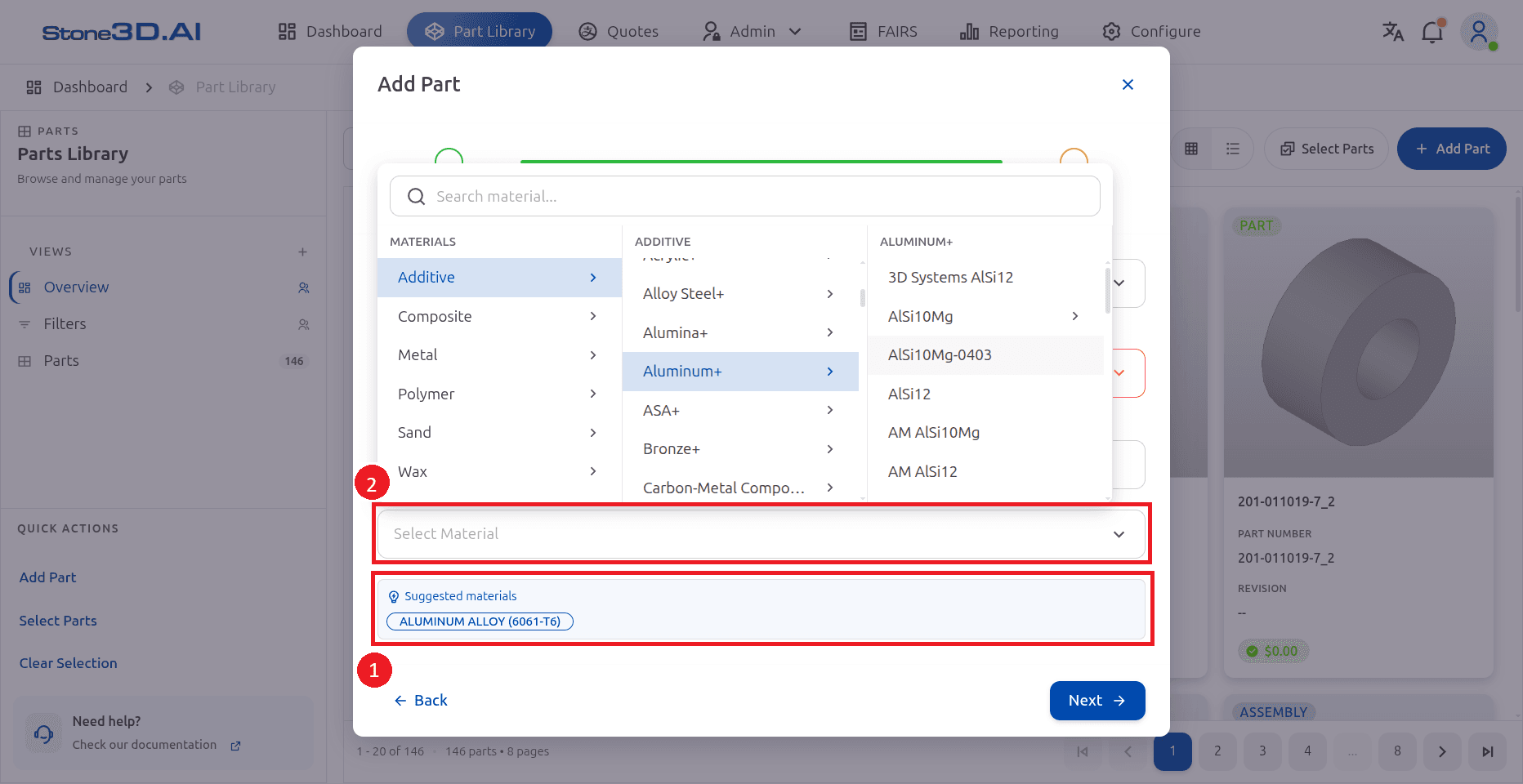
The material selector provides a hierarchical list of materials. You can:
- Search for a material.
- Browse material categories.
- Select a material from the available material list.
- Use a suggested material when available.
After selecting a material, the selected material is displayed in the Select Material field.
Select Next to continue.
Result: the part is added to the Part Library, ready to be reviewed, opened, or added to a quote.
Last updated on